
Usage
The usage bar tells you how much of your plan is used. The Usage view tells you what used it: which sessions, projects and models, in the current 5-hour window, the last 24 hours, or the last 7 or 30 days. It counts every session, also the ones you started with claude in a terminal.
It shows tokens and shares, and what they would cost at API prices. Your plan is a subscription, so that is only an estimate: see Estimated cost.
Open it
Section titled “Open it”- Click a usage bar: the one under the message box, the one in New session, or a profile’s card on Home. The view opens for that bar’s profile. The bar’s tooltip says Click to see what used it.
- In the command palette: Open usage. It has no key by default.
It opens in the window like Home. Back or Escape returns to where you were, and so does your mouse’s back button.
The header
Section titled “The header”- The profile menu picks whose usage you see. Each profile has its own login and limits. Profiles that share a config folder are counted once. See Claude profiles.
- Plan usage updated 1m ago says when the plan numbers were last checked. The refresh button checks now.
- Limits and Tokens are the two tabs. The period on the right applies to both: Current window (5h), 24 hours, 7 days or 30 days. Switchboard remembers the tab and the period.
- With other computers paired, This MacThis PC and All computers pick whose tokens count. See Tokens on other computers.
| Keys | Does |
|---|---|
| Command, 1Control, 1 | Show Limits |
| Command, 2Control, 2 | Show Tokens |
| 1 to 4 | Pick a period |
| Escape | Back to where you were |
Limits
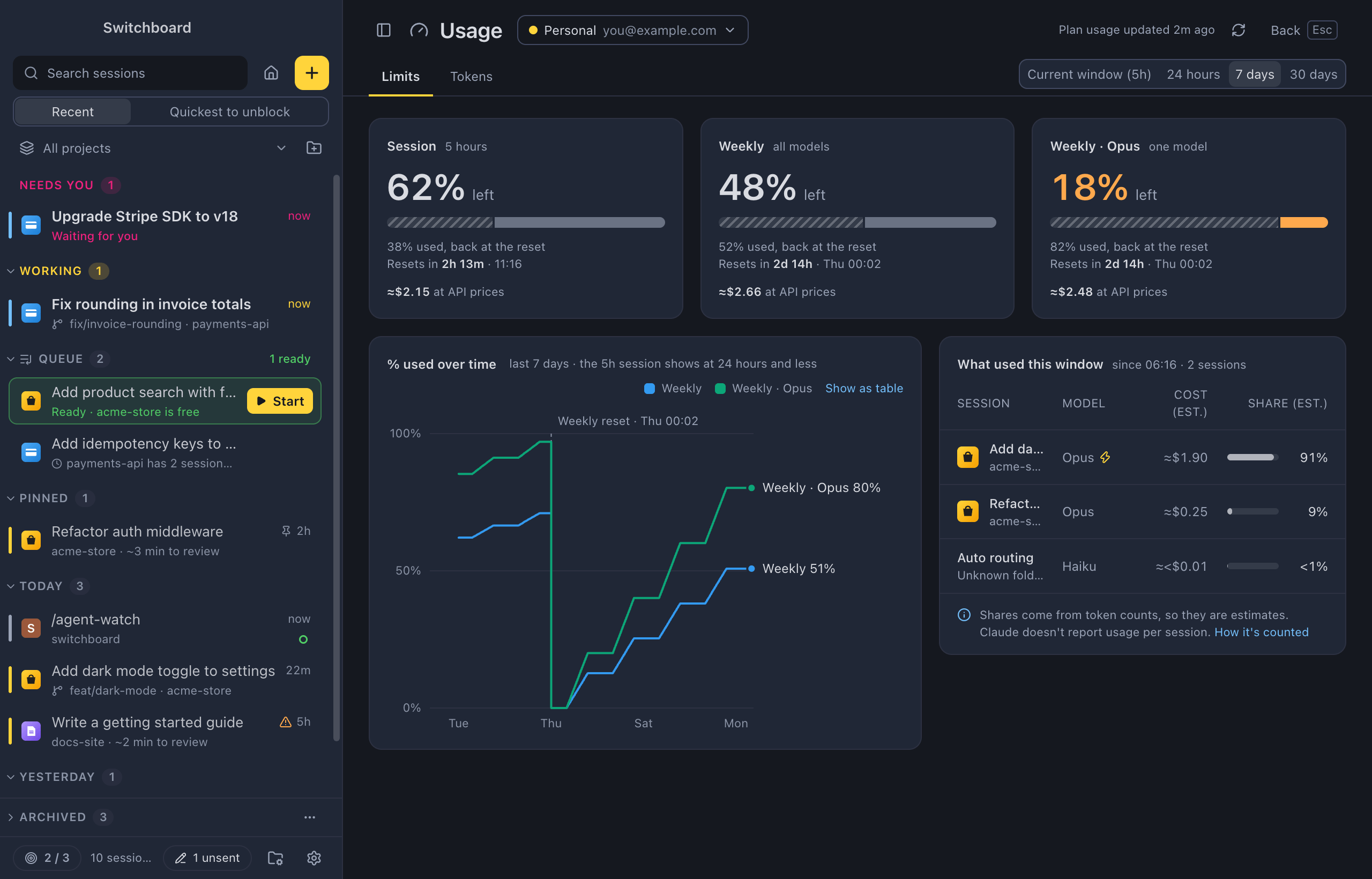
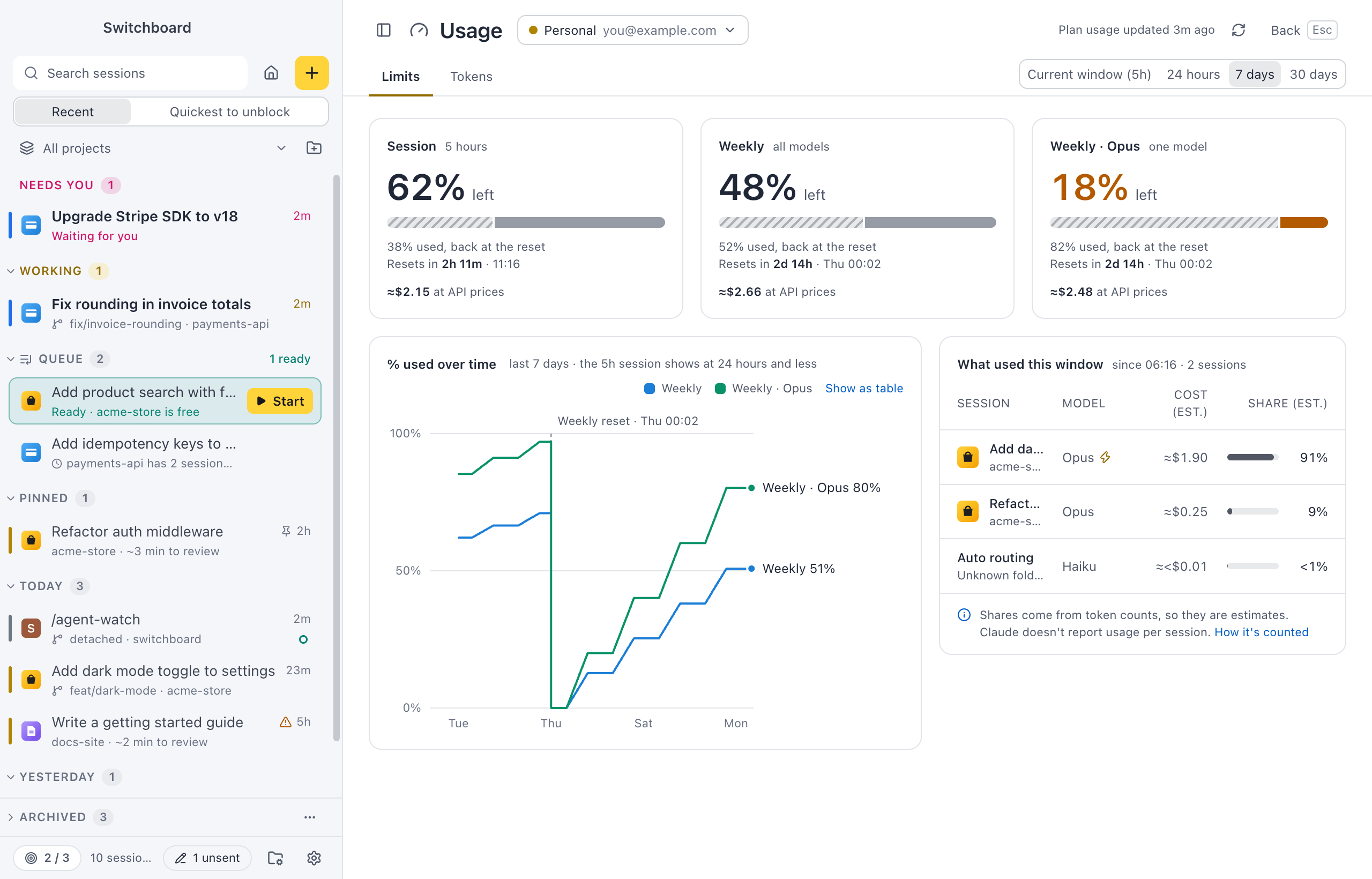
Section titled “Limits”One card per plan window: Session (5 hours), Weekly (all models) and a model’s own weekly limit when you use it, such as Weekly · Opus.
- The large number is what is left.
- The bar’s striped part is what you used. It comes back at the reset.
- Under the bar: how much is used, and when the window resets, such as Resets in 2h 14m · 19:30.
A card turns orange when 20% or less is left.
% used over time
Section titled “% used over time”A line per window shows how its % used went up, with a dashed line at each reset. Hover the chart to read every line at that moment. At 7 and 30 days the chart shows only the weekly windows; the 5-hour session shows at 24 hours and less.
Switchboard records your plan % each time it checks, so the chart starts the day you install this version. The subtitle says when, such as recorded since Oct 12. Until there is something to draw, the chart says History starts now. At 7 and 30 days it waits for a day of readings; pick 24 hours to see them sooner.
What used this window
Section titled “What used this window”The sessions that used the current 5-hour window, with their project, model and share. The top five are listed, the rest fold into one line. Click a session to open it. With All computers, sessions on your other computers are listed too, with the computer’s name.
Tokens
Section titled “Tokens”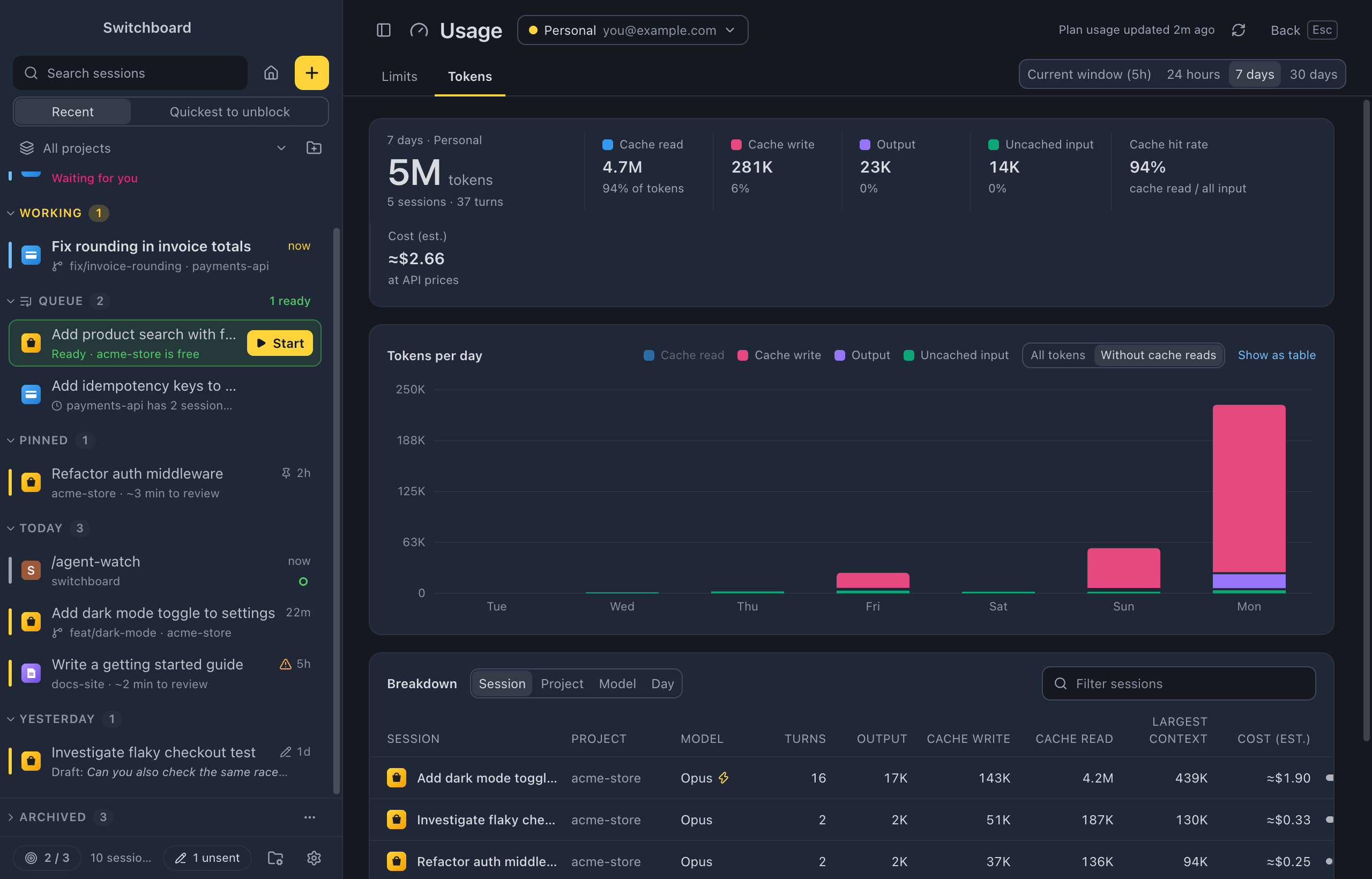
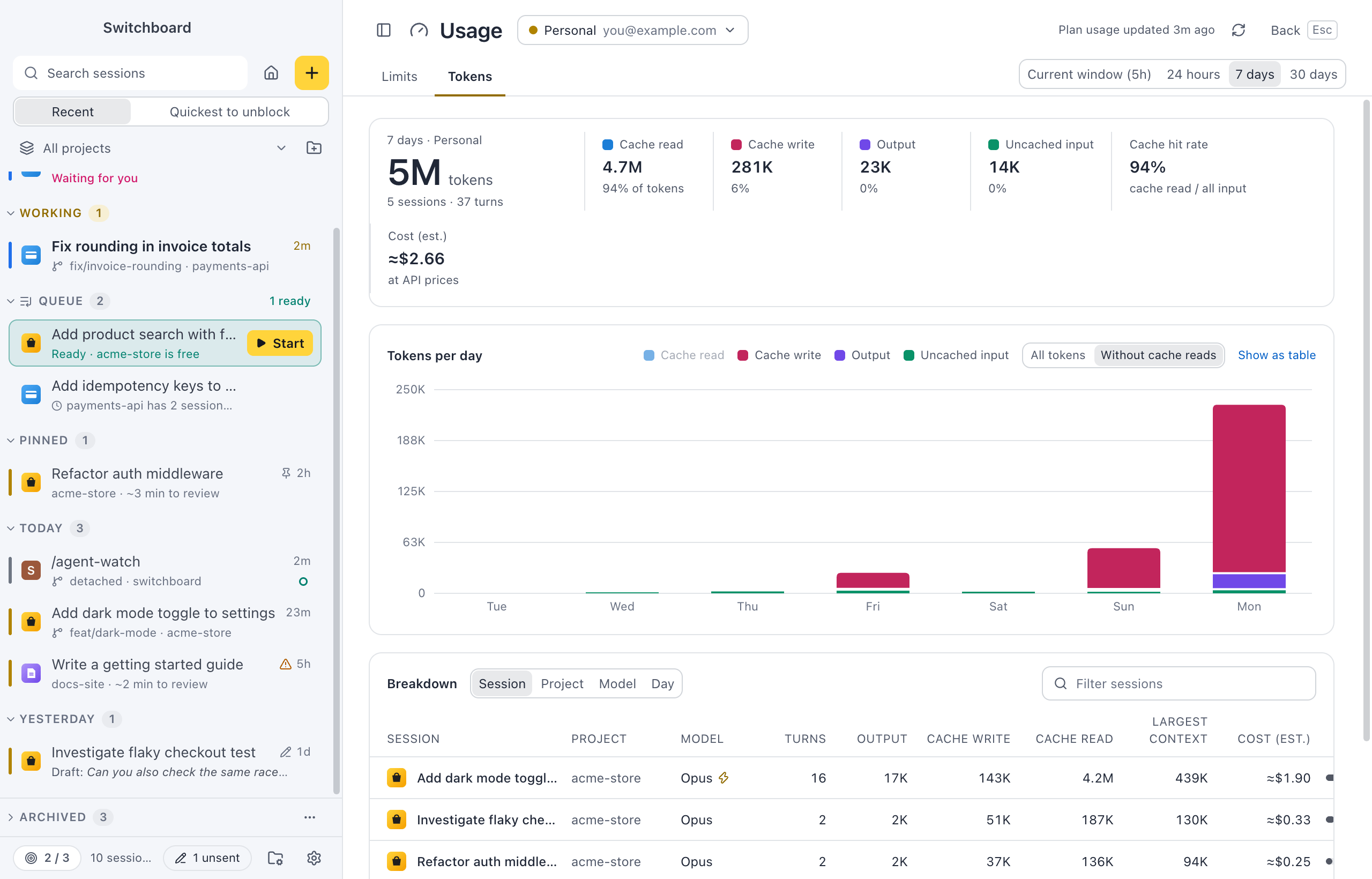
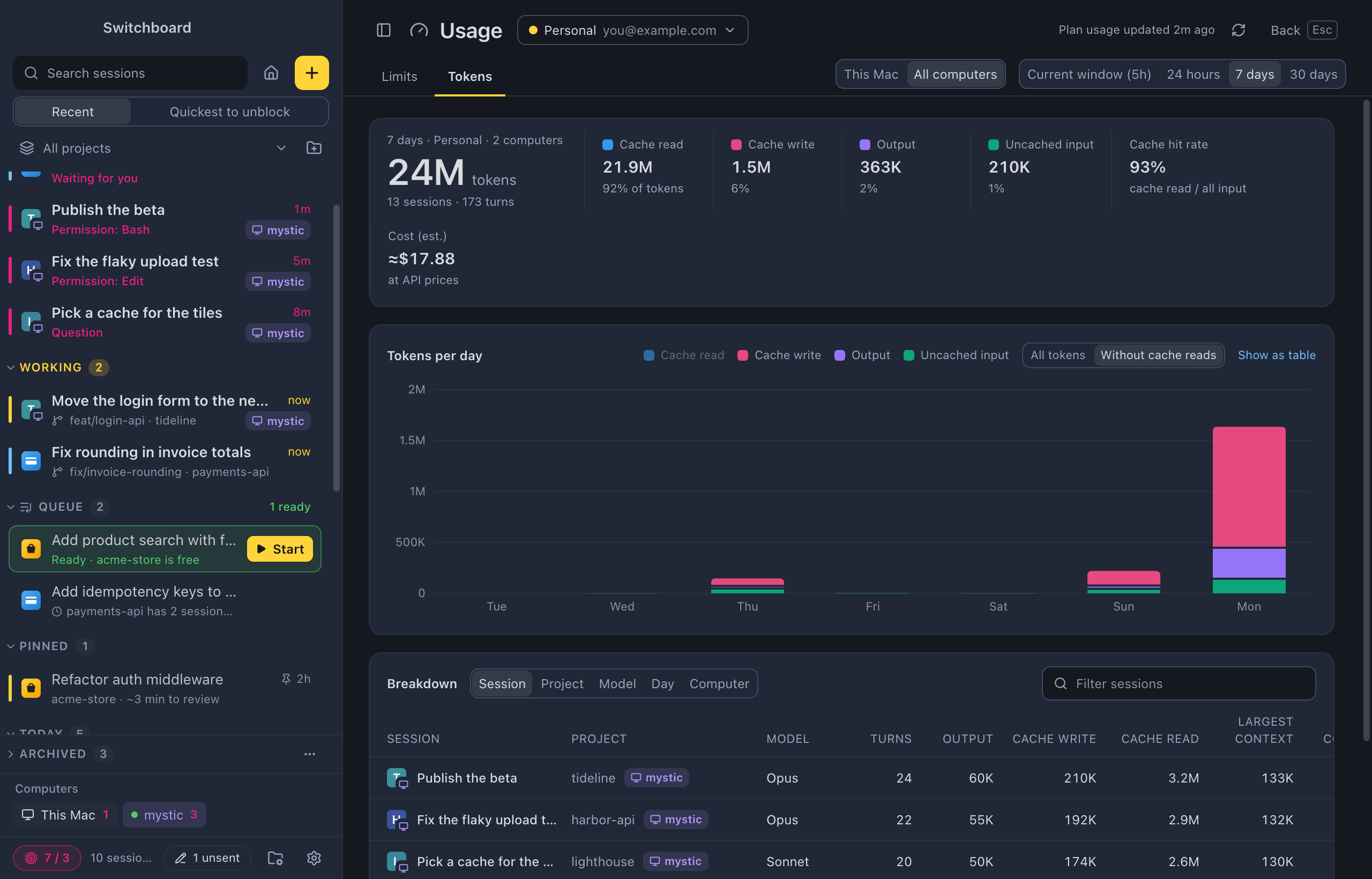
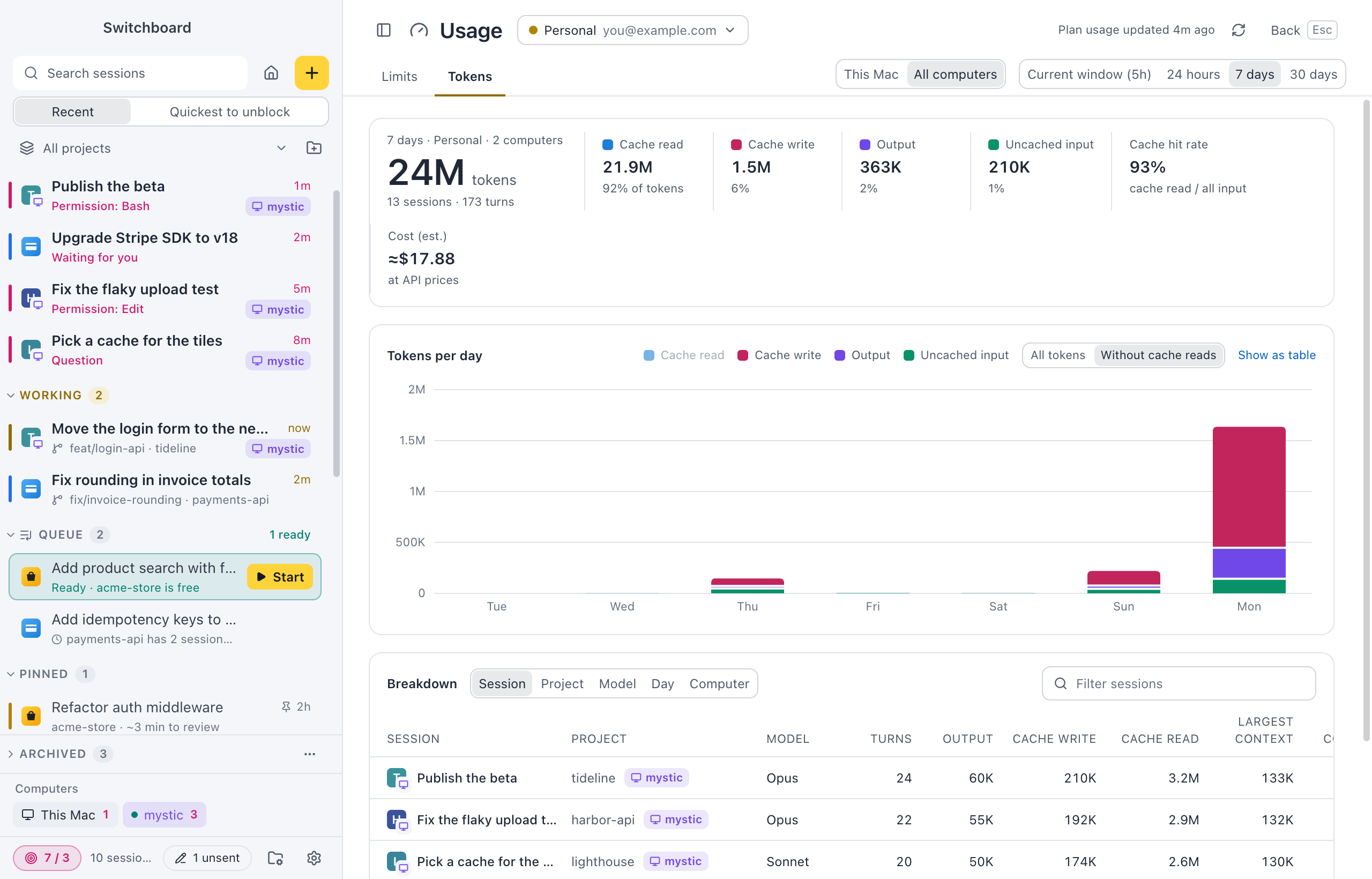
- The totals: all tokens in the period, the sessions and turns, and each type of token with its part of the whole.
- Cache hit rate: cache reads out of all input. A low rate means the cache keeps being rebuilt, for example after a long break in a session.
- Tokens per day (per hour for 5 hours and 24 hours), stacked by type. Cache reads are most of the tokens and would hide everything else, so the chart starts at Without cache reads; All tokens adds them. Hover a bar to see every type for that day.
Each chart has Show as table for the same numbers as a table.
Breakdown
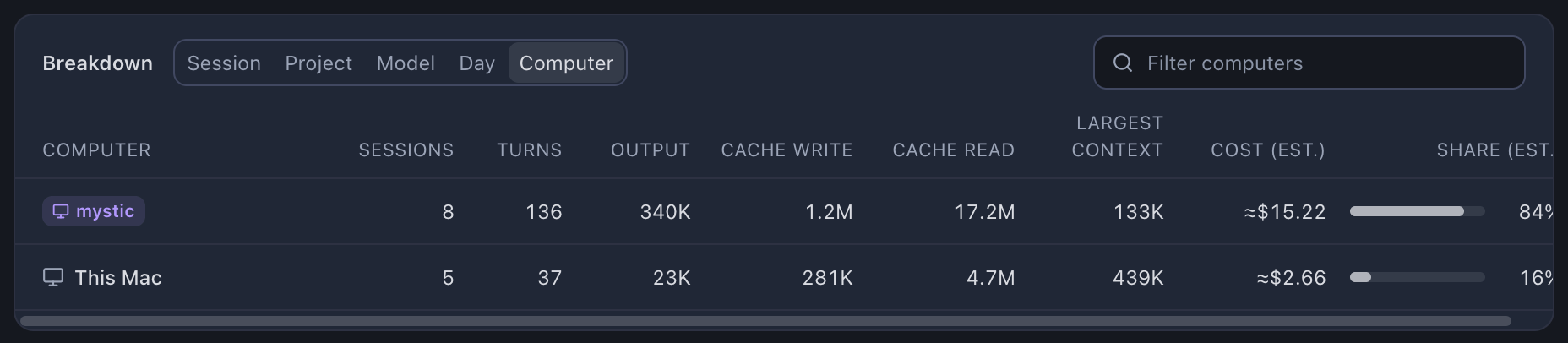
Section titled “Breakdown”Group the tokens by Session, Project, Model or Day, and filter the list by name, project, model or computer. With All computers, there is also Computer.
- The session rows show the turns, output, cache write, cache read, the largest context of one turn, and the share. A bolt marks sessions with fast mode turns, which use the plan faster.
- Click a session to open it.
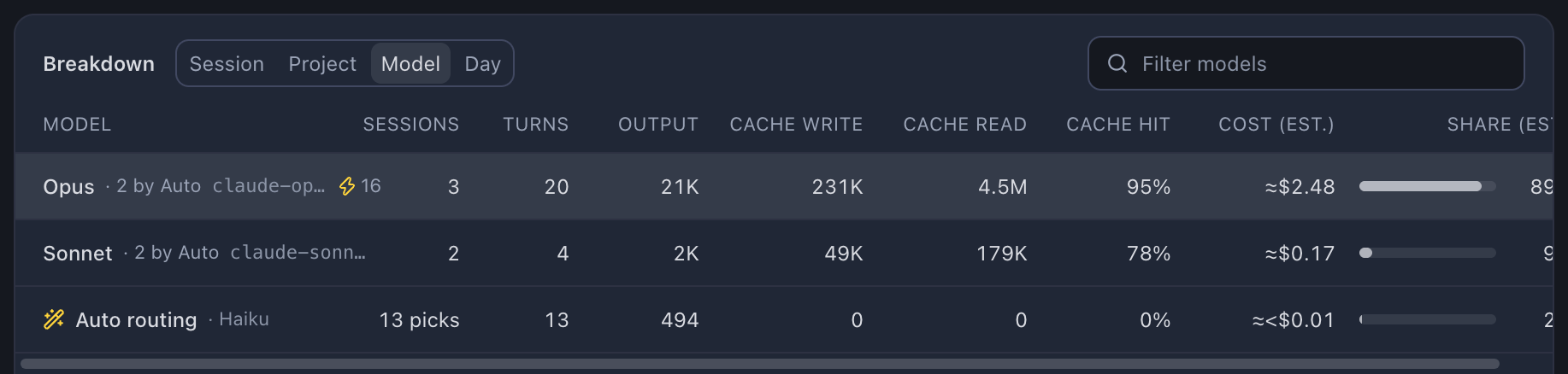
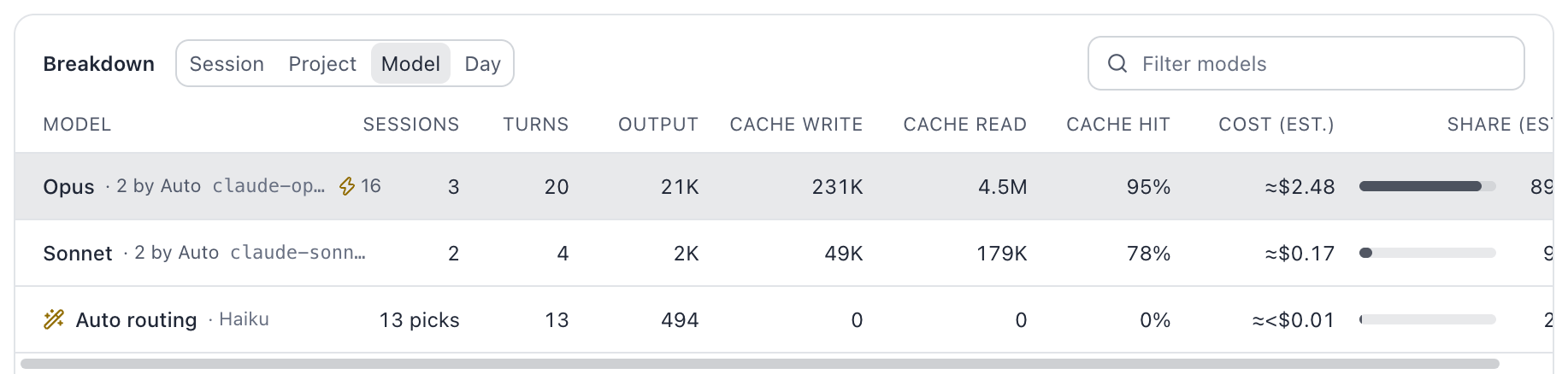
- With Auto model, each model’s row says how many of its sessions Auto picked (“11 by Auto”), and Haiku’s routing calls get their own row, Auto routing, with how many picks it made.
- Questions you ask with Ask about this session get their own row, Side questions, with how many there were. Claude answers them from a short-lived copy of the session, which leaves no transcript, so Switchboard counts their tokens itself.
- The Haiku calls that write catch-up summaries get their own row too, Catch-up summaries, with how many there were.
- Click a model for its tokens, sessions, fast mode turns, largest context, and its cache hit rate over the period.
Tokens on other computers
Section titled “Tokens on other computers”Your plan’s limits belong to your account, not to one computer. When you use Claude Code on more than one computer, the Usage view can count them all. Pair the other computers first: see Other computers.
With a computer paired, the header shows This MacThis PC and All computers. All computers is the default, and Switchboard remembers your choice.
- A profile here counts with the profile on the other computer that signs in to the same claude.ai account. Switchboard never sends the account itself: it sends a code made from it, and the other computer answers only for a profile with the same account.
- The totals, the chart and What used this window add up every computer. The totals line says how many computers count, such as 7 days · Personal · 2 computers.
- In the breakdown, sessions and projects on another computer have its name in violet, next to the project. Click such a session to open it, as long as that computer lists it.
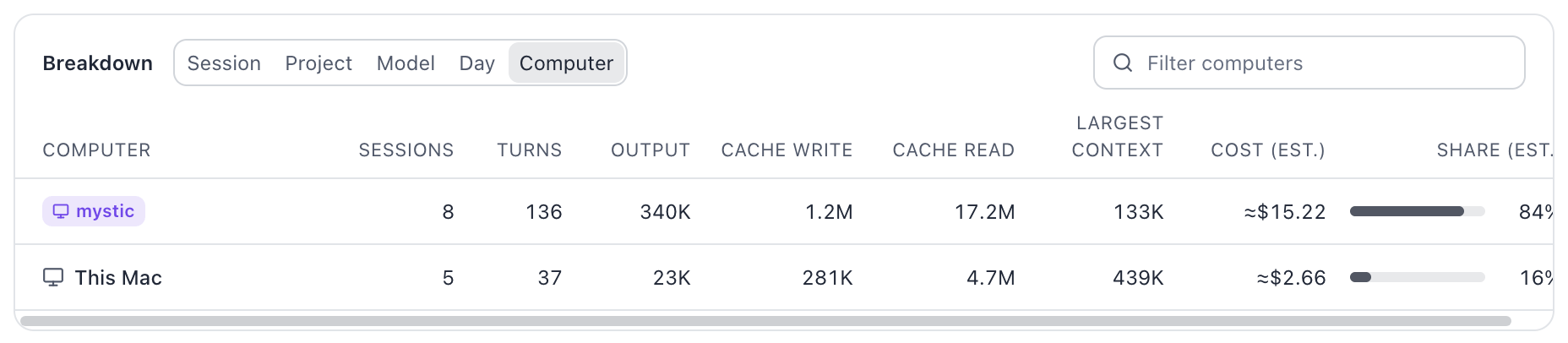
- Model and Day add up every computer in one row. Computer has a row for each computer, with its share of the tokens.
- A computer that is offline, runs an older Switchboard, or has no profile on the same account isn’t counted. A note above the totals says which one and why, such as Not counted: mystic is offline.
A profile that isn’t signed in to a claude.ai account (an API key, for example) can’t be matched, so only this computer counts.
How shares are counted
Section titled “How shares are counted”Claude doesn’t report usage per session, so every Share (est.) is an estimate. Click the column’s header for how it works:
- Tokens weigh differently against your plan. Compared to input, a cache write counts 1.25×, a cache read 0.1× and output 5×.
- When only one session ran, the share uses the measured change in plan % (from Claude Code’s rate-limit updates during that session’s turns). Otherwise it is the estimate.
- With All computers, the shares are split over the sessions of every computer the same way.
A share is a session’s part of the period’s activity, never a part of a limit.
When you hit a limit
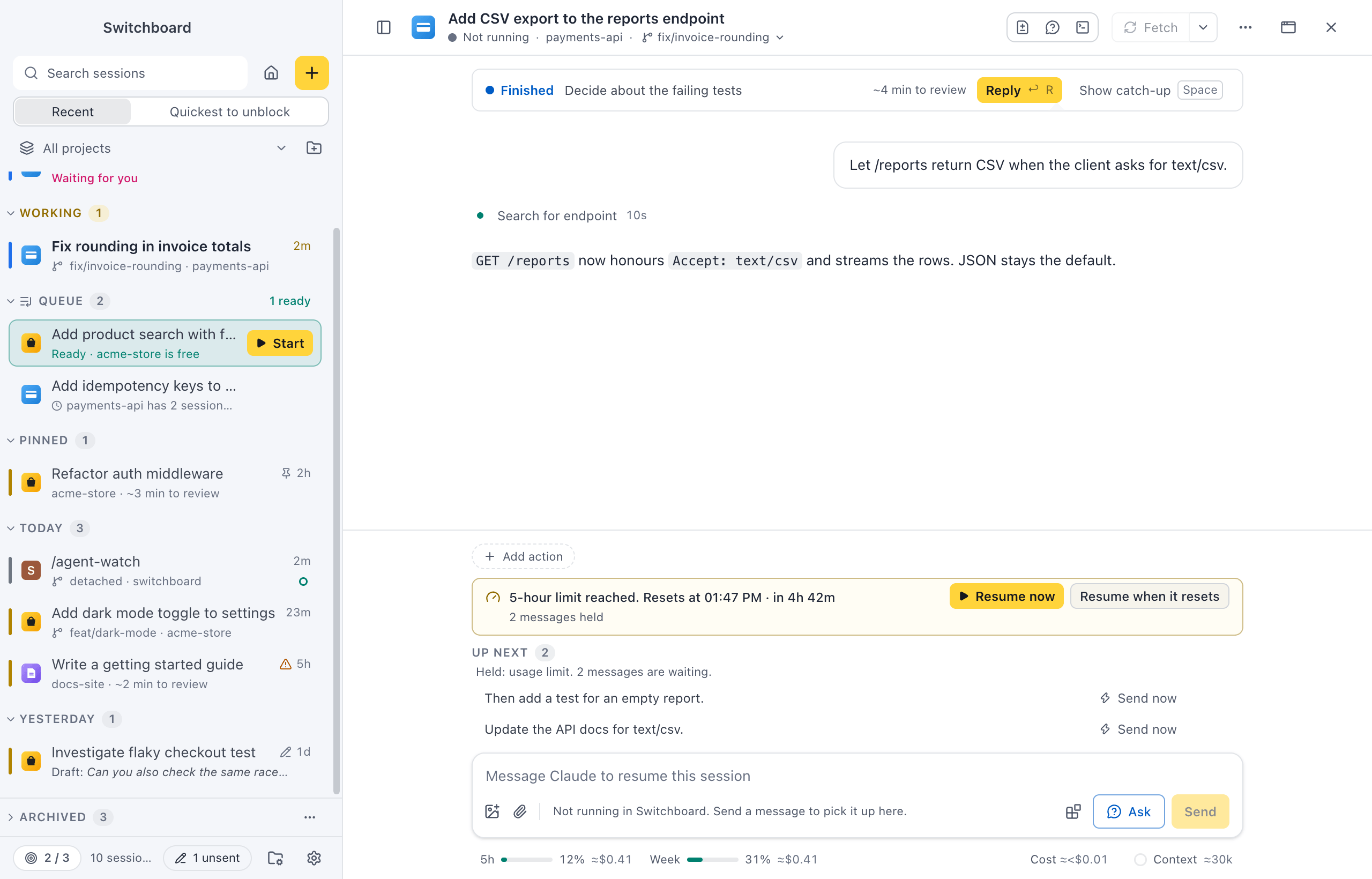
Section titled “When you hit a limit”When a session stops because your plan’s usage limit is reached, a notice above its message box says which limit, when it resets and how long that is: 5-hour limit reached. Resets at 15:16 · in 4h 42m. The countdown keeps up as you wait. When Claude Code gives no reset time, the notice only says the limit was reached.
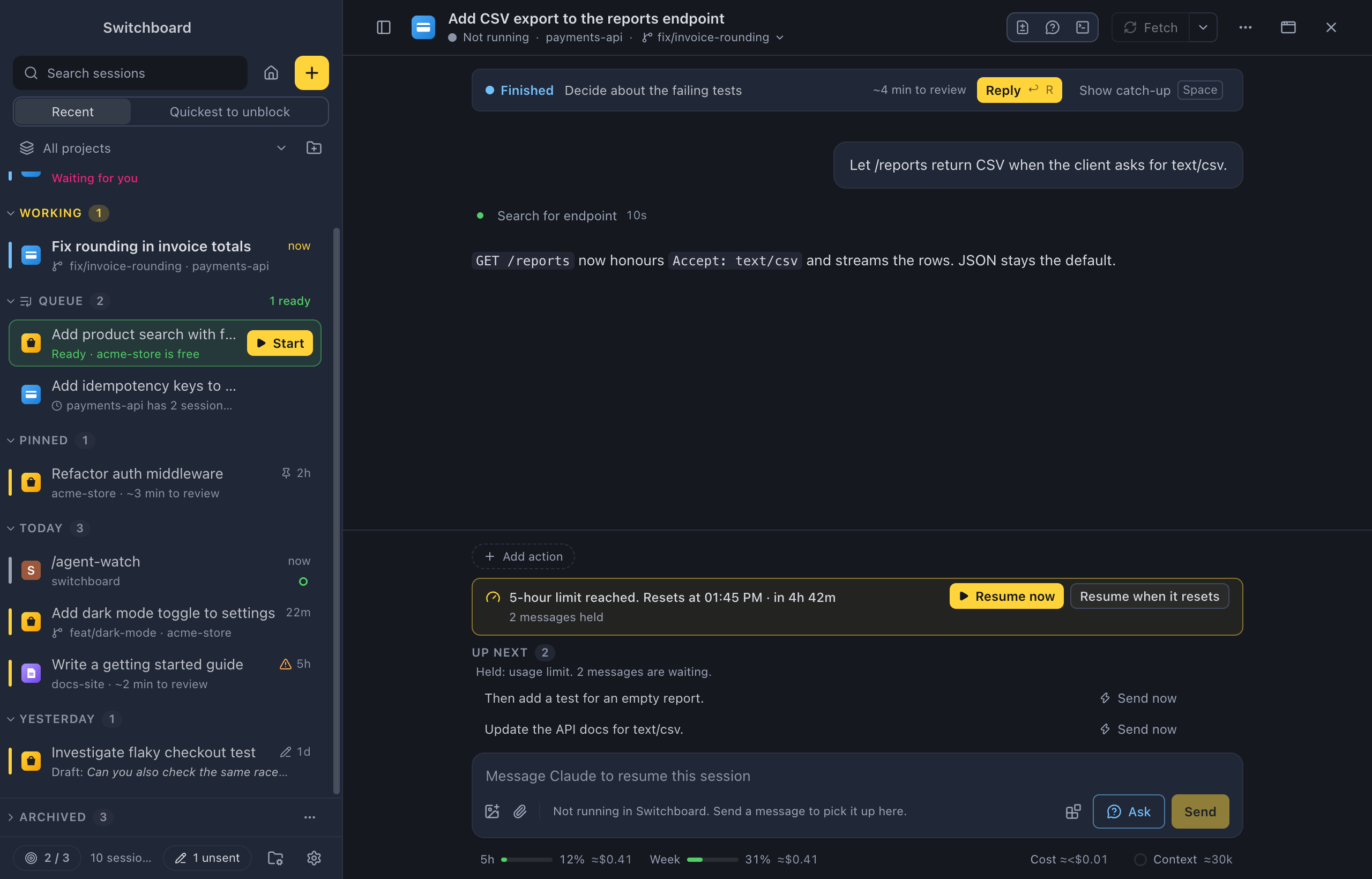
- Resume now sends Claude Continue where you left off. right away.
- Resume when it resets sends the same message by itself, 30 seconds after the reset (right at the reset, Claude can still refuse). The notice then says Resumes at 15:16, with Cancel. It also works when you quit Switchboard in between: the session resumes when you open it again. If the limit still holds when it tries (the reset moved), it waits for the new reset, three times at most, and then says it couldn’t resume.
- You get a notification when a session resumes this way, Resumed after the usage limit reset, and one when a limit stops a session, Usage limit reached.
The limit belongs to your Claude profile, not to one session. While it holds:
- Messages in a session’s Up next wait instead of being sent into the limit. Up next says Held: usage limit, and the notice says how many are held. Resuming lets them go once a turn gets through.
- Other sessions of the same profile show the limit above their message box too.
- The queue holds new sessions for that profile until the reset.
- Sessions of another profile go on as usual.
To have every stopped session resume by itself, set Resume after a usage limit resets to Always in Settings › Conversation.
With an API key, Amazon Bedrock or Google Vertex there are no plan limits, so none of this shows.
Estimated cost
Section titled “Estimated cost”Switchboard shows what your tokens would cost at Anthropic’s API prices. Your plan is not billed per token, so this is never a charge. It tells you what the same work would cost on the API.
- The usage bars under the message box and in New session, after each window’s %: 5h 38% ≈$4.10 · Week 52% ≈$61. Hover a bar for each window’s estimate.
- A session’s cost next to Context under its message box: Cost ≈$12.40, everything the session used since it started, its agents included. A session on another computer shows it too, as that computer counts it.
- The Limits cards: each window’s cost, such as ≈$4.10 at API prices.
- The Tokens tab: a Cost (est.) tile with the period’s total, and a Cost (est.) column for each session, project, model, day or computer, also in the N more line. A model’s panel says its cost, and Show as table under the chart has the cost of each hour or day.
- What used this window on the Limits tab: each session’s cost.
How it is counted:
- Each window counts from when it started: 5 hours before the 5-hour window resets, 7 days before the weekly one resets. A model’s own weekly limit, such as Weekly · Opus, counts only that model’s tokens.
- Every model is priced at its own list price: input, output, cache writes and cache reads. A write to the hour-long prompt cache costs more than one to the 5-minute cache, and each reply says which it used. Fast mode’s higher price isn’t counted.
- The calls Switchboard makes itself, such as Auto model routing and catch-up summaries, are counted too.
- Your plan counts every computer you use it on, so the usage bars and the Limits cards add up the same windows on your paired computers that sign in to the same account. Hover a bar to see which computers count, such as Counts This PC and mystic, and which don’t and why, such as Not counted: studio is offline. A computer counts once it runs this version of Switchboard. The Tokens tab adds up your other computers with All computers.
- Totals are kept per hour, so the window’s first hour counts whole. The estimate can be a little high early in a window.
- In a narrow pane the estimates in the bars and next to Context hide first.
- With All computers, a computer on an older Switchboard sends no cost: its rows stay blank, and the Cost (est.) tile says which computer is left out, such as at API prices, without mystic.
Turn it off, hide it on the usage bars only (Show it on the usage bars), or pick the currency, in Settings › Usage. Other currencies are converted from US dollars at fixed exchange rates.
Where the numbers come from
Section titled “Where the numbers come from”- Tokens come from Claude Code’s transcripts, in each profile’s config folder. Each answer from Claude counts once, also when Claude Code writes it on several lines. Subagents count for the session that started them.
- Claude Code deletes old transcripts after a while (30 days by default). The totals Switchboard counted stay, so 30 days stays complete.
- The plan % comes from the same check as the usage bar. No extra checks are made for this view.
Related
Section titled “Related”- Claude profilesUse more than one Claude account in Switchboard, such as a personal plan and a work one.
- Auto modelLet Haiku read the first prompt of a new session and pick Haiku, Sonnet or Opus for it. Picked once, shown in the session, easy to undo.
- Focus limitSet how many sessions you want going at the same time, and get asked before you start one more.
- Model, effort and modeThe chips under the message box that set the profile, model, effort and permission mode of a session.