
Other computers
Your sessions run on your desktop, and you sit at your laptop. Pair the two, and the desktop’s sessions show in your laptop’s sidebar, next to its own. Claude keeps running on the computer that has the session; you follow and steer it from the other one.
Switchboard on another computer pairs with this one as a phone does, through Remote.
Set it up
Section titled “Set it up”The computer that runs the sessions needs Remote on, with a tunnel: see Choose a tunnel and Pair a device.
- On the computer that runs the sessions, turn Remote on, click Pair a device, then Copy link.
- On the other computer, open Settings → Remote (or Connect to another computer… in the command palette), paste the link under Other computers and click Connect.
- Both computers show the same 6 digits. Click Allow on the first one if they match.
The computer you paired shows under Paired devices on the first one, like a phone, and under Connected to this MacConnected to this PC while it is connected. See Who is connected now.
Its sessions in your sidebar
Section titled “Its sessions in your sidebar”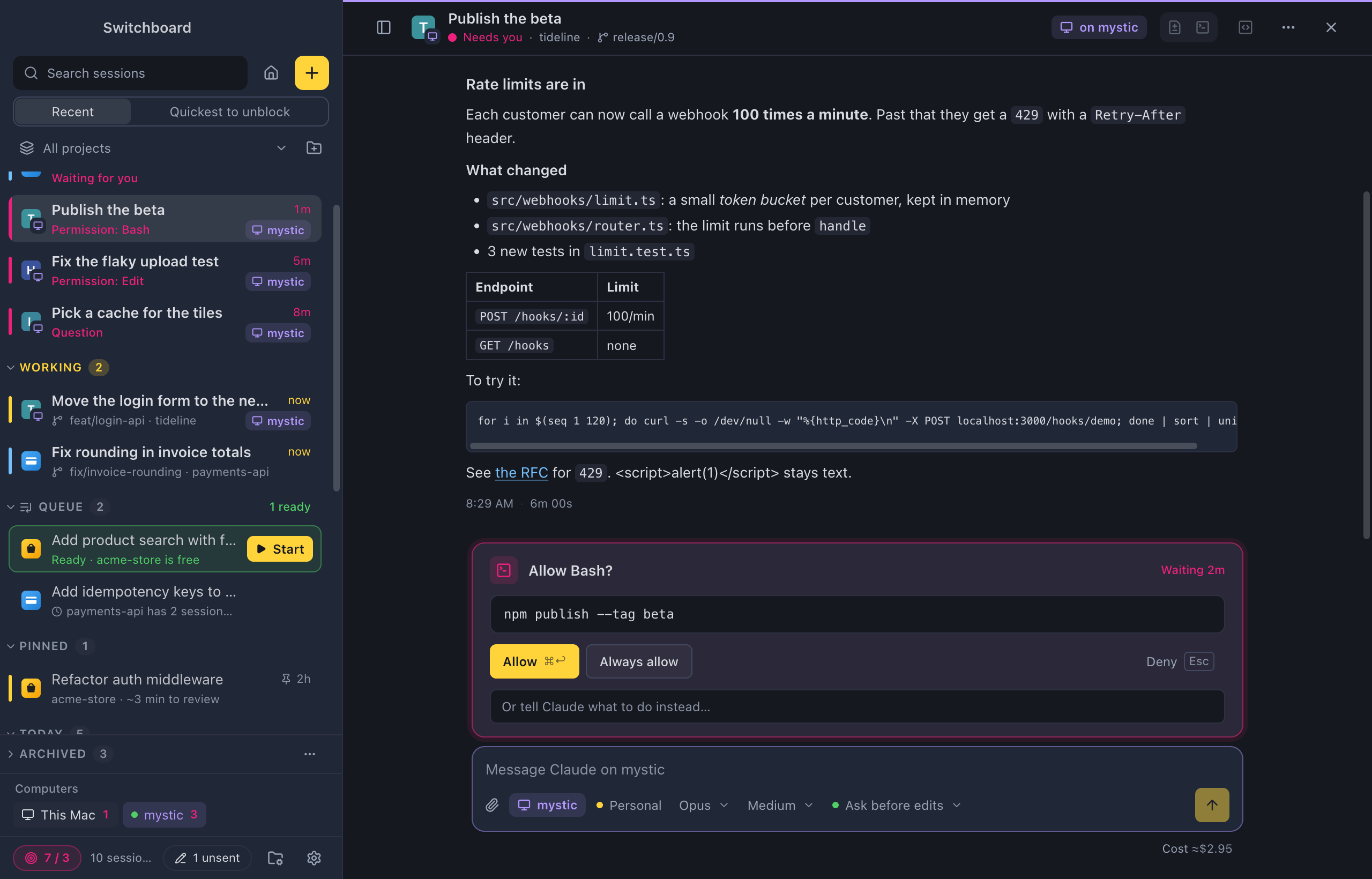
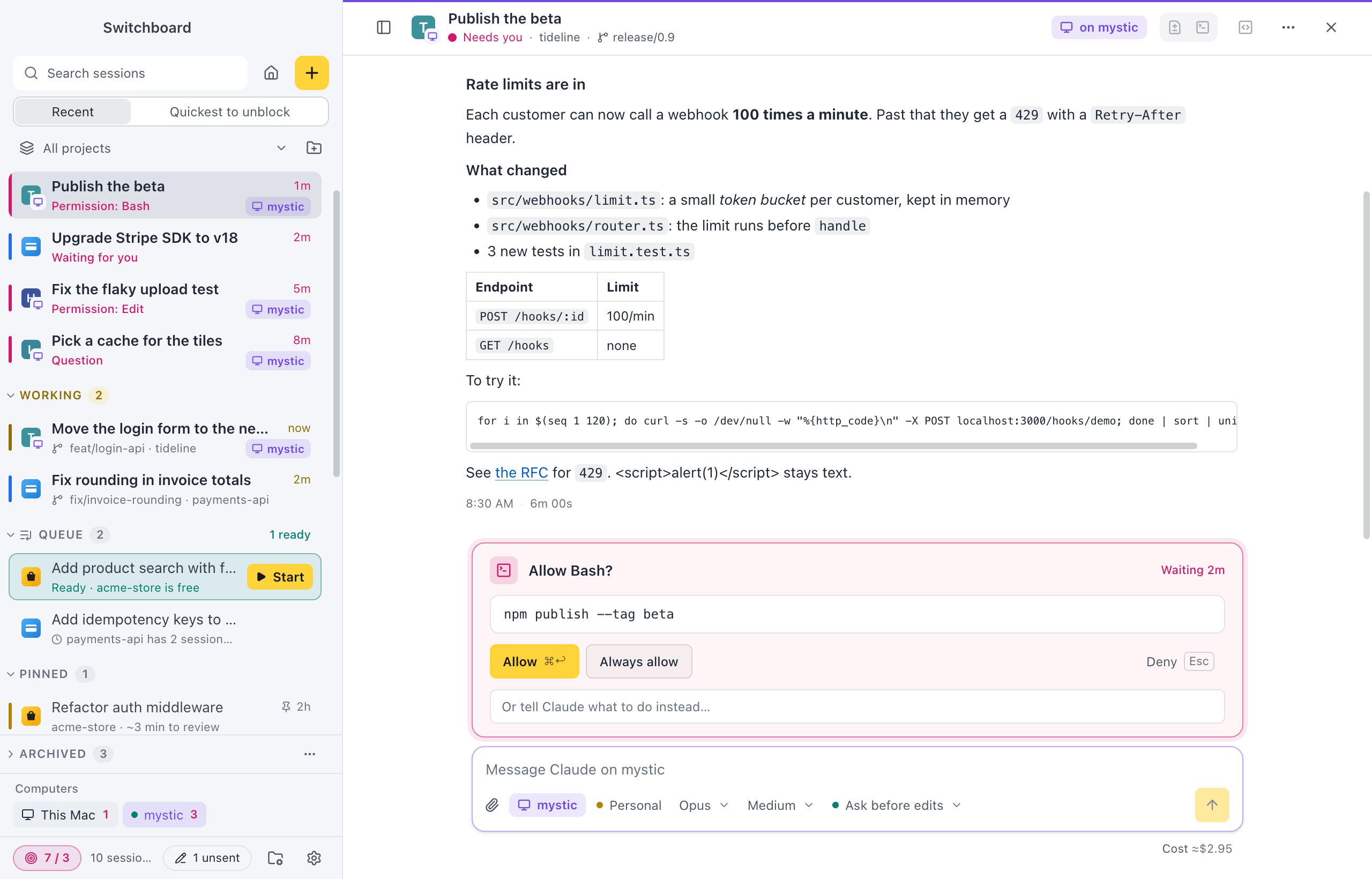
The other computer’s sessions sit in your sidebar, in the same groups as yours: Needs you, Working, Today and so on. Violet marks everything on another computer, and nothing else uses it:
- the project icon has a small monitor badge;
- the second line of the row ends with a chip with the computer’s name, such as mystic.
Click a row to open the session in the normal view. A violet line runs along the top, and the header says on mystic. It opens in a pane like your own sessions, so you can put it next to one of yours or next to another computer’s: see Split view. Read the conversation as it happens, answer what Claude asks with the same keys as on your own sessions, send a message (it waits in Up next while Claude works), and Stop a turn. When the turn ended but a background command or agent still runs there, the end of the conversation says so in green, and a green pill above the message box lists each task with a Stop for it, as on your own sessions. Runs of tool calls fold into one line, such as Read 4 files · Edited ContentOverview.tsx +42 −6. Click it to see each step.
While the session runs in Switchboard there, the chips under the message box show its model, effort and permission mode. Click one to change it on that computer. The effort chip only shows for a model that takes an effort, and you can pick Ask before edits, Accept edits, Plan mode or Auto mode. With more than one Claude profile there, the profile the session runs with shows next to the computer’s name. A running session keeps its profile.
Under the message box, Cost ≈$12.40 says what the session would cost at API prices, as that computer counts it from its own transcripts. It needs this version of Switchboard on both computers. See Estimated cost.
What only works on that computer stays in its place, but is off: Changes, the terminal, opening the folder in your editor, pull requests and file links. Point at one to see why, for example Terminal is on mystic. Not available from here. Nothing in another computer’s conversation runs on yours: only web links open.
Right-click a remote session for Open, Open beside, Pin, Archive, Copy title and New session in its project. Rename and delete it on the computer it runs on.
Send images and files
Section titled “Send images and files”To send images or files with a message, click the paperclip button under the message box, or paste or drop them on it. Images show as thumbnails and files as chips with their size, each with a button to remove it. A message still needs some text.
- A message takes up to four images and four files, and about 2.7 MB in all. Big images are made smaller first, as on a phone.
- Files are saved on the other computer, in Switchboard’s data folder, and the message mentions each one by its path there, so Claude reads it itself. Switchboard removes them after 30 days.
- An older Switchboard on the other computer only takes images in a session, and nothing in New session. Point at the paperclip to see what it takes. Update Switchboard there to send files too.
- Folders can’t be sent. Drop the files in a folder instead.
Filter by computer
Section titled “Filter by computer”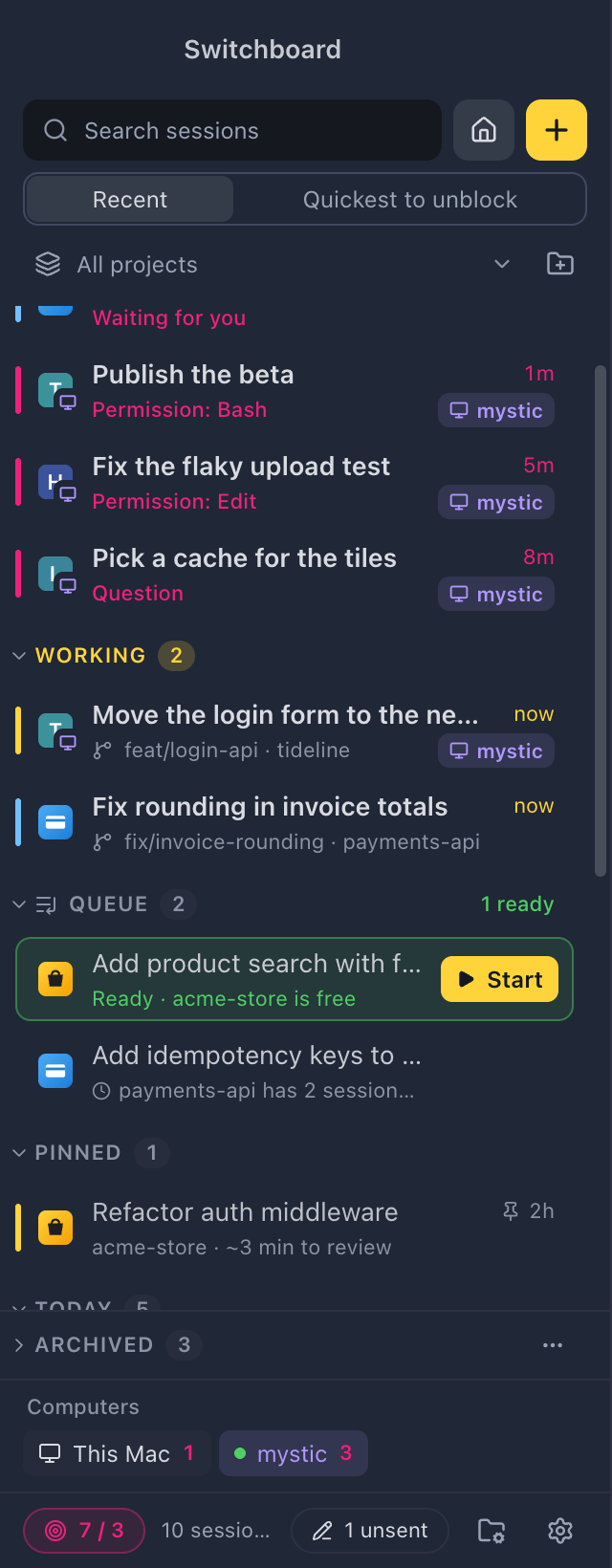
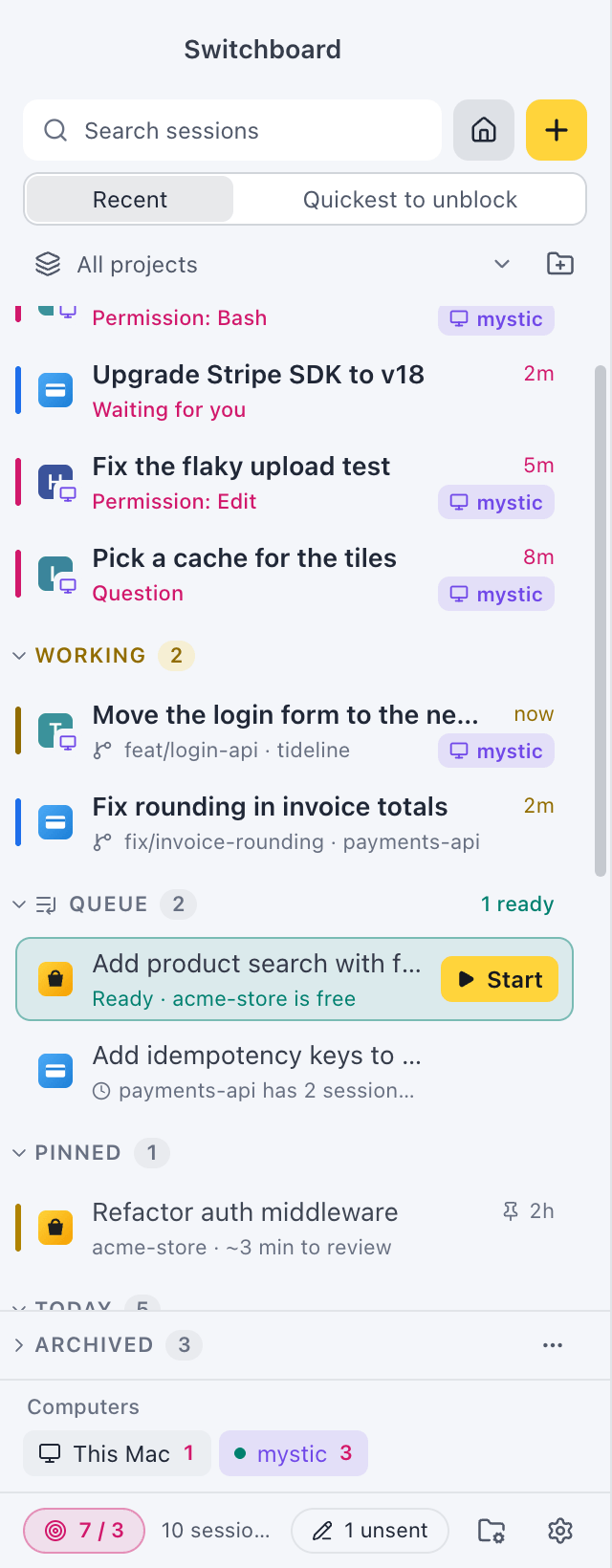
The Computers strip at the bottom of the sidebar has a chip for This MacThis PC and one for each paired computer, with a green dot when it is connected and, in pink, how many of its sessions need you. Click a chip to show only that computer’s sessions. Click it again to show all of them. In the project menu (All projects ▾), Show sessions from has a checkbox for each computer, and the other computers’ projects are listed with their chip. The command palette has Show only mystic for each connected computer. Each window keeps its own filter.
Search sessions at the top of the sidebar finds them by title, project, branch or computer name. Go to session in the command palette (Command, PControl, P) and Command, Shift, UControl, Shift, U include them too.
Start a session there
Section titled “Start a session there”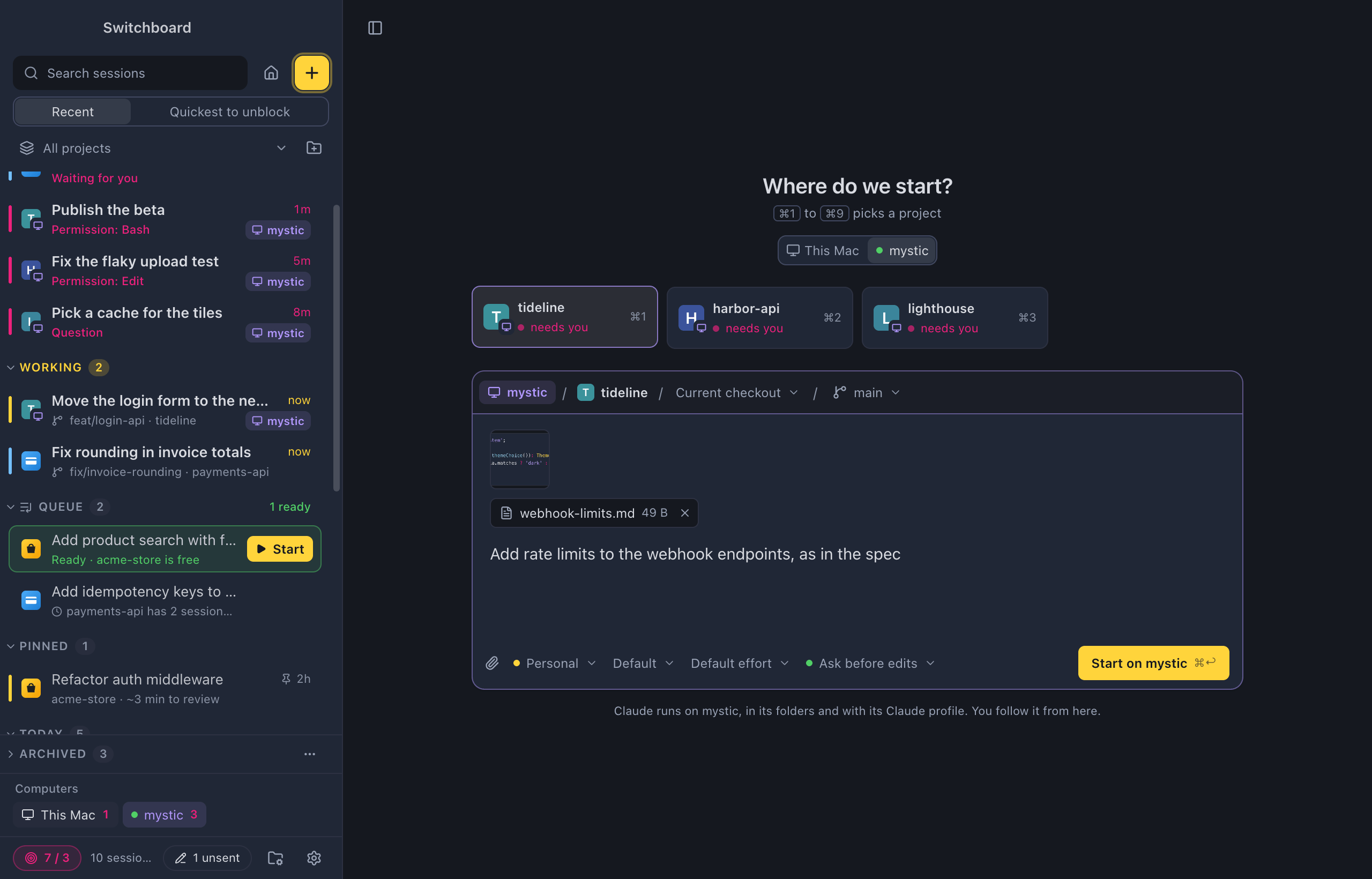
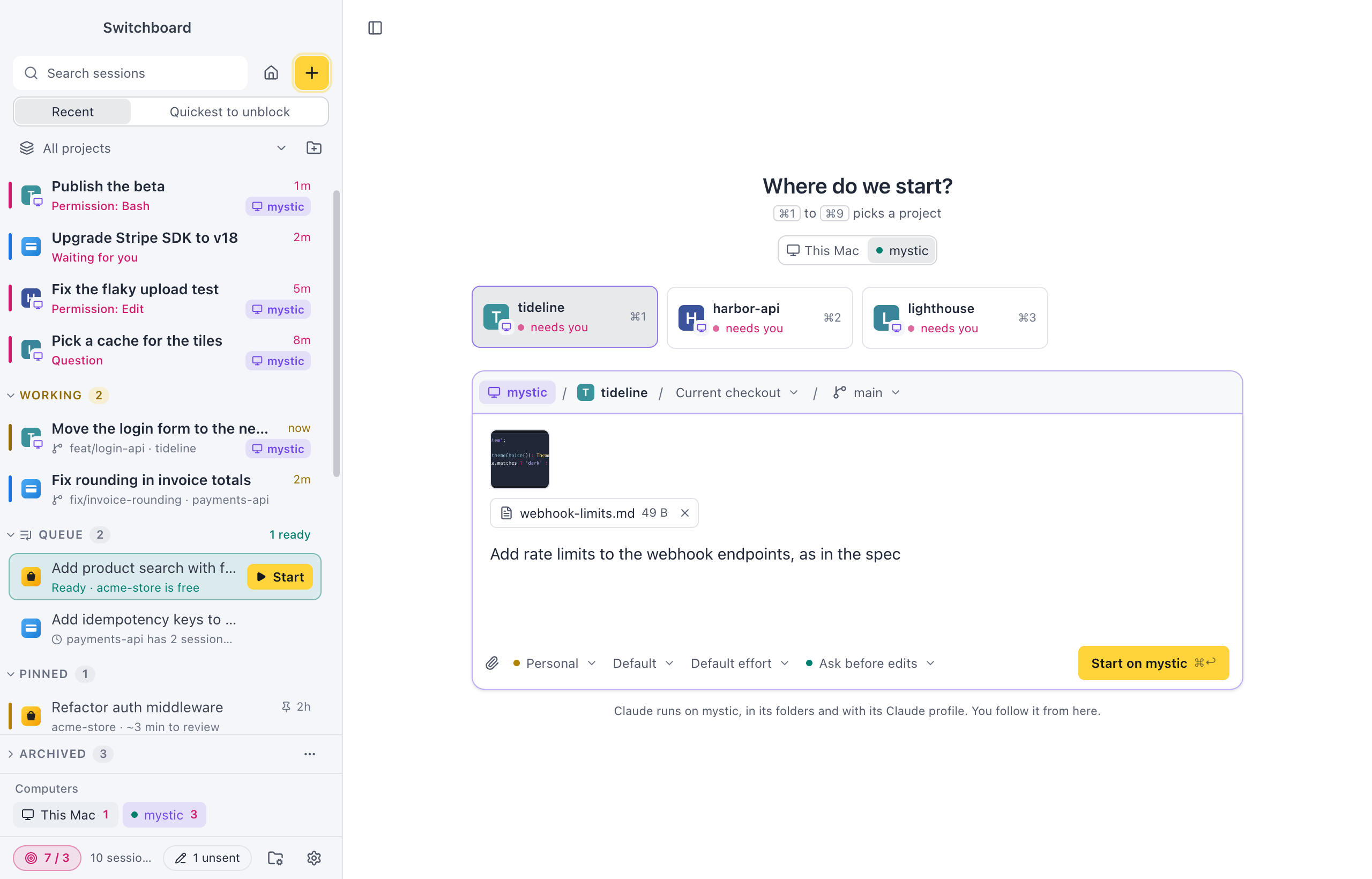
In New session, Run on picks the computer. Its projects become the tiles, and Start on mystic starts the session there. See Run on another computer. New session on mystic… in the command palette opens it with that computer picked.
With Clone from GitHub on here, Clone from GitHub… clones a repository on that computer, into its own Clone into folder, adds it as a project there and starts the session in it. Clone from GitHub has to be on in Settings › Projects on that computer too, and it needs this version of Switchboard there.
Its tokens in Usage
Section titled “Its tokens in Usage”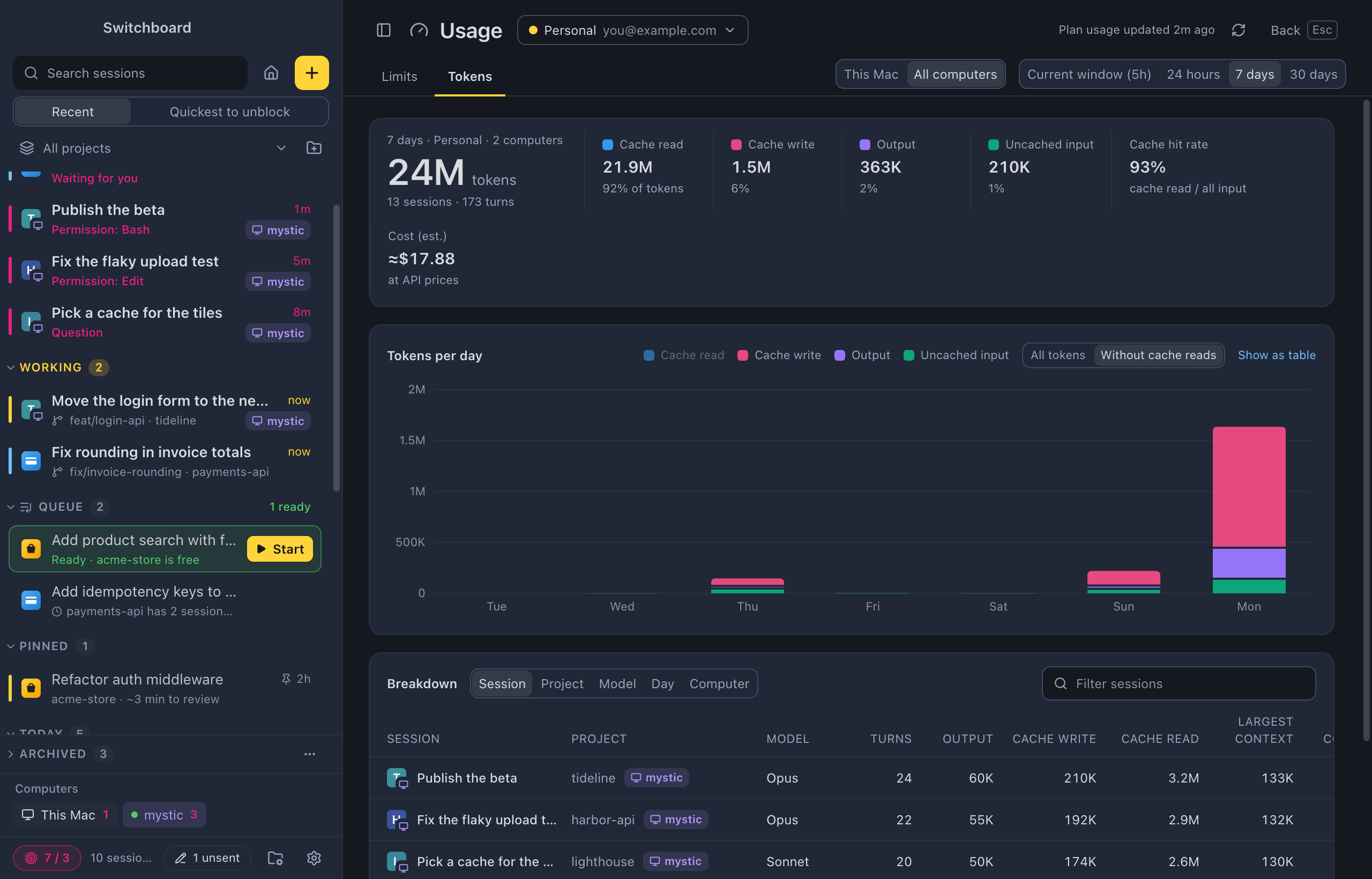
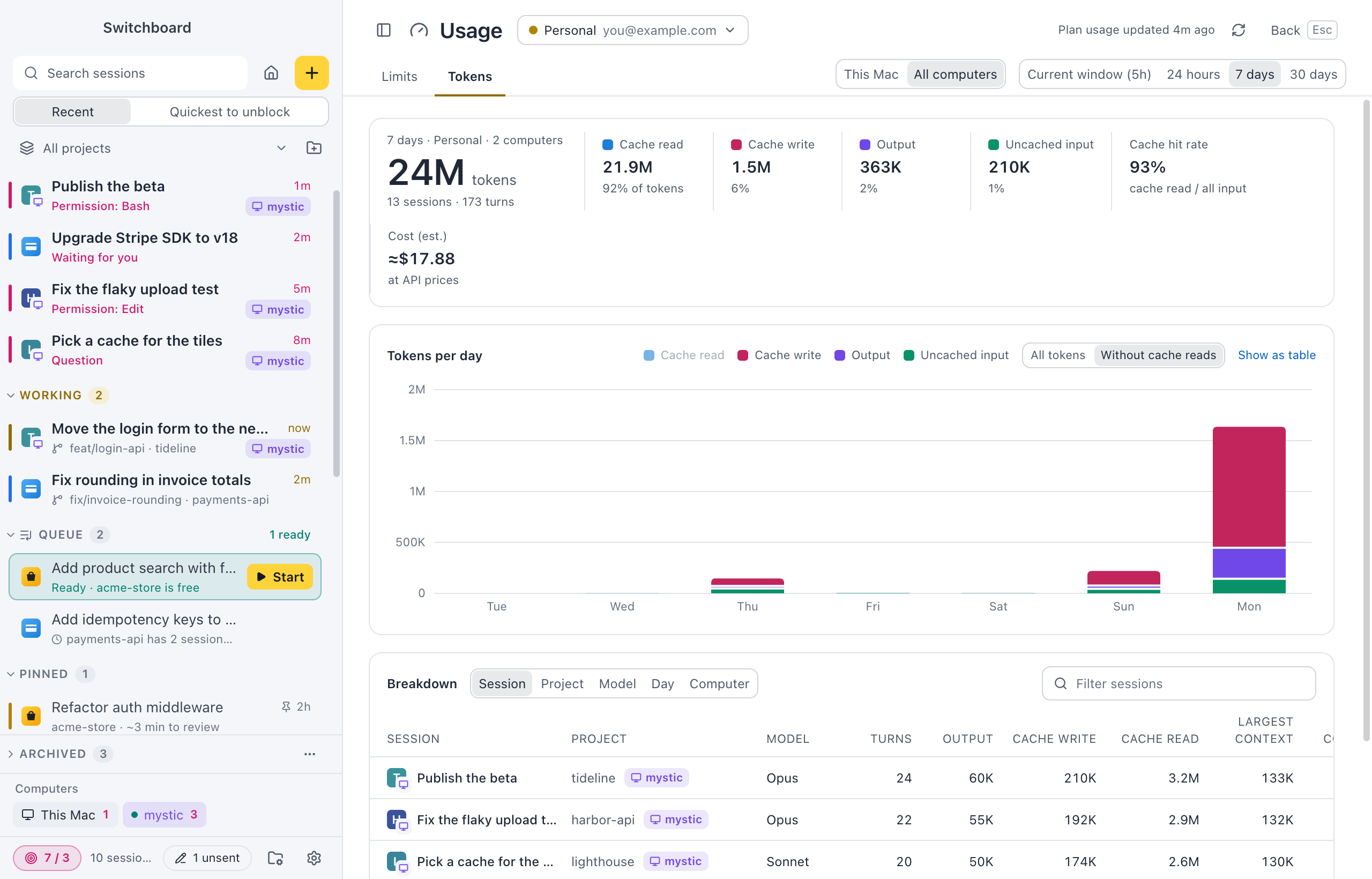
The Usage view adds up the tokens your claude.ai account used on the computers you paired, next to this one’s. All computers in its header turns it on, and the breakdown marks the other computers’ sessions with their name.
When a computer is offline
Section titled “When a computer is offline”Its sessions stay in the sidebar, dimmed, with when it was last seen: mystic is offline. Last seen 2h ago. An open session keeps its last messages under a banner, mystic is offline. Trying again in 30s., with Try again. The message box is off until the computer is back. A computer you remove takes its sessions with it.
Reconnect or remove
Section titled “Reconnect or remove”When the computer’s tunnel gets a new address, click Reconnect a paired device on it, Copy link, and paste that link under Other computers too. Open shows a computer’s page, and Remove takes it off this list. To stop a computer from reaching yours, Revoke it under Paired devices on yours. See Paired devices, Rename and Revoke.
Related
Section titled “Related”- Remote on your phoneFollow your sessions from your phone, answer Claude when it needs you, and send prompts, wherever you are.
- Split viewTile sessions next to each other and above each other, drag them into place and resize them.
- New sessionPick a project, choose where Claude works, write the first prompt and start.
- UsageSee what is left of your plan, when it comes back, and which sessions, projects and models used your tokens.