
Clone from GitHub
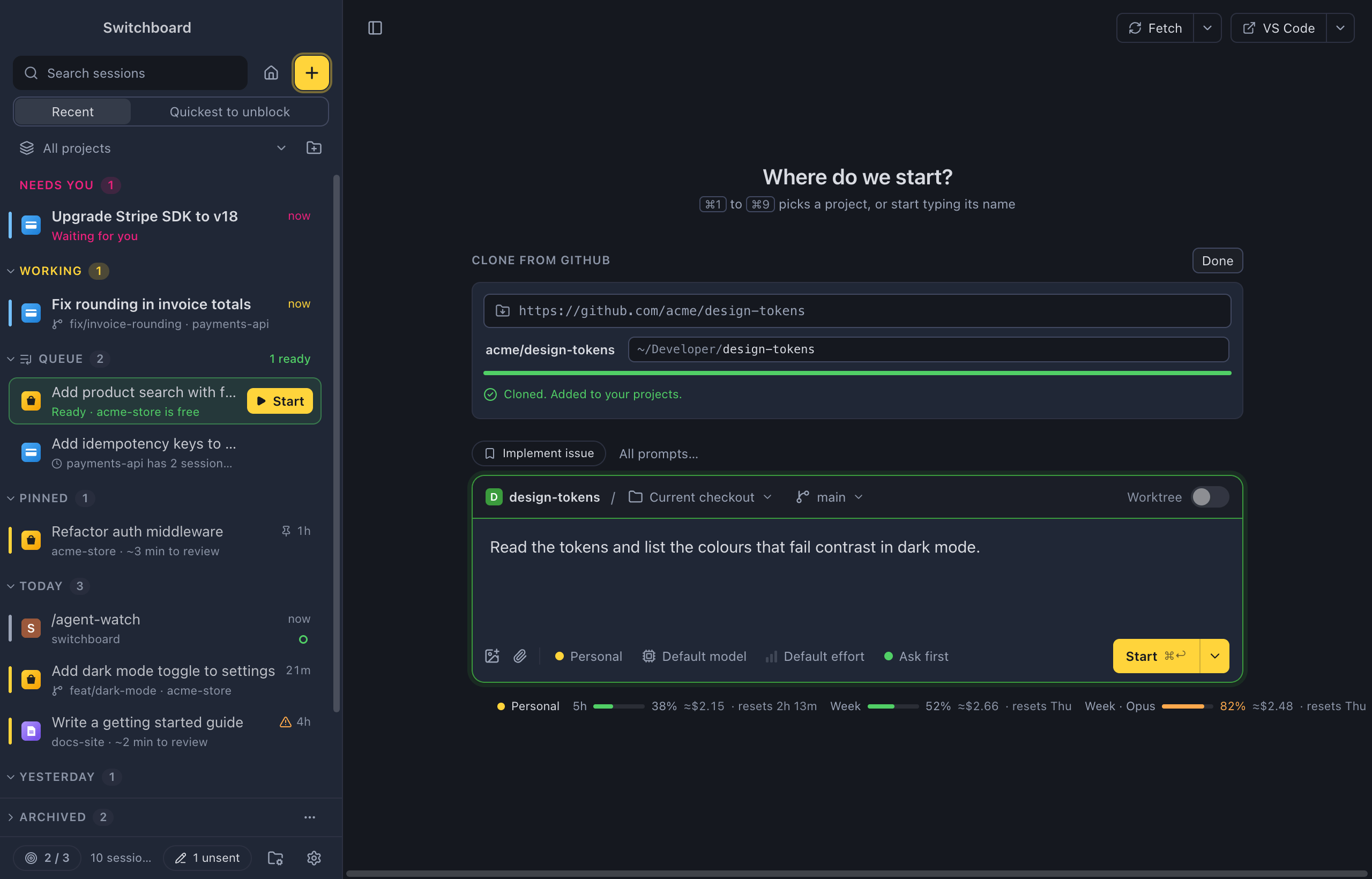
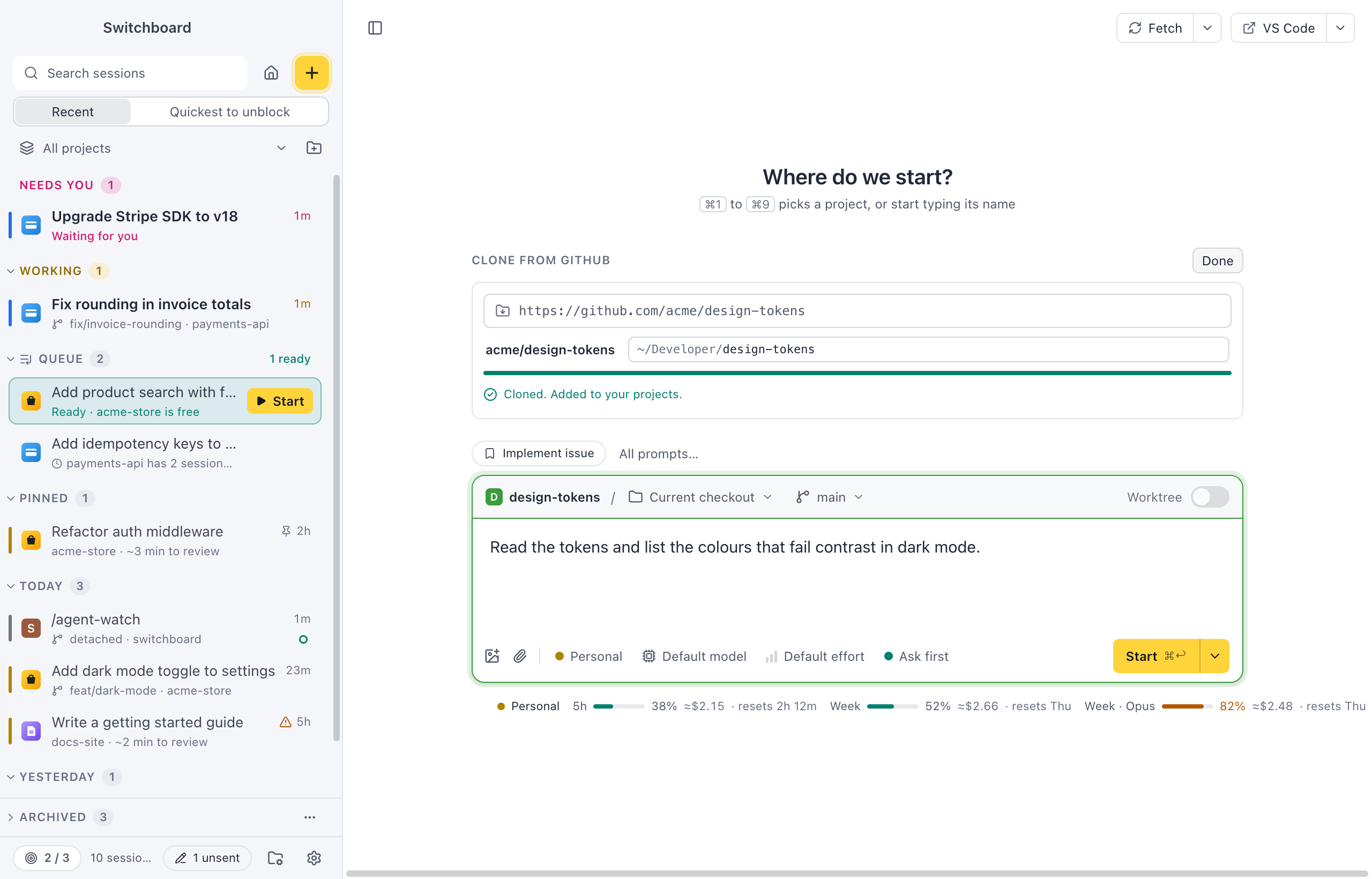
Paste https://github.com/owner/name, type your first prompt and press Start. Switchboard clones the repository into the folder you set for it, adds it to your projects and starts the session there, on this computer or on another one. It saves the three steps of cloning in a terminal, adding the folder as a project and opening New session, for trying out a library, reviewing someone’s repository or picking up a project on a second computer.
Turn it on
Section titled “Turn it on”Clone from GitHub is off until you turn it on:
- Open Settings › Projects.
- Turn on Clone from GitHub. Switchboard asks for the folder new projects go in first, such as
~/Developer. - To change that folder later, click Choose… next to Clone into.
Each computer has its own setting and folder: a clone on another computer goes in that computer’s Clone into folder. While the setting is off, none of the ways in below show.
Start from a URL
Section titled “Start from a URL”- New session: click Clone from GitHub… above the project tiles, and paste the URL. Or paste a GitHub URL in the project filter (type a letter on a tile, or click Filter), and choose Clone owner/name.
- Command palette: run New session from a GitHub repository…, paste the URL and press ReturnEnter. New session opens with the clone running.
- Sidebar: the add project menu (the project filter at the top of the sidebar) has Clone from GitHub…. It clones and adds the project, without starting a session.
- Links: when a
switchboard://new-sessionlink names arepoyou have no checkout of, the line above the message box offers Clone owner/name. See Links.
Switchboard takes these forms:
https://github.com/owner/name, with or without.git;[email protected]:owner/name.git;owner/name;https://github.com/owner/name/tree/<branch>, which checks out that branch after cloning.
Only GitHub repositories can be cloned. GitLab, Bitbucket and other hosts aren’t supported yet.
The clone
Section titled “The clone”- The form shows the repository and where it goes: your Clone into folder and the repository’s name. Change the name in the field if you want another folder.
- Press ReturnEnter or Clone. The clone starts right away, while you type the prompt, with its progress in the form. Cancel stops it and removes the folder it made. A folder that was there before is never removed.
- When the clone is done, the folder is added to your projects and picked in New session.
- Press Start (Command, ReturnControl, Enter). If the clone is still running, Start waits for it, then starts the session in the clone.
You can type the prompt and press Start before you press Clone: Start clones first.
A fresh clone runs in the clone itself, so New worktree isn’t offered.
When the folder is there already:
- It’s a checkout of the same repository: Switchboard uses it, with no second clone. The form says “Already cloned in ~/Developer/name”.
- It’s something else: the form says “~/Developer/name already exists”. Type another name.
Switchboard clones with the GitHub CLI when gh is signed in, so private repositories work and your choice of HTTPS or SSH is kept. Without it, it clones with git over HTTPS, which works for public repositories. Switchboard only reads from GitHub: it never forks, stars or writes anything there.
Before the first session
Section titled “Before the first session”A cloned repository is someone else’s code. Claude Code loads a project’s own settings, so a repository’s .claude/settings.json hooks, .mcp.json MCP servers and permission rules apply from the first prompt.
When the repository brings any of these, Start asks once and lists them: “This repository runs these hooks and MCP servers when the session starts.” It also lists rules that allow tools without asking, plugins, and settings that run a command or send requests elsewhere, such as env or apiKeyHelper. Choose Start anyway to start, or Cancel to keep your prompt and look at the repository first. A repository with none of them starts without asking.
On another computer
Section titled “On another computer”With Run on set to another computer in New session, Clone from GitHub… clones there, in that computer’s Clone into folder, and the session starts there. The new project shows as a tile of that computer.
- When that computer has Clone from GitHub off, the form says “Turn on Clone from GitHub in Settings on mystic to clone there.”
- When that computer runs an older Switchboard, the form says “Update Switchboard on mystic to clone there.”
See Other computers for pairing with another computer.
Where the clone goes
Section titled “Where the clone goes”The clone is a normal folder, such as ~/Developer/name. Open it in FinderFile Explorer or your editor like any other project, and remove it from your projects in the Projects view when you’re done with it. Removing a project never deletes its folder.
Related
Section titled “Related”- ProjectsAdd, order, rename and remove the folders you work in, and open each project's own page.
- New sessionPick a project, choose where Claude works, write the first prompt and start.
- Other computersNewFollow and steer the sessions of a paired computer from Switchboard on this one, in the same sidebar, and start new sessions there.
- Project settingsThe Claude profile and the choices new sessions in a project start with, and its name and icon in Switchboard.