
Working in a session
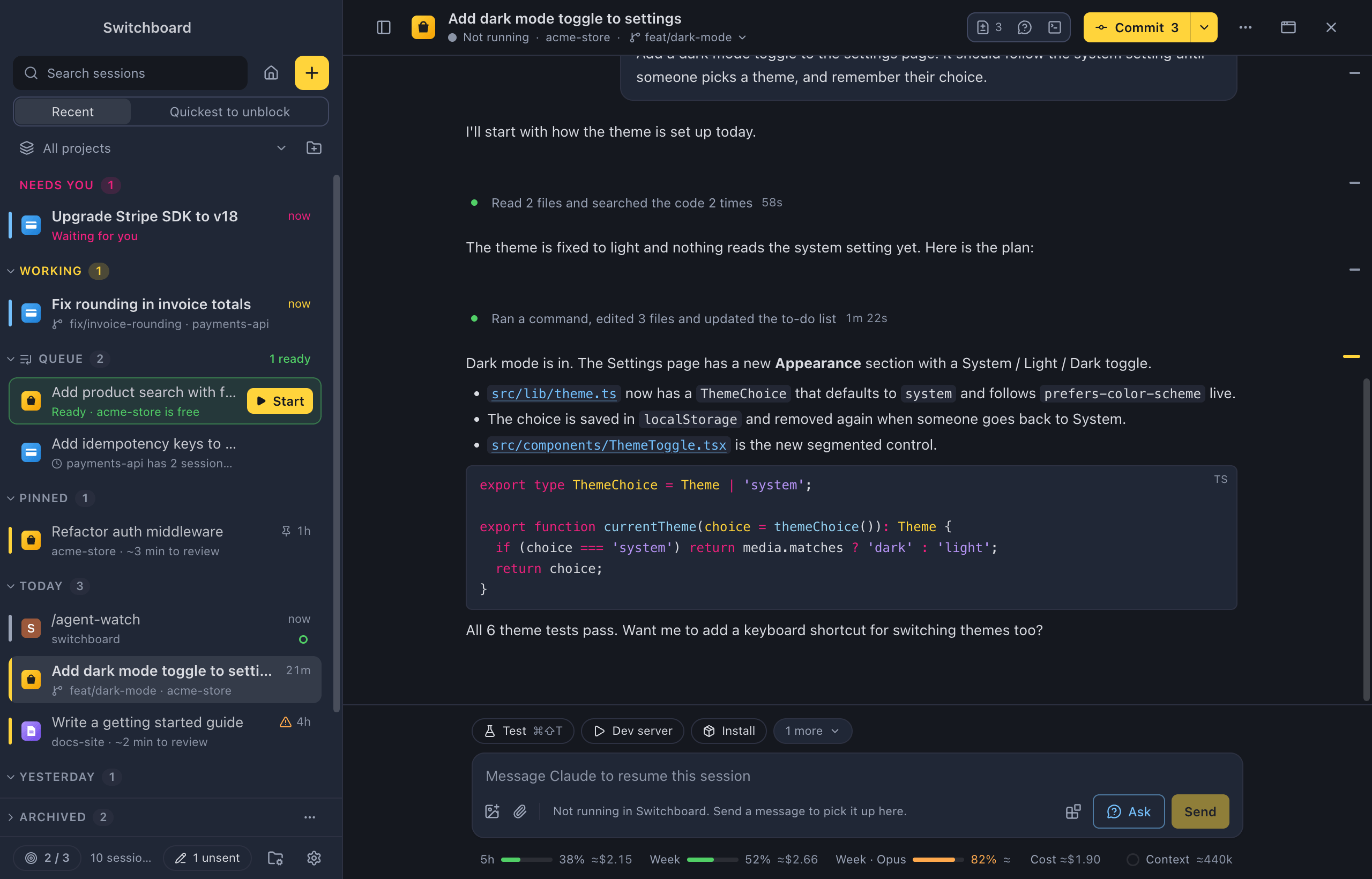
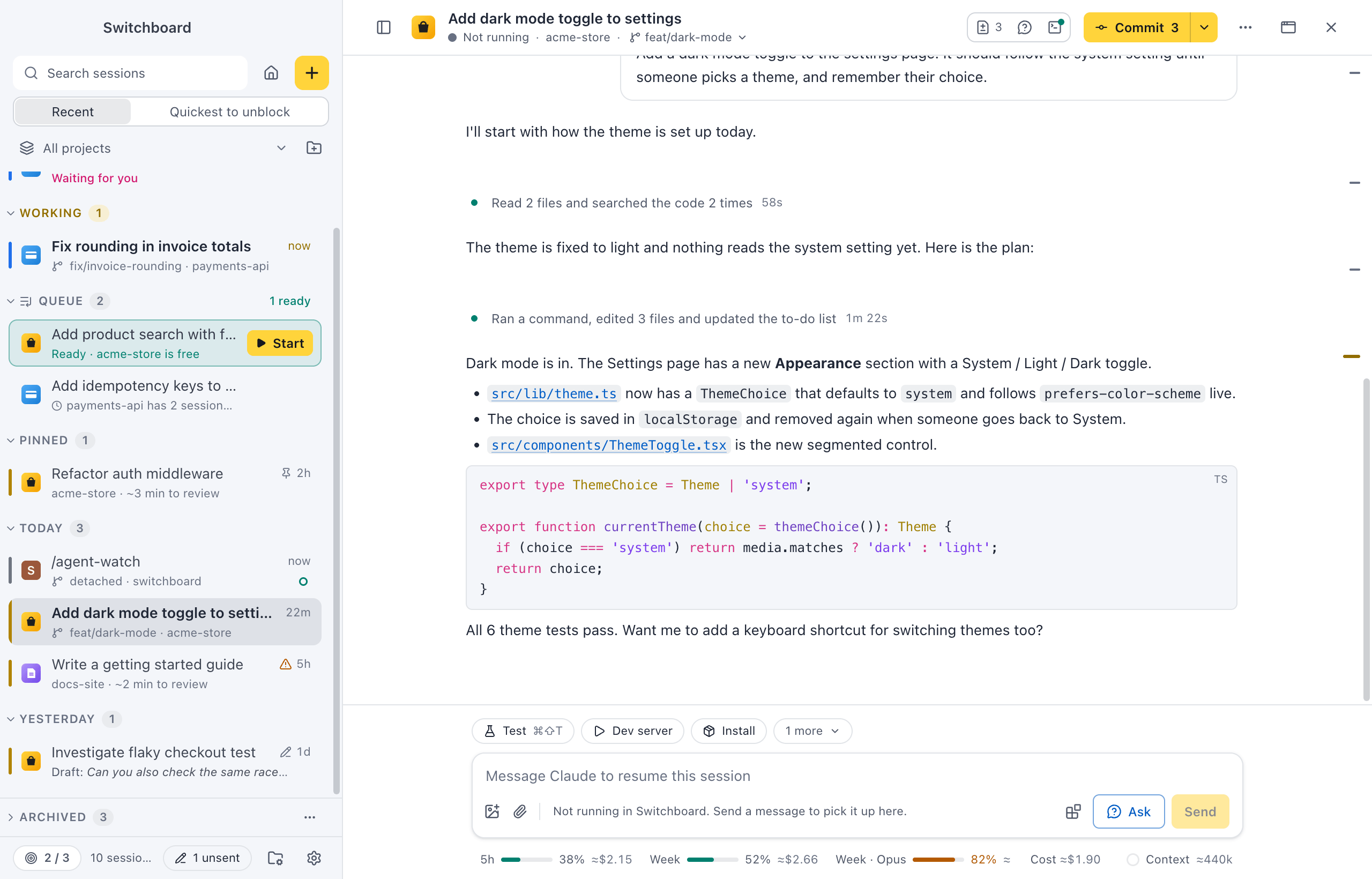
A session shows its conversation with Claude, with the message box at the bottom. You chat as you would in the terminal, with streaming replies, / commands, @ mentions and images, and you can follow every step Claude takes without the noise.
Open it
Section titled “Open it”Click a session in the sidebar, on Home, or find it with Command, PControl, P. Any past session works: type below it to continue it.
The header shows the title, the state, the project and the branch. On the right are the Changes and Terminal toggles, the git button, ⋯ and the × that closes the session.
Send a message
Section titled “Send a message”Type in the message box and press Return or Command, ReturnEnter or Control, Enter. Shift, ReturnShift, Enter starts a new line. In a list (- , * or 1. ) it starts the next item, numbered one up; on an empty item it ends the list.
- Commands and skills: type Slash at the start of the message for your commands and skills, your own included.
- Ask about this session: the Ask button next to Send (or
/btwand a question) asks Claude about the session in a panel on the right, without adding it to the conversation, also while Claude works. See Ask about this session. - Mention a file or a session: type At and pick a file from the list, or another session to link it: Claude then gets its branch, pull request, what it did and its last reply.
- Code: select text and type Backtick to wrap it as code: one line as
inline code, several lines in a code block. - Earlier messages: Up Arrow or Down Arrow at the start of your text brings back what you sent before. On the first line, the first Up Arrow takes the caret to the start, and the next one brings the message back. Esc goes back to what you were typing.
- Images: paste them, drop them on the session, or click the image button under the message box. Images Claude reads or you attach show in the conversation.
- Right-click: right-click in the message box, on the New session page too, for Cut, Copy, Paste and Select all. Paste also attaches an image on the clipboard.
Context
Section titled “Context”Files you add as context show as chips above the message, each with a × to remove it. Claude gets them as references and reads them itself, so a large file stays small.
- Pick a file from the
@list. - Drop files and folders anywhere on the session. While you drag, the message box shows what a drop does: images are attached, other files and folders become context.
- Choose Add context (Command, Shift, AControl, Shift, A, the paperclip, or Add context… in the command palette) to pick several files at once: Space picks, ReturnEnter adds. The list shows the files of the session’s folder. For a file somewhere else, click Choose in FinderFile Explorer… next to the search field and pick it there. On macOS you can pick folders there too.
With the VS Code companion you can send the lines you have selected in VS Code, problems and terminal output as chips too.
Pasted text
Section titled “Pasted text”When you paste a long text (more than 2,000 characters or 25 lines), it goes in a Pasted card above the message instead of in the box, so the box stays quick and your own words stay easy to read. The card shows the first lines; hover it for its size.
- Click the card to read or change the text. Save (Command, ReturnControl, Enter) keeps your changes, Remove takes it out.
- Hover the card and click × to remove it.
- Claude gets the text after what you typed, under its label (“Pasted text”, “Pasted text 2”). It stays with an unsent message, also after a restart.
A message holds up to 1,000,000 characters. For a larger file, drop the file on the message box instead: Claude reads the parts it needs from disk.
While Claude works
Section titled “While Claude works”Replies stream in as Claude writes them. At the bottom of the conversation, the view follows the reply as it grows. Scroll up to read and it stays where you are; New output below takes you back to the end, which follows again (so does scrolling all the way down). When Claude is done, the button says Jump to latest.
You can keep typing while it works. What ReturnEnter does is your choice in Settings, Conversation, under While Claude is working:
- Queue (the default): your message waits in Up next, above the message box, and goes when Claude finishes the turn.
- Steer: Claude gets the message now and reads it at its next step. Claude isn’t stopped.
The send button says Queue or Steer to match. Its ▾ menu has both, plus Send now. Option, ReturnAlt, Enter does the one Enter doesn’t.
- Send now: Command, Shift, ReturnControl, Shift, Enter, or Send now in the ▾ menu, stops what Claude is doing and sends your message right away.
- Stop: press Escape or click Stop to stop Claude. Esc doesn’t stop Claude while a dialog, menu or list is open.
Up next
Section titled “Up next”Messages you queue stay above the message box, under the conversation, until their turn comes. They aren’t in the conversation yet, so Claude hasn’t seen them. One message goes each time Claude finishes.
- Send now on a message stops Claude and sends that message. The others keep waiting.
- Click a message, or press ReturnEnter on it, to edit it: it goes back in the message box. Up Arrow in an empty message box does this for the last one.
- Drag a message, or press Option, Up Arrow or Option, Down ArrowAlt, Up Arrow or Alt, Down Arrow on it, to change the order.
- Remove (×, or DeleteBackspace) takes a message out. Undo in the toast puts it back.
- If you stop Claude, or a turn fails, nothing goes by itself. Up next says so and shows Send next. Sending a message yourself ends the pause.
Messages in Up next are kept when you look at other sessions, stop the session or quit Switchboard. A session that stopped shows them again, waiting: Send next or Send now brings the session back and sends, and so does a message of your own.
Follow what Claude does
Section titled “Follow what Claude does”Each run of tool calls is one line, like Claude Code: what Claude is doing right now (“Reading src/app.ts…”), or what it did when the run ends (“Ran 3 commands and edited 2 files”), with how long it took. Click the line to see every step, and a step to see its details: diffs, command output, to-do lists and subagent runs.
A command Claude runs without a description shows what it runs, not its script. A short command shows as it is, such as Running npm test. A long command or an inline script shows the program, such as Running git or Running a Python script. Open the step to see the whole command.
- A Tasks pill above the message box shows Claude’s to-do list (“Tasks 2 of 5”); click it to open the list.
- A green pill above the message box lists what runs in the background, such as a long command or an agent, with a way to stop each one. Click a command’s name to see its output in the Commands panel, or an agent’s name to open it in the Agents panel.
- A file Claude names in a reply, such as
src/search/suggestions.ts:69, is a link, and so is the Show or Open chip beside a tool run that read or changed a file. Click it to show the file in FinderFile Explorer, where it is selected. Shift, clickShift, click opens it in your editor instead, at that line. Right-click it (or press Shift, F10Shift, F10) for Show in FinderFile Explorer, Open in your editor and Copy path, above the message’s Quote and Remember this…. If the file is gone, the link turns red and says so. To make a click open the editor, and Shift, clickShift, click show the file, change Clicking a file link in Settings, Conversation. - Images in your messages show above the text, so Show more never hides them: one image at its own shape, two to four as thumbnails, and five or more as tiles with +N for the rest. Hover one for its type, size and pixel size.
- Images open full size with a click. Left Arrow or Right Arrow (or the filmstrip at the bottom) step through all of a message’s images.
Prefer to see each tool call as its own card? Choose Every step in Settings, Conversation.
Code blocks
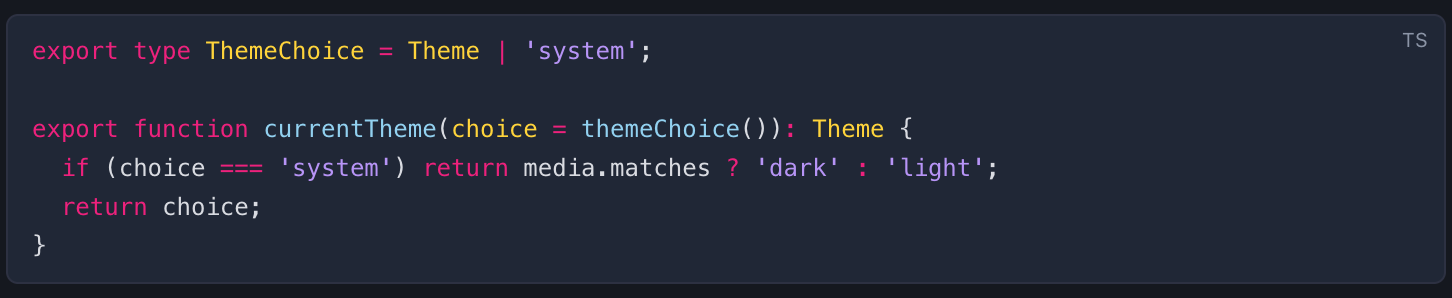
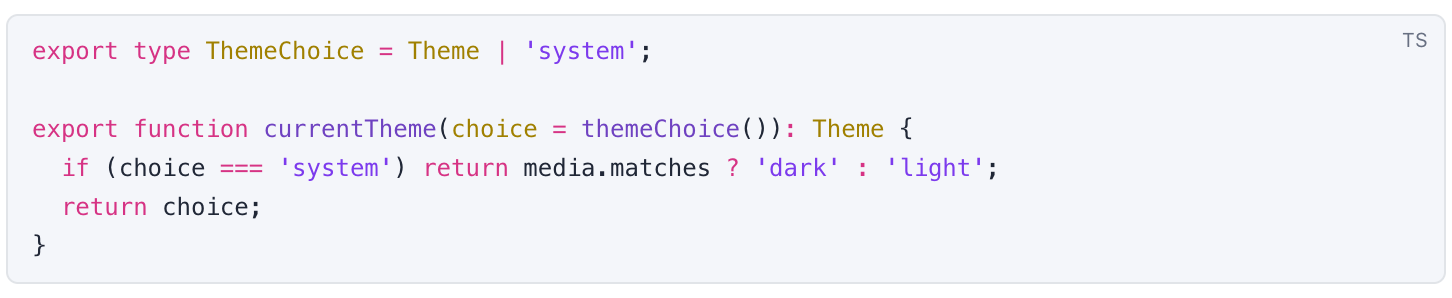
Section titled “Code blocks”Hover a code block in Claude’s reply for its buttons. In a long block they stay at the top of the conversation while you scroll, so you don’t have to scroll back up to copy.
- Copy copies the code.
- Run in terminal (on shell code blocks, and on Windows PowerShell ones too) types the command into a terminal tab of the session and runs it. For a block that shows a terminal session (
$lines with their output), only the$lines run. - Run and send the output to Claude (next to it, or Option, clickAlt, click on Run in terminal) runs the command in a terminal tab of its own, which ends with the command. When it ends, Claude gets a message from you with the command, its exit code and the end of its output (the last 200 lines), so it can carry on from there. While Claude works, the message waits in Up next until Claude finishes its turn; remove it there if you change your mind. A line under the output in the tab says where it went. If you stop the command, the message says so. Close the tab before it ends, and nothing is sent.
- A markdown block (a README, a pull request description) opens rendered, with a Preview | Source switch above it. Copy still copies the markdown.
Save an image
Section titled “Save an image”Use the save button on an image, right-click it and choose Save image…, or press Command, SControl, S while it is open full size.
How long a turn took
Section titled “How long a turn took”A turn is your prompt and everything Claude does until it stops and waits for you again. Under the last reply of each turn, a faint line says when the turn ended and how long it took, such as 14:32 · 2m 14s. Like the reply’s buttons, it shows when you hover the reply, next to them. Moving to the buttons with TabTab shows it too.
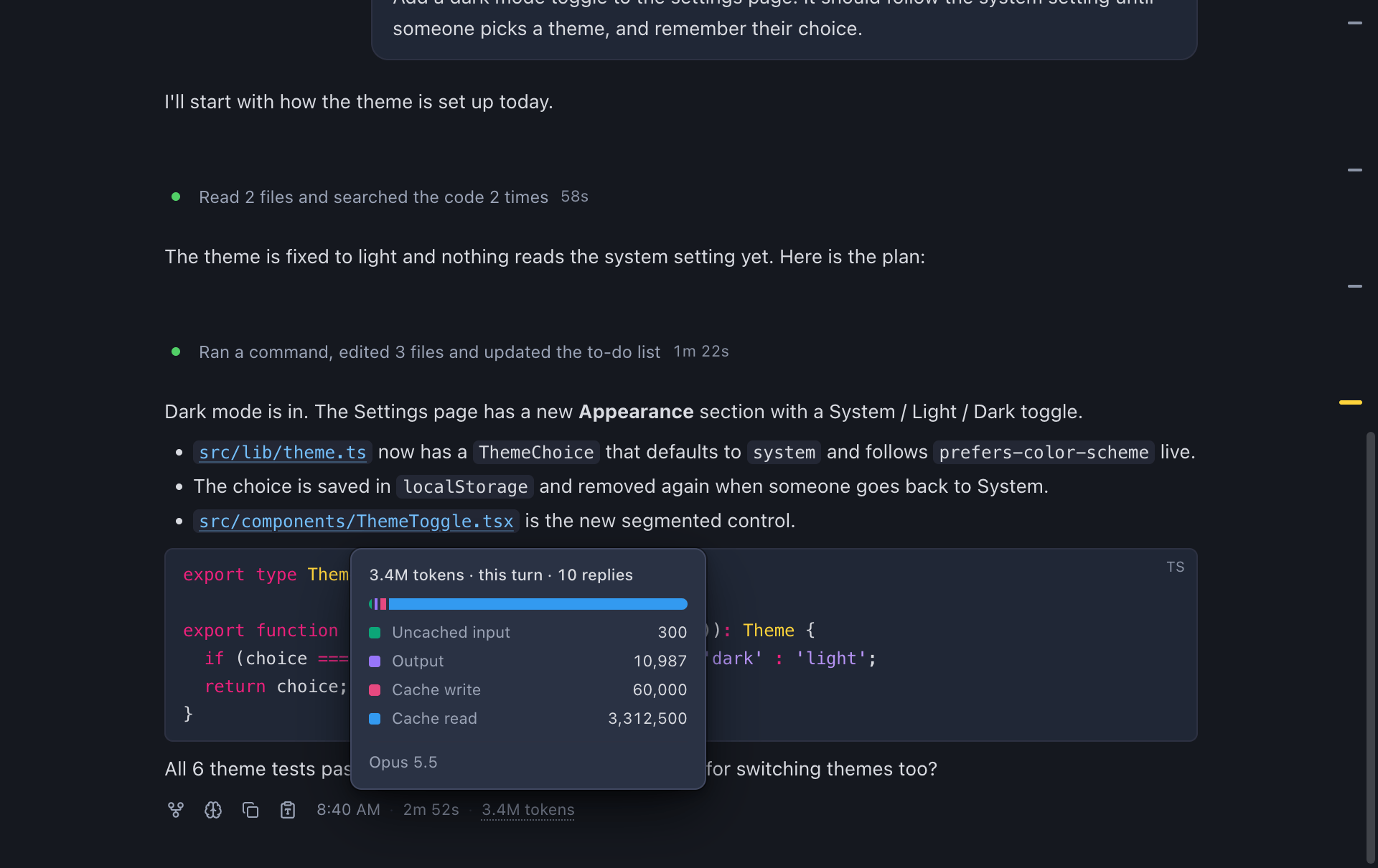
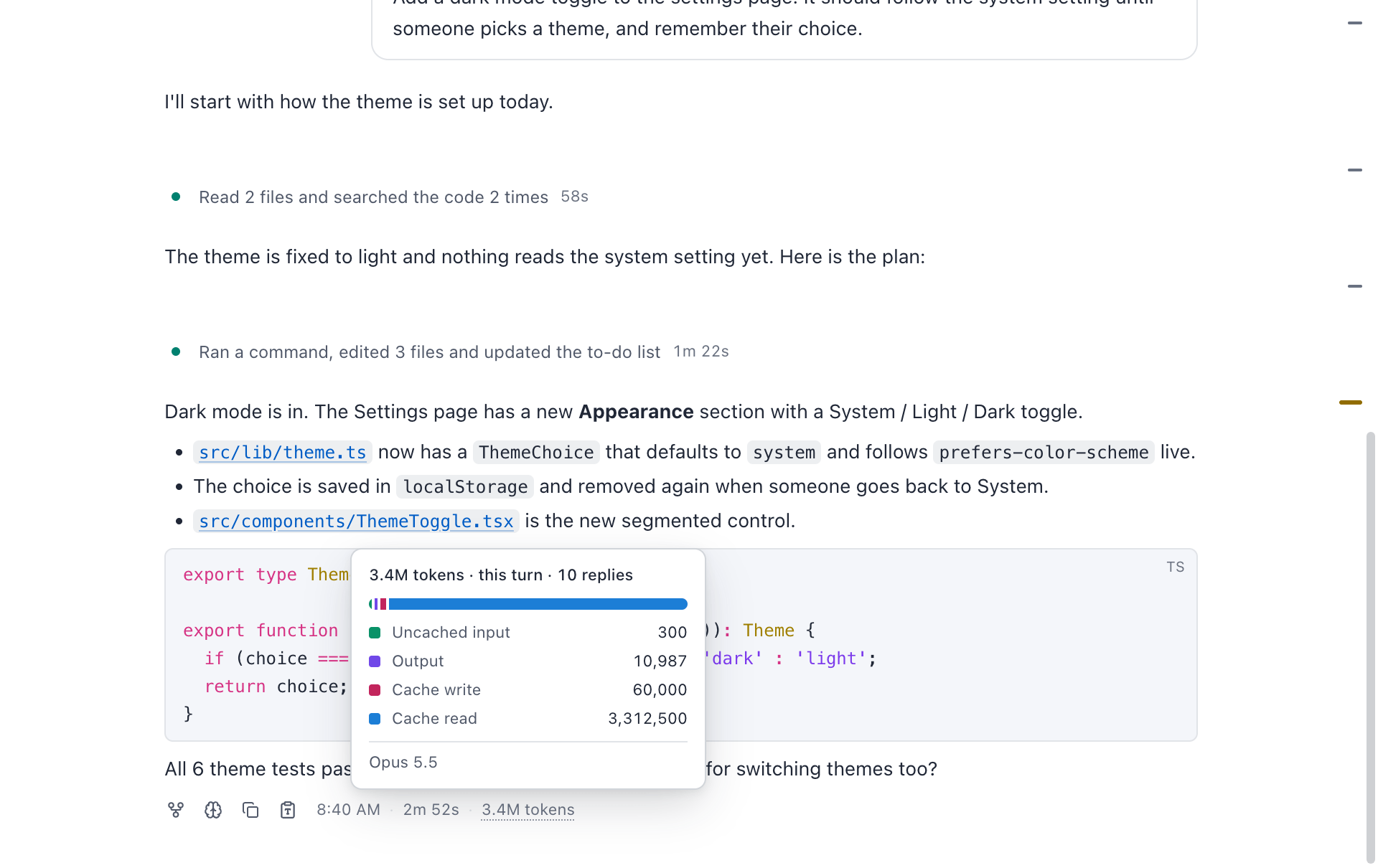
- The time is the time of day today, the day this week, and the date before that. Hover it for the full date and time, the duration and the tokens.
- The duration is Claude’s own time. Time a permission prompt, a question or a plan waited for your answer is left out, and shown in brackets:
48s (12s waiting on you). A turn you stopped says Stopped after, and a turn that ended on an error says Failed after, in red. - The tokens show when you choose them in Settings, Conversation. They count every reply in the turn, its agents’ replies included. Hover or focus them for what they were made of: input, output, cache write and cache read, in the colours of the Usage view, and the model when the turn used one. Escape closes it. Old sessions don’t have token counts, so they show no tokens.
While Claude works, the working line counts the same way: Reading AGENTS.md · 0m 37s · 3.2k tokens. While a prompt waits for you, it says Waiting for you and paused, and the clock stops.
Hover one of your prompts to see when you sent it, and from which phone or computer when it came from a paired device.
In a narrow pane the line drops the tokens first, then the duration. To change what the line shows, or turn it off, use Under each reply in Settings, Conversation.
Go back to a prompt
Section titled “Go back to a prompt”In a long conversation, the prompt outline takes you back to what you asked. It is a thin rail on the right of the conversation, with a mark for each of your prompts. The mark of the prompt at the top of the view is highlighted, and it moves as you scroll.
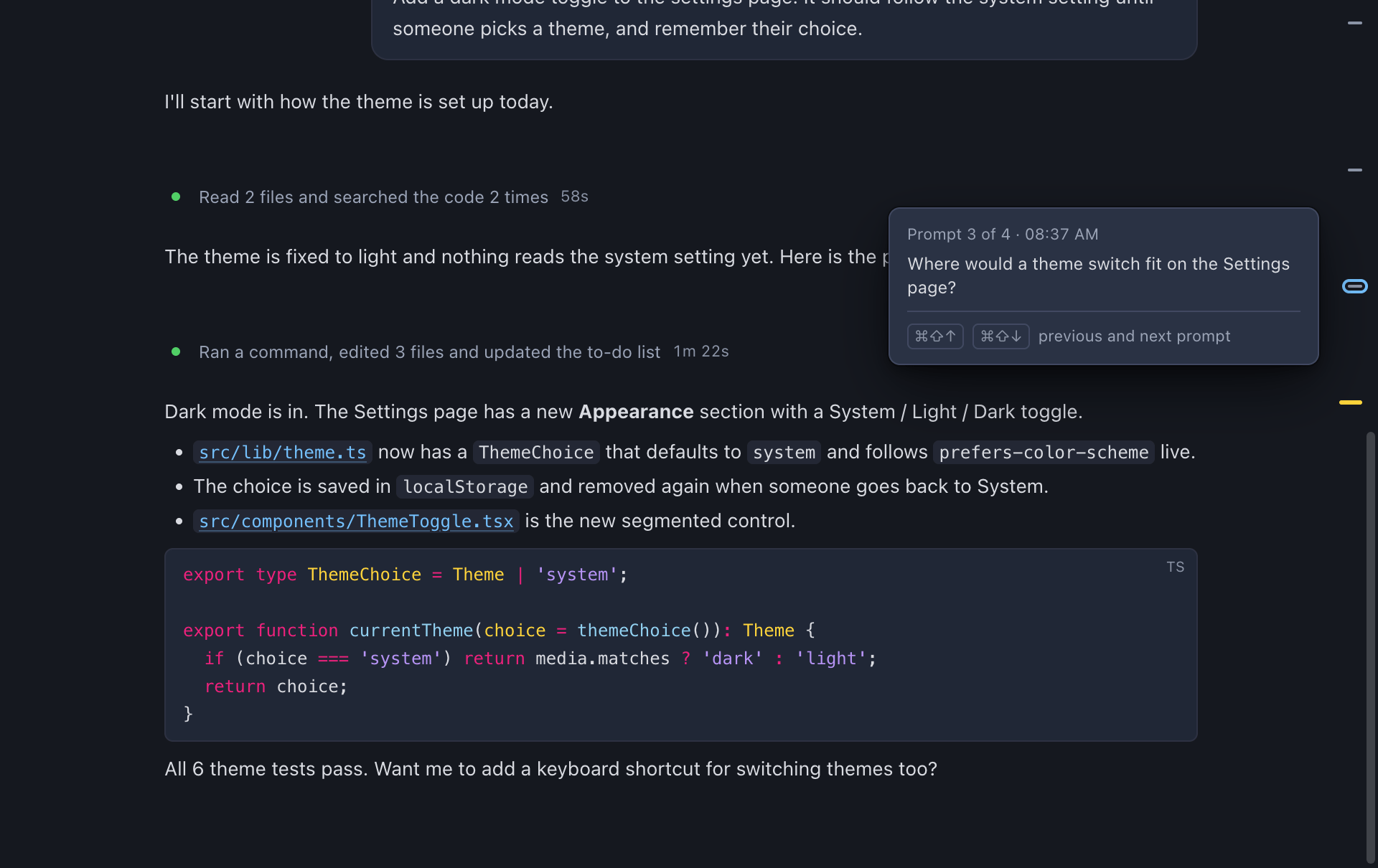
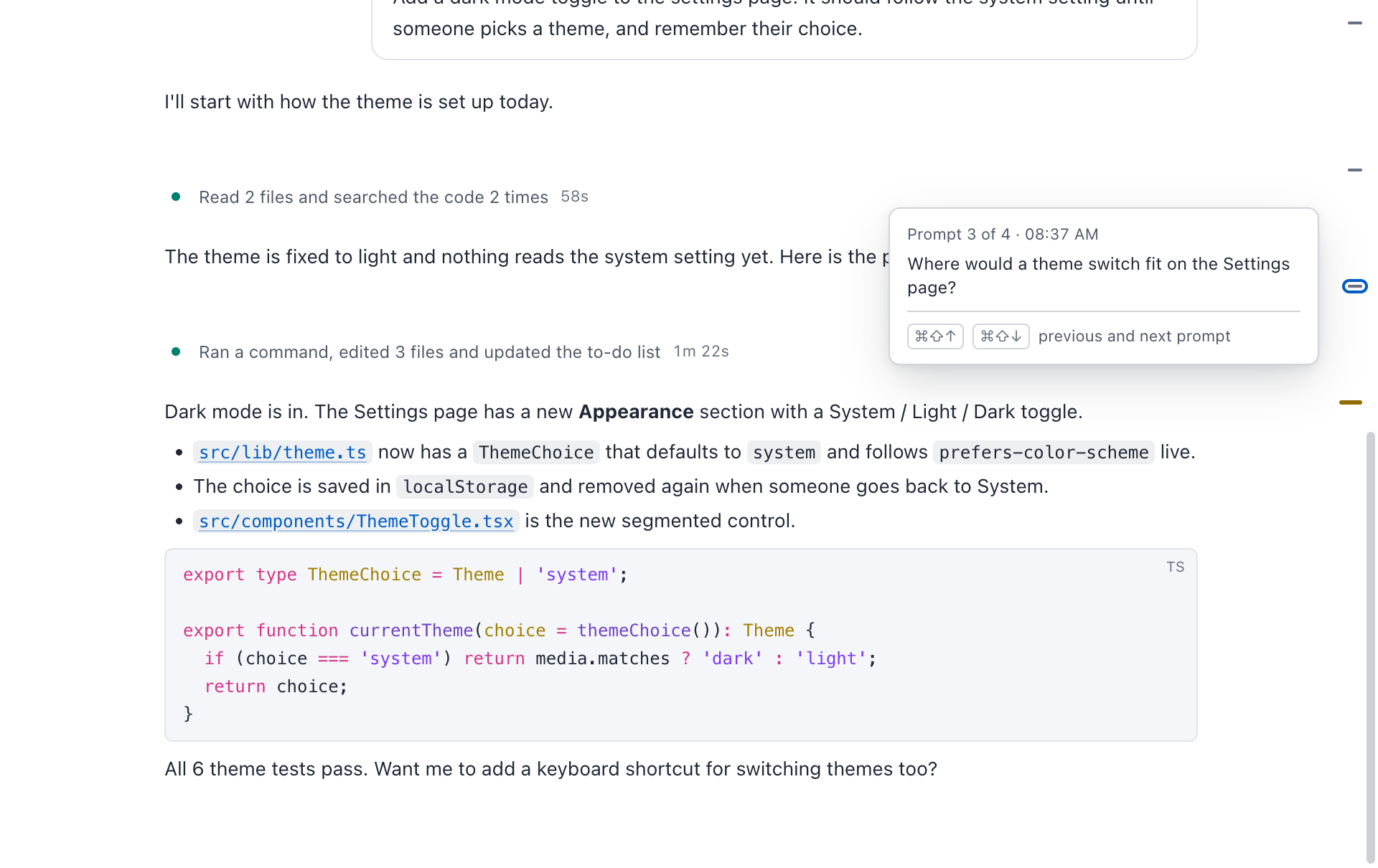
- Hover a mark to see the start of the prompt, when you sent it and the images it had.
- Click a mark to scroll to its prompt. The prompt lands at the top of the view with a short highlight.
- Previous prompt (Command, Shift, Up ArrowControl, Shift, Up Arrow) goes to the prompt before. When you have scrolled down inside a long prompt, it goes back to the start of that prompt first.
- Next prompt (Command, Shift, Down ArrowControl, Shift, Down Arrow) goes to the prompt after. From the last prompt, it goes to the end of the conversation.
- Both are in the command palette, as Previous prompt and Next prompt.
With the keyboard, TabTab reaches the rail after the conversation. Up Arrow or Down Arrow move between the marks, ReturnEnter or Space scrolls to the prompt, and HOME and END go to the first and the last.
Only your own prompts get a mark: not / commands, messages still in Up next or prompts Claude gave its agents. The rail shows from 3 prompts, in a pane at least 600 pixels wide, so it hides when panes are side by side and narrow. The keys work also when the rail is hidden. They don’t work in a text field with text in it, where they select to the start or the end of the text; in an empty message box they do.
To hide the rail, turn off Show prompt outline in Settings, Conversation.
Change the model, mode and effort
Section titled “Change the model, mode and effort”The chips under the message box show the session’s settings. Click one to change it while the session runs:
- Profile: the Claude profile the session uses, with more than one.
- Model: the model for the next messages. Also Change model… in the command palette.
- Effort: how hard Claude thinks, from Low to Max, or Default. Only for models that support it. Also Change effort….
- Mode: the permission mode: Ask before edits, Accept edits, Plan mode or Auto mode. Shift, TabShift, Tab switches between Ask before edits, Accept edits and Plan mode, like Claude Code. Also Change permission mode….
In a narrow pane the chips get shorter (effort and mode show only their icon) instead of cutting words off.
Context window and usage
Section titled “Context window and usage”Under the message box, a line shows your plan usage (your 5-hour and weekly limits; hover for when they reset), what the session would cost at API prices (Cost ≈$12.40, see Estimated cost), and a ring for how full the context window is. Click the ring to see what fills it, like /context, and Compact now to compact the conversation. Compact context in the command palette does the same.
After a compaction the whole conversation stays: a Conversation compacted line marks each place it was compacted, and you can scroll back past it.
Large context
Section titled “Large context”Anthropic keeps a conversation’s context in its prompt cache for a while after the last message: an hour or 5 minutes, depending on what Claude Code asks for. Each message that reads from the cache starts that time again. Once the cache expires, the next message reads the whole context again, at a price several times higher than reading it from the cache. It doesn’t matter whether Switchboard is open: only the time since the last message counts.
When a session’s context is large (60% full or more, by default), the ring turns orange and a note above the message box says so while the session waits for you:
- While the cache is kept: Large context: 412k tokens (82%). Its cache expires in 48 min. After that, your next message reads all of it again (≈$3.20). Compact now compacts it while that is still cheap.
- After the cache expired, such as the next morning: Its cache expired 14 h ago, so your next message reads all of it again (≈$3.20). Compacting now would read it all again too, so the note doesn’t offer it.
The cost shows with Show estimated cost on, and reading it all again counts toward your plan’s limits too. For a session that isn’t running in Switchboard, the size is an estimate from the last reply. Close the note with its ×; it comes back the next time Switchboard starts.
With Notify before the cache expires on, you get a notification 5 minutes before a large session’s hour-long cache expires, while it waits for you. Quitting Switchboard with a large session open says so once, and Warn me about this every time I quit turns that on for good. Change the percentage or turn any of this off in Settings › Usage.
The hover toolbar
Section titled “The hover toolbar”Hover over a message for its toolbar:
- On your prompts:
- Undo file changes since this message. You see which files would change first, then confirm with Undo changes. Files go back to how they were before this message; the conversation stays as it is.
- Edit and resend. Opens a new session with the conversation up to just before this prompt, and your prompt in its message box to change and send. The original session stays as it is.
- Copy message, as you typed it.
- On Claude’s replies:
- Fork from here. A new session with the conversation up to this message.
- Copy as Markdown.
- Copy as rich text. Copies the reply as it looks, to paste into an email, a document, Slack or Notion with its headings, lists, bold, links, code and tables. A field that takes only plain text gets the Markdown. Links to files in the project paste as their text.
- On both: Remember this… (the brain button) saves the message as a memory. See Remember this.
You can also select text in any message and press Command, CControl, C. A toolbar shows above the selection with Quote, Copy and Remember this…. Press TabTab to reach it from the keyboard, Left Arrow or Right Arrow to move between its buttons, and Escape to close it. The command palette has Fork session… and Rewind to a message… to pick a message from a list, and Copy last reply.
To save part of a message as a memory, select it and click Remember this, or right-click it and choose Remember this….
To copy a link from a message, right-click it and choose Copy link.
Quote in reply
Section titled “Quote in reply”When Claude asks you something, you can answer each question under a quote of it. Select the text in a message and click Quote, or right-click it and choose Quote (Quote message without a selection, for the whole message). It goes at the end of the message box as a Markdown quote, > before each line, with the cursor under it so you can type your answer. Quote the next question the same way and it lands after your answer. Quote in reply in the command palette quotes the selected text, or Claude’s last reply when nothing is selected.
Continue a past session
Section titled “Continue a past session”Open any session and type below it. If it isn’t running, the header says Not running and the message box says “Message Claude to resume this session”. Sending picks the session up in Switchboard. The chips under the message box set the model, effort and permission mode it resumes with, so you can change them before you send. If its last run failed, the reason shows next to the chips.
If the session is still open somewhere else, such as a terminal, Switchboard says so above the message box. Sending then starts a fork: a new session that continues from this conversation, leaving the original untouched. The send button says Fork and send.
Agents and tools
Section titled “Agents and tools”- Agents: the agents Claude starts, background ones included, show in the Agents panel next to the conversation. Open it with the Agents button in the header, or from the background tasks above the message box.
- Commands: the commands Claude runs in the background, and monitors, show in the Commands panel with their output, live while they run.
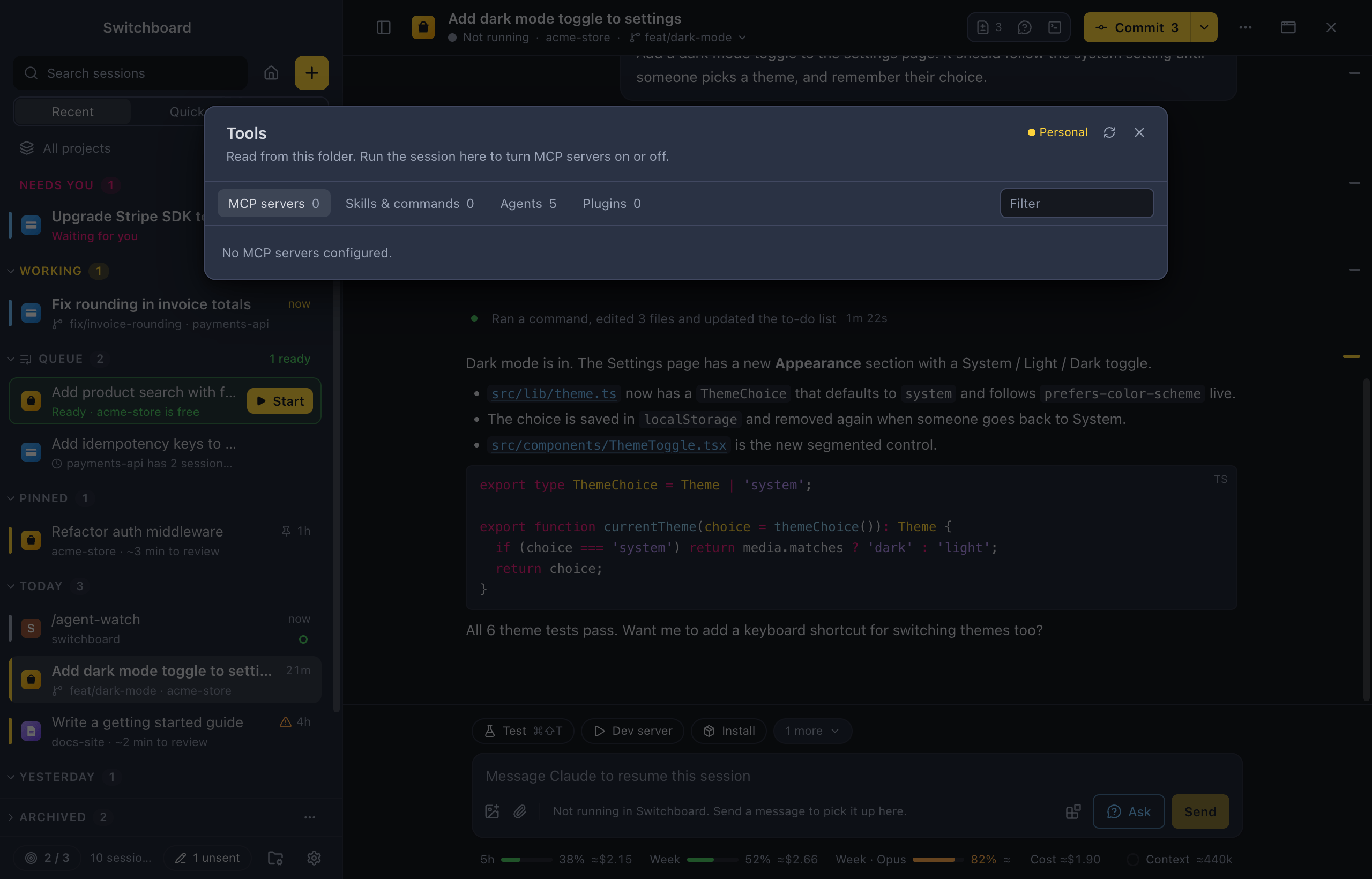
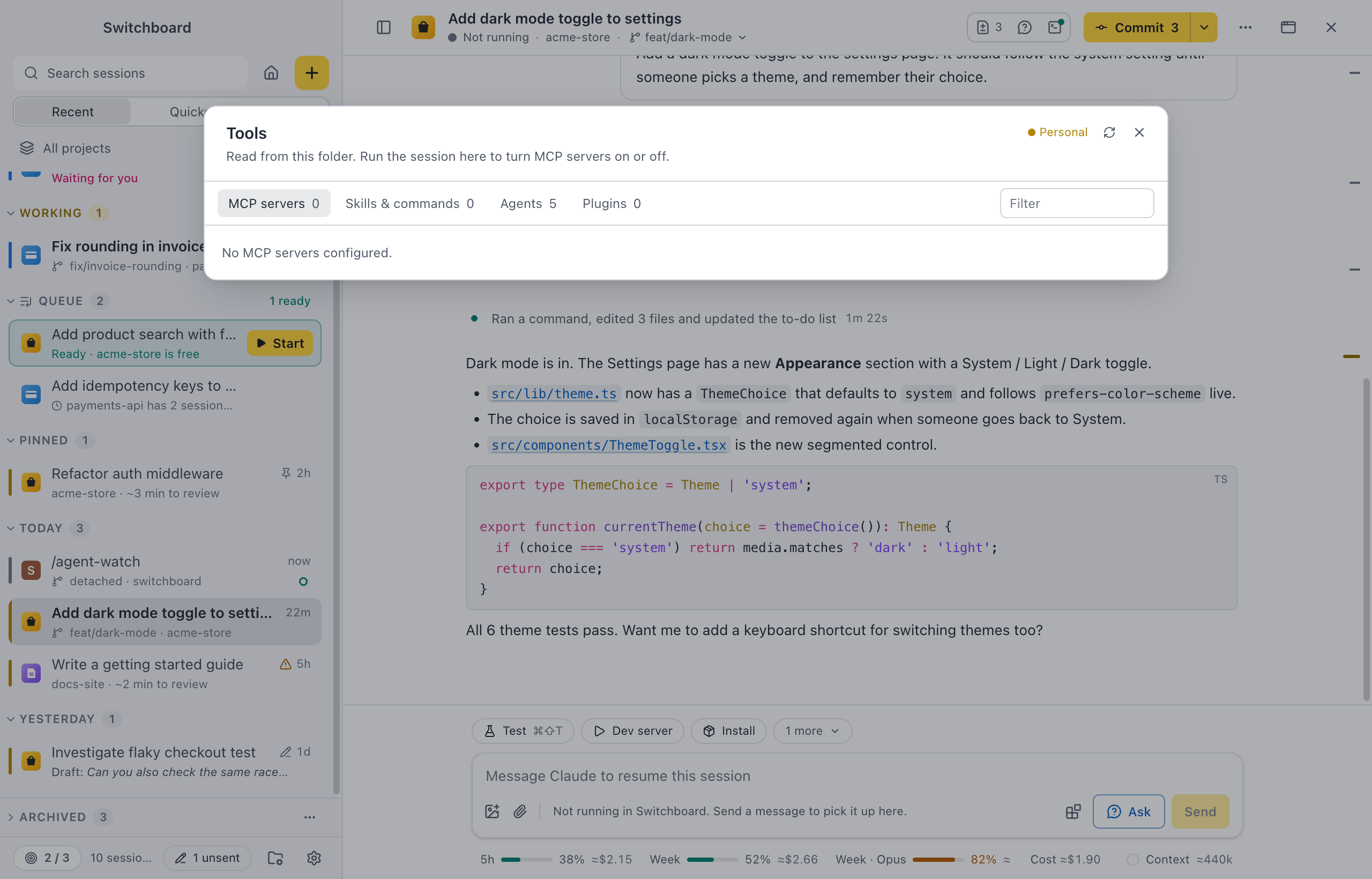
- Tools: the blocks button under the message box (or Tools: MCP servers, skills, agents, plugins in the command palette) opens the session’s MCP servers, Skills & commands, Agents and Plugins. MCP servers show their status and tools; while the session runs in Switchboard, you can turn a server on or off, or reconnect it. With Use Claude in Chrome on in Settings › General, sessions you start or resume list claude-in-chrome here, with the browser tools of the Claude in Chrome extension.
The ⋯ menu
Section titled “The ⋯ menu”The ⋯ button in the header holds:
- Open in your editor, terminal or FinderFile Explorer (Command, OControl, O opens the folder in your editor), and Claude Code, which opens the session in Claude Code’s own terminal interface, in the terminal panel.
- Continue in VS Code: stops the session in Switchboard and opens it in Claude Code’s VS Code extension, in the window for its folder. It shows when VS Code is installed, and waits until Claude is done. Also Continue in VS Code in the command palette.
- The project’s actions.
- Profile (with more than one Claude profile), Rename…, Agents, and Check transcript…, which explains why a conversation looks empty or short.
- Memories from this session, when Claude saved memories during it. Click one to open it in the editor.
- Stop session: ends the Claude Code process for this session. The conversation is kept, and sending a message starts it again.
On Windows, Open in lists the editors whose command it finds (VS Code, VS Code Insiders, Cursor, Windsurf, Zed, Sublime Text, WebStorm and IntelliJ IDEA), Windows Terminal when it is installed, and File Explorer.
With a session open, the command palette (Command, KControl, K) also has Rename session…, Stop Claude, Copy session id, Reveal folder in FinderFile Explorer and Delete session….
Close a session
Section titled “Close a session”Click the × in the header (or Close session in the command palette) to go back to Home. A session that is working keeps running: pick it in the sidebar to open it again.
Settings
Section titled “Settings”- Settings, Conversation: Summarised (the default) shows each run of tool calls as one line; Every step shows each tool call as its own card.
- Show prompt outline (on by default) shows the rail of your prompts beside the conversation.
- Under each reply sets the line under each turn: Nothing, Time, Time and duration (the default) or Time, duration and tokens.
- Each project’s defaults for model, effort and mode are on its Settings tab.
Related
Section titled “Related”- Permissions and questionsApprove or deny what Claude wants to do, answer its questions and review its plans, right in the conversation.
- Ask about this sessionAsk Claude about the session in a panel next to the conversation, while it keeps working. Nothing is added to the conversation.
- Link sessionsMention another session with @ in the message box, and Claude gets its folder, branch, pull request, what it did and its last reply. Stack a pull request on another one without copying anything over.
- Saved promptsNewSave a prompt with blanks, pick it with / or in New session, fill in the blanks and send.
- Split viewTile sessions next to each other and above each other, drag them into place and resize them.