
Things to try next
Your first session runs. Switchboard can do a lot more than start and follow sessions, and some of the most useful parts are easy to miss. Here are a dozen to try, each with the page that tells you more.
Jump to the session that needs you
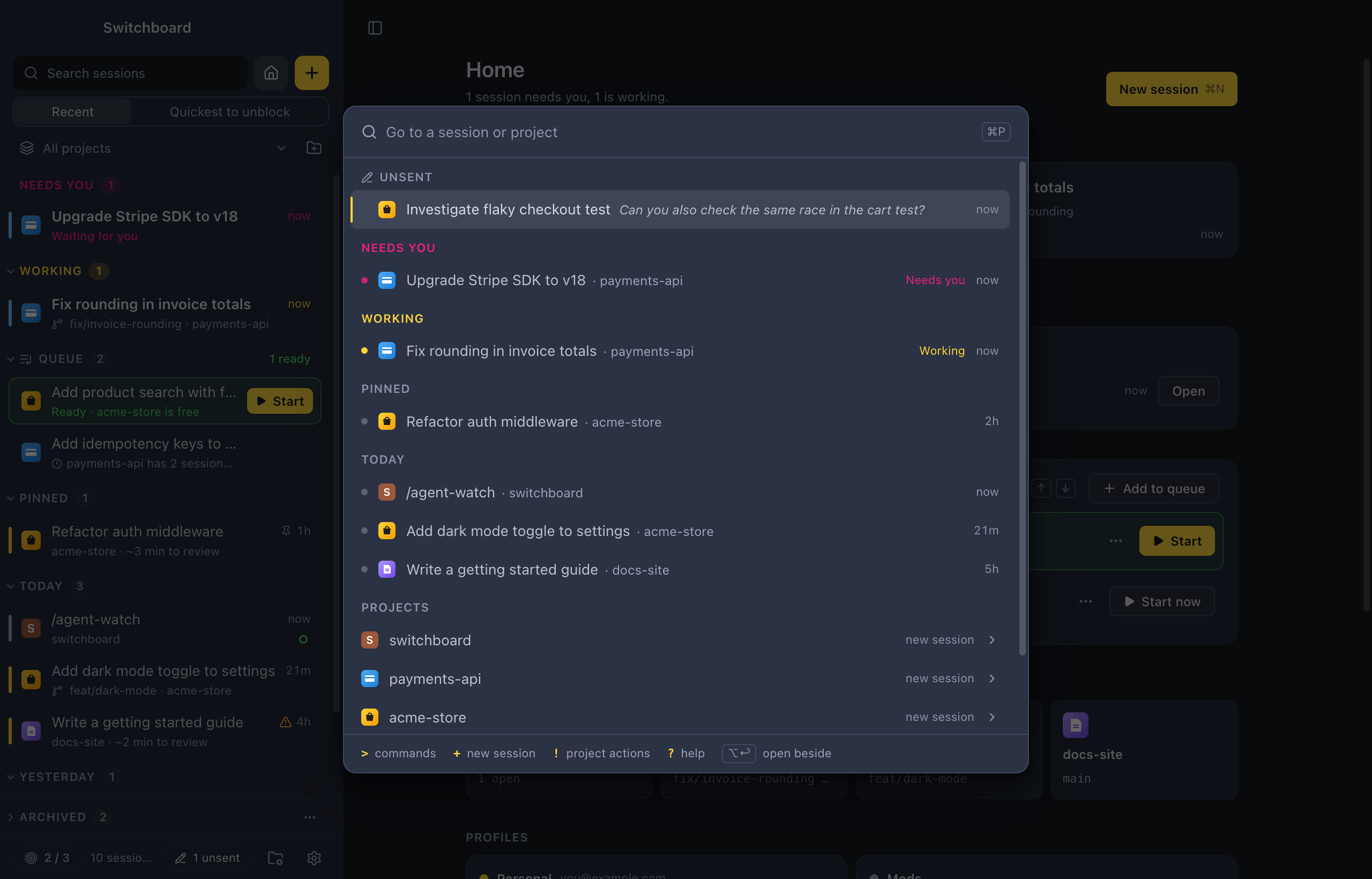
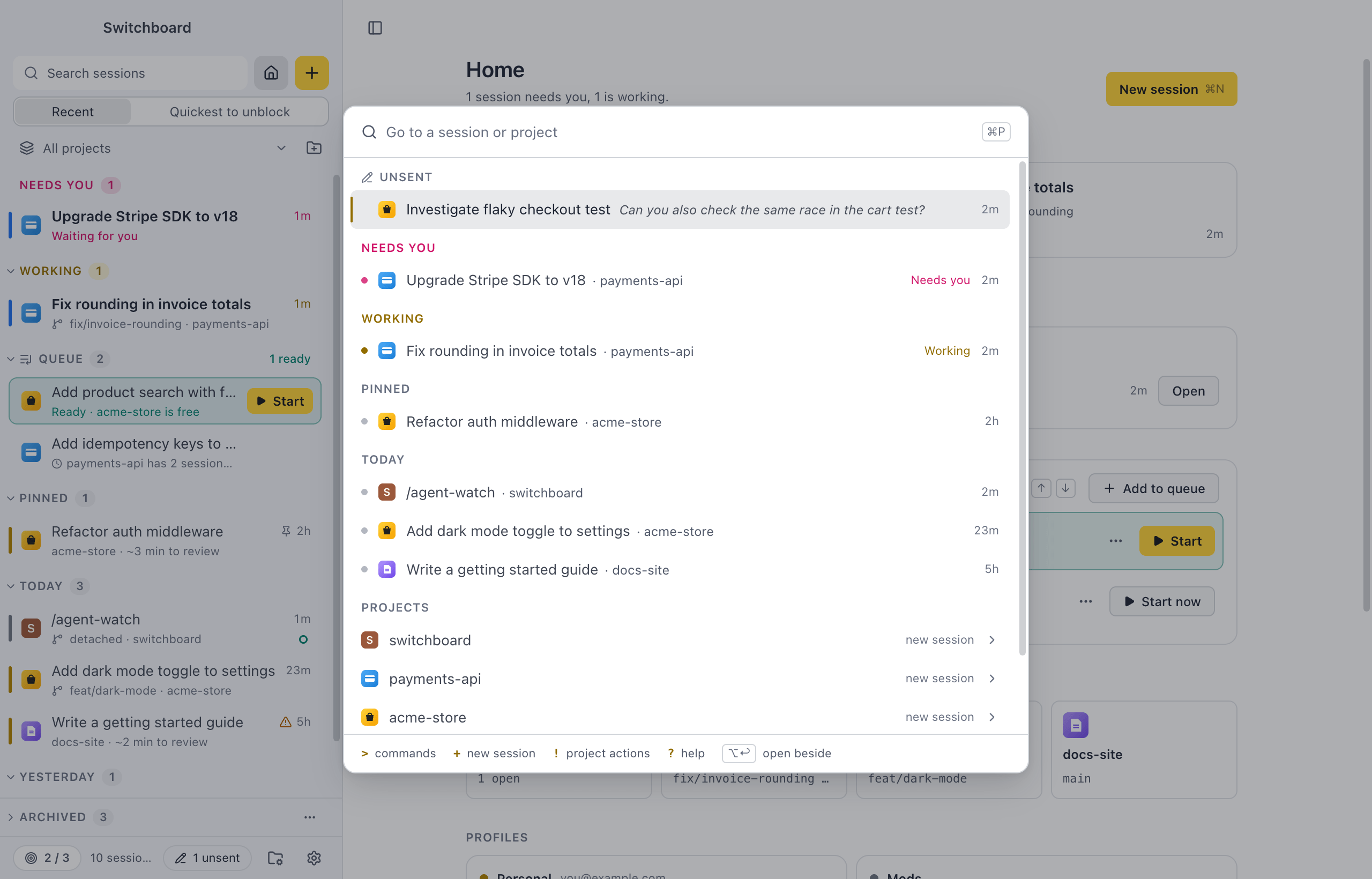
Section titled “Jump to the session that needs you”Press Command, Shift, UControl, Shift, U from anywhere in the app. It goes to the sessions that wait for you first, then to finished ones you haven’t read, the quickest to review first. See Work with sessions.
Do anything from the keyboard
Section titled “Do anything from the keyboard”Command, K or Command, Shift, PControl, K or Control, Shift, P opens the command palette, with every command that fits where you are. Command, PControl, P jumps to any session or project, and Command, Shift, FControl, Shift, F searches every conversation. See Command palette and Search.
Ask something without picking a project
Section titled “Ask something without picking a project”Press Command, Shift, NControl, Shift, N for a quick question: how a command works, a text to draft, an idea to think through. Claude works in a scratch folder of Switchboard’s own, so nothing is added to your projects. See Quick questions.
Ask about a session without interrupting it
Section titled “Ask about a session without interrupting it”Click Ask, next to Send (or Stop while Claude works), and ask “What changed so far?” in a panel next to the conversation. Claude isn’t stopped or steered, and nothing is added to the conversation. See Ask about this session.
Know what a finished session did, in seconds
Section titled “Know what a finished session did, in seconds”When a session finishes, its catch-up says what Claude did, whether the tests passed, how much changed and the one thing it needs from you, such as Commit or Reply. Choose Quickest to unblock at the top of the sidebar to see first what takes least time to review. See Catch-up.
Keep an idea for later
Section titled “Keep an idea for later”When a project is busy, write the prompt in New session and press Command, Shift, ReturnControl, Shift, Enter to add it to the queue. The queue never starts anything by itself: it tells you when an item is ready, and you start it. See Queue.
Run two sessions on one project
Section titled “Run two sessions on one project”Choose Start in a new worktree in Start’s ▾ menu. Claude works in its own copy of the repository, on a branch of its own, and your checkout stays untouched. See Worktrees.
Follow one session while you work in another
Section titled “Follow one session while you work in another”Option, clickAlt, click a session in the sidebar to open it beside the one you have open. To keep it on another screen, press Command, Option, OControl, Alt, O to give it a window of its own. See Split view and Sessions in their own window.
Stop typing the same prompt
Section titled “Stop typing the same prompt”Save a prompt with blanks, such as “Start implementing issue 132”. Type Slash in any message box to pick it, then fill in the blanks with TabTab between them. See Saved prompts.
Review and ship from the session
Section titled “Review and ship from the session”Press Command, Shift, DControl, Shift, D to open Changes: Claude’s diff, with stage, unstage and revert for each file. The git button in the session header offers the next step for the branch: pull, commit, push or create a pull request. See Changes and Git.
Answer Claude from your phone
Section titled “Answer Claude from your phone”In Settings → Remote (Command, CommaControl, Comma), choose a tunnel, click Turn on Remote and Pair a device. Your phone then shows your sessions, and you allow, deny or answer what Claude asks from there. See Remote on your phone.
Use a work and a personal account side by side
Section titled “Use a work and a personal account side by side”Add a profile for each Claude account in Settings → Claude profiles. Switchboard lists the sessions of all profiles together, shows which account each one runs on, and keeps their usage apart. See Claude profiles.
Related
Section titled “Related”- Run several sessions at onceStart a few tasks side by side without them editing the same files, and always know which one needs you next.
- Review what Claude did, fastA session finished. See what it did, question it, check the diff and ship it in a few minutes, without scrolling through the conversation.
- All featuresEverything Switchboard can do, on one page, grouped by what you want to get done. Each card opens the page that covers it.