
Review what Claude did, fast
Claude finished a turn, and the session turns blue in the sidebar. You could scroll through the whole conversation, but you don’t have to. This guide goes from the briefing over the session to a pull request with passing checks.
Start with the catch-up
Section titled “Start with the catch-up”Open the session. The catch-up banner over the conversation shows your ask, how long it takes to review (“~2 min to review”) and the one thing it needs from you. The chips under it show the tests (14 tests passed or 2 of 9 tests fail), the changes (+120 −40 · 6 files), files outside what you asked for, and Followed the plan or Deviated from the plan. These signals come from what Claude ran and from git, never from a model.
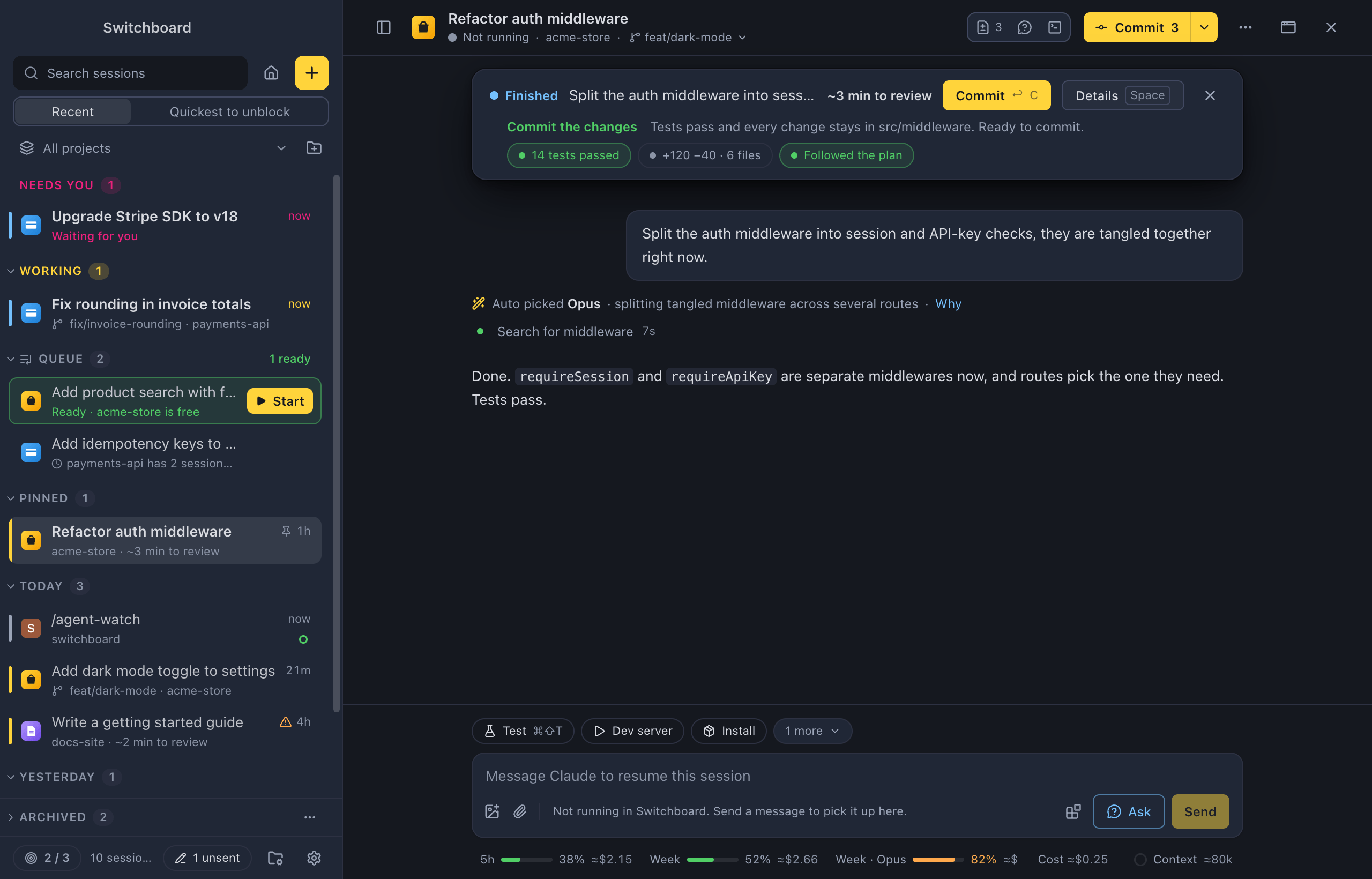
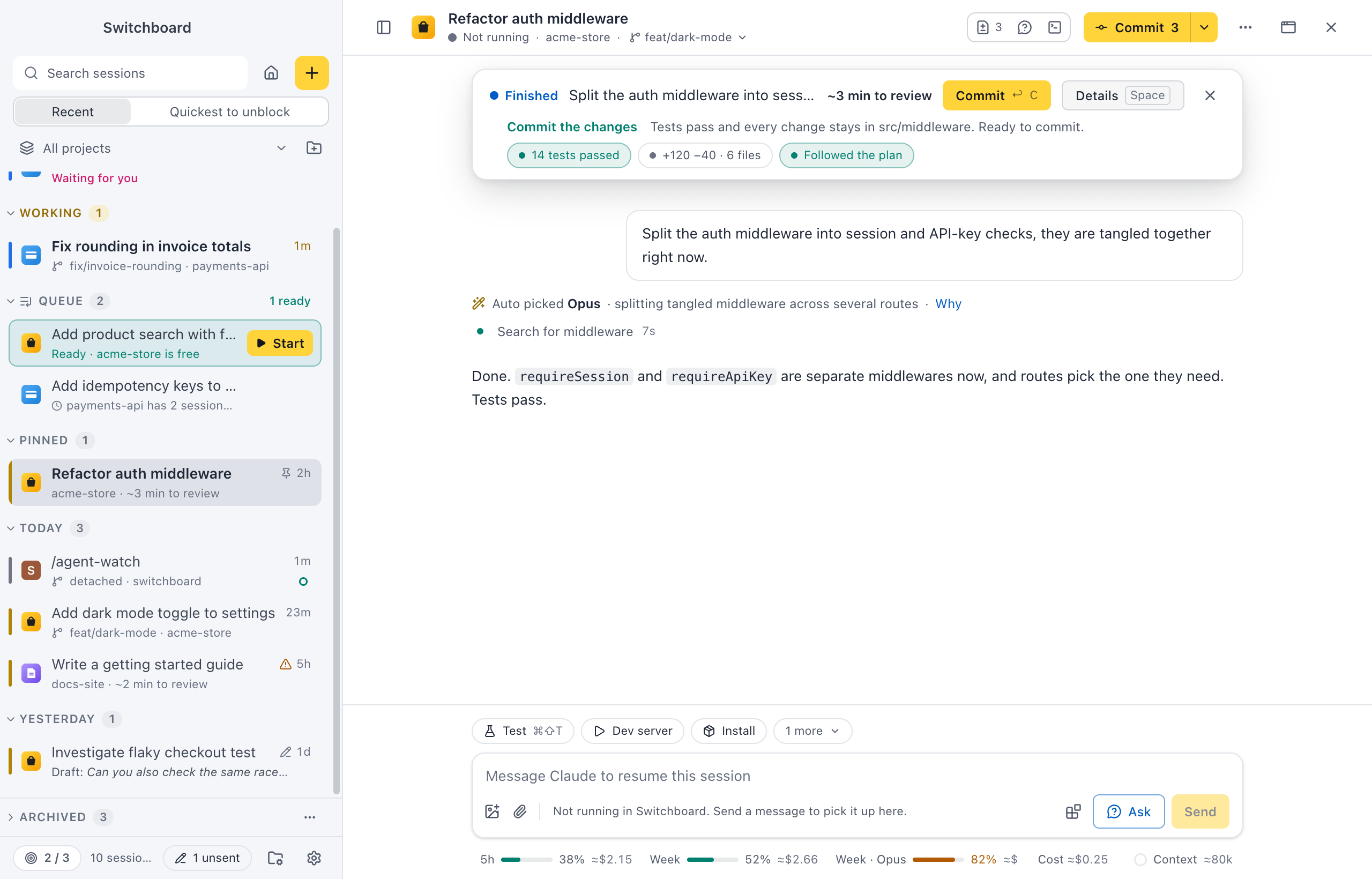
Details (Space) adds What it did and Skipped or not finished. ReturnEnter runs the main action: Commit, Reply, Review changes or Archive. See Catch-up.
When several sessions finished, choose Quickest to unblock at the top of the sidebar to sort them by how long each takes to review. See Quickest to unblock.
If it stopped to ask
Section titled “If it stopped to ask”A session that waits for a permission has no catch-up: the card above the message box asks instead. Its Why? button opens Why Claude asks, with why Claude needs it, what the command does and what Claude said before it asked. You still answer in the card. See Why is Claude asking?.
Ask before you read the diff
Section titled “Ask before you read the diff”Not sure why Claude did something? Click Ask next to Send and ask in the panel. It offers What changed so far?, Which files did it touch?, Why this approach? and What is left to do? to start with. Nothing is added to the conversation, and Claude isn’t stopped or steered. It can read files and git, but it doesn’t change anything. Quote in message puts an answer in the message box. See Ask about this session.
Check what ran in the background
Section titled “Check what ran in the background”If Claude started agents, the Agents panel (Command, Shift, KControl, Shift, K) shows each one’s Prompt and Report. The Commands panel (Command, Shift, EControl, Shift, E) shows the commands Claude ran in the background, how they ended and their output, such as a test run that failed. Each button shows in the header once the session has something for it. See Agents and Commands.
Go through the changes
Section titled “Go through the changes”Press Review changes (D) on the banner, or Command, Shift, DControl, Shift, D. The Changes panel lists every file with its status and line counts; click one to open its diff inline. In Uncommitted, tick a file to stage it, or use Revert this file… to drop its changes. Reverted new files go to the TrashRecycle Bin. See Changes.
Commit and open a pull request
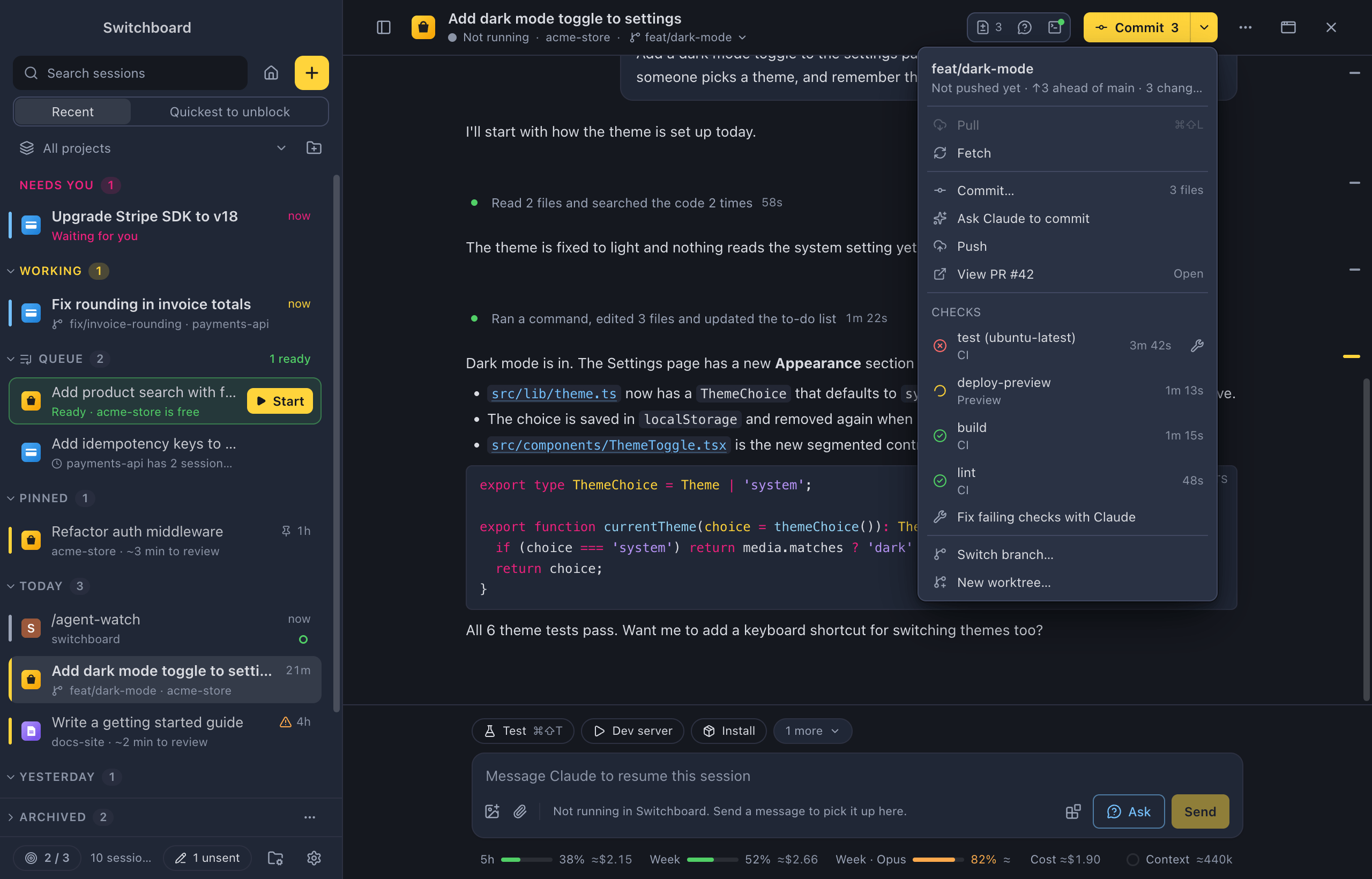
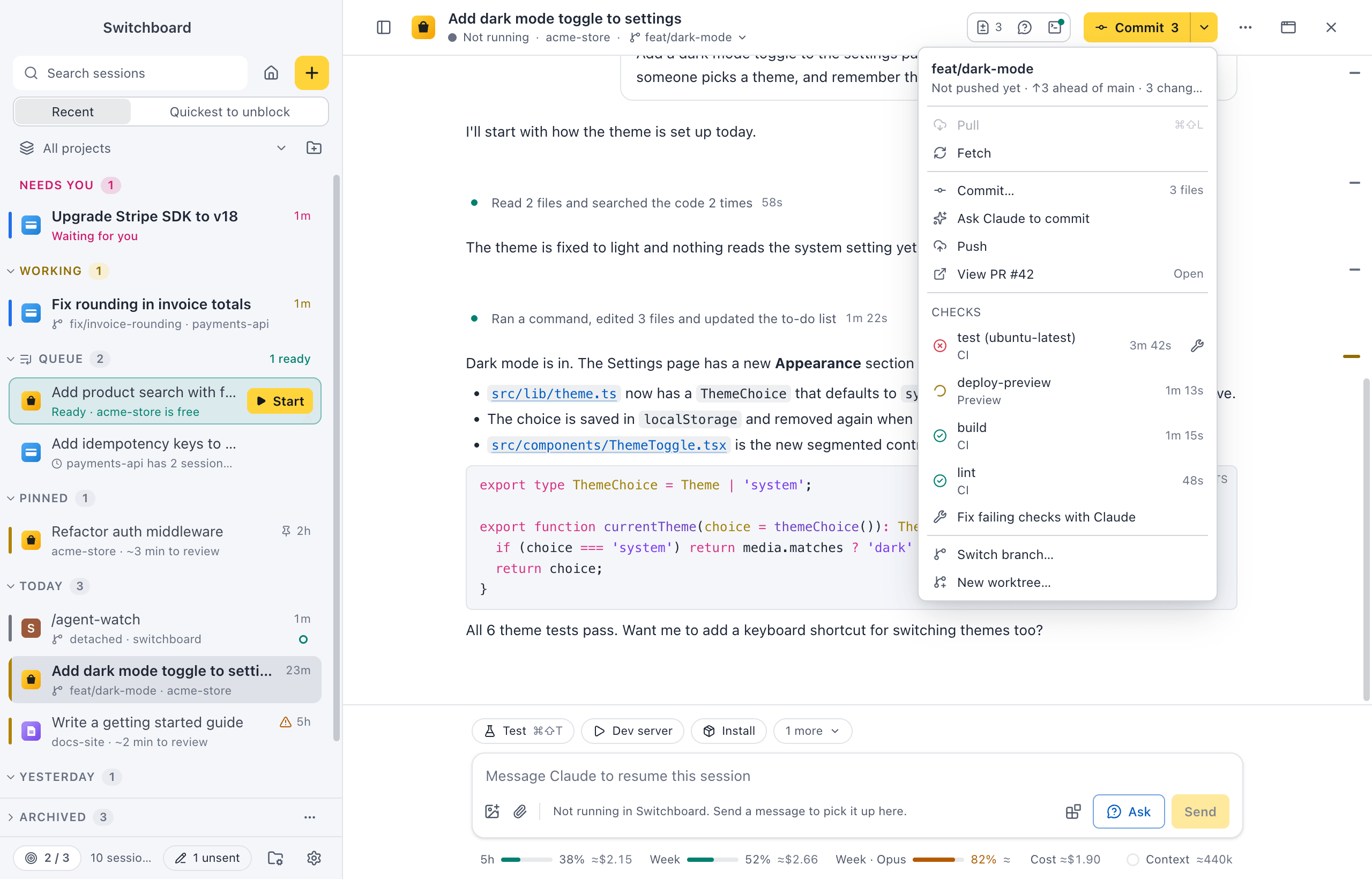
Section titled “Commit and open a pull request”The git button in the session header runs the next step for the branch: Commit 3 (Haiku writes the message from the changes), Push ↑1, then Create PR. For your own message, choose Commit… in its ▾ menu; it commits what you staged. Create PR… opens the Create pull request dialog, with the title, a description from the repository’s template and Draft. It pushes the branch first. Pull requests need the GitHub CLI. See Git.
Fix failing checks with Claude
Section titled “Fix failing checks with Claude”Once the pull request is open, View PR #123 on the git button gets an icon for its checks, and a notification says Checks failed on PR #123 when one fails. Fix failing checks with Claude in the git menu puts a prompt in the message box that names the checks, with each log as a chip. Nothing is sent until you send it. See Checks.
Finish up
Section titled “Finish up”In a worktree, click the branch in the header for Merge into <base>… or Remove worktree…. See Finish a worktree.
Related
Section titled “Related”- Run several sessions at onceStart a few tasks side by side without them editing the same files, and always know which one needs you next.
- Permissions and questionsApprove or deny what Claude wants to do, answer its questions and review its plans, right in the conversation.
- Focus limitSet how many sessions you want going at the same time, and get asked before you start one more.