
Type the same thing less
Many sessions start the same way: “Fix pull request 142”, run the tests, pick a model, choose a worktree. Each of those can be one click or one key. At the end of this guide your common prompts have blanks to fill in, your commands are buttons, and new sessions start with the right choices by themselves.
Save the prompts you keep writing
Section titled “Save the prompts you keep writing”- Open Settings, then Prompts, and click New prompt. Or run New saved prompt… in the command palette.
- Give it a name, and choose where it shows under Use in.
- Write the prompt. Click Add blank, or type
{{, for a GitHub issue, pull request, branch, choice, text or file blank. - Click Save.
To use it, type Slash in any message box and pick it. Each blank is a chip: fill it in, and press TabTab for the next one. A pull request blank lists the project’s open pull requests. New session also shows the prompts you use most as chips above the message box. See Saved prompts.
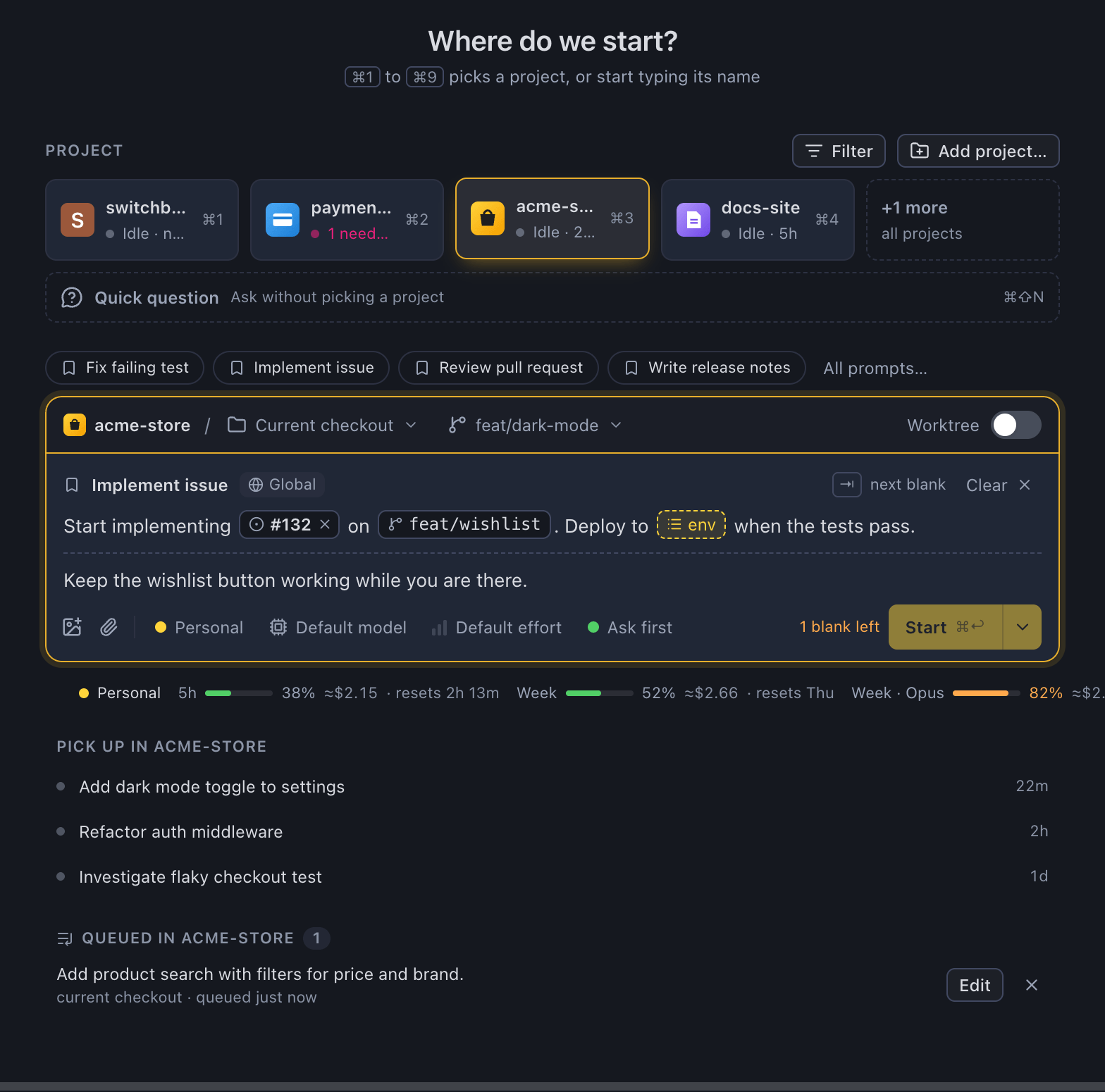
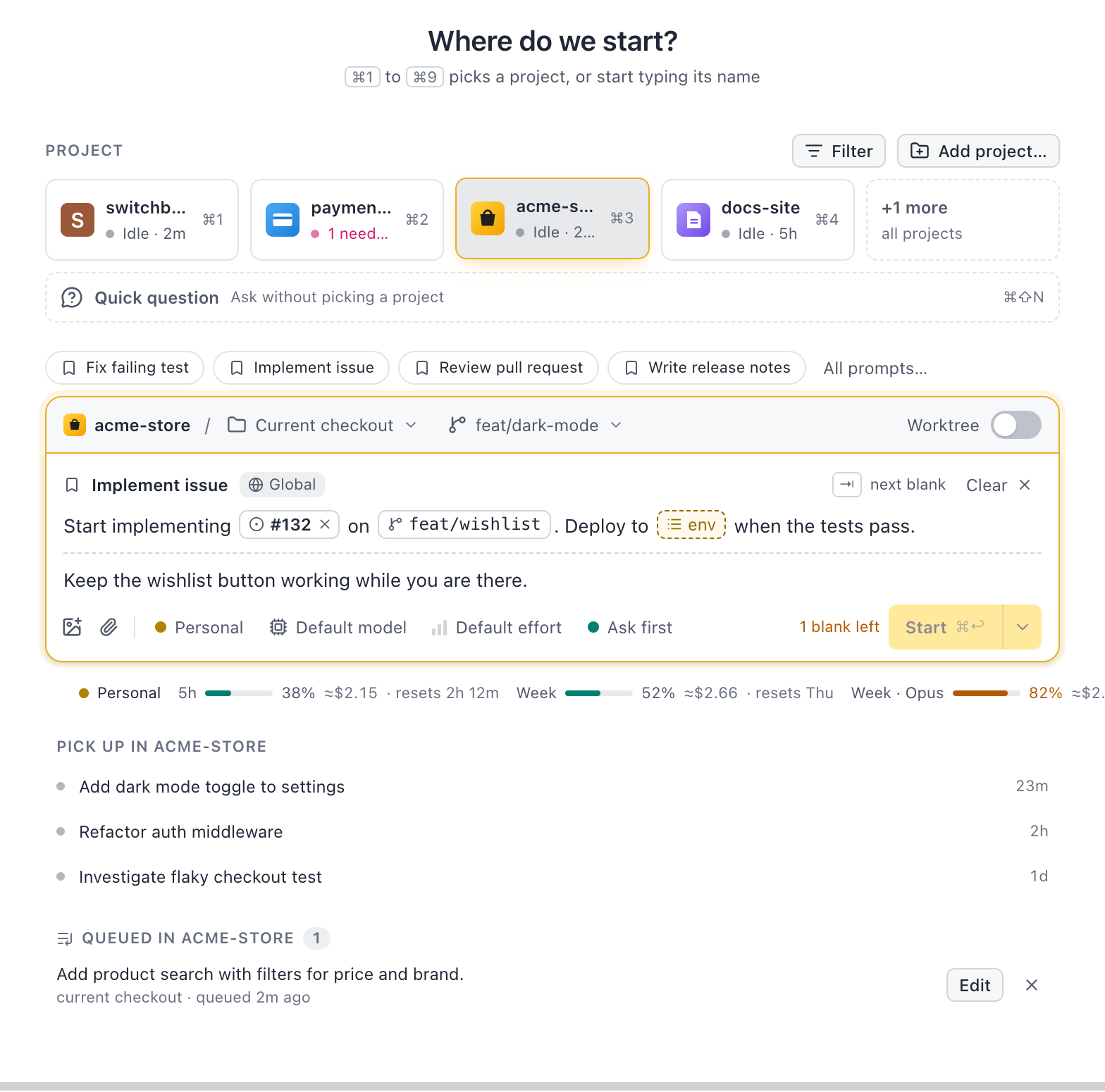
A message you already sent can become one too: right-click it and choose Save as prompt…. Click an issue link, a branch name or a file path in it to turn it into a blank.
Turn commands into buttons
Section titled “Turn commands into buttons”A project action either runs a command in a terminal tab or asks Claude something. Click the dashed Add action pill above the message box, or run New action…. Pick a suggestion, such as a script from your package.json, or fill in your own, then click Save. The first three actions show as pills above the message box.
Click Set next to Shortcut to give an action its own keys. For Test or Lint, turn on Send the output to Claude when it finishes, and Claude gets the result without you pasting it. See Project actions.
Set up each worktree, and share with the team
Section titled “Set up each worktree, and share with the team”Turn on Run when a new worktree is created for setup such as npm install. It runs before Claude starts in each new worktree. See Run in every new worktree.
Set Saved for to Shared with the project, and the action goes in the project’s .switchboard.json. Commit the file, and everyone on the project gets it. A saved prompt set to <project>, shared with the project goes in the same file. See Share actions with your team.
Start sessions from outside the app
Section titled “Start sessions from outside the app”A switchboard:// link opens New session with the project and prompt filled in:
switchboard://new-session?repo=acme/payments&prompt=Review%20the%20open%20pull%20requestsrepo finds the checkout wherever each person cloned it, so one link works for a whole team. Put it in a README or a runbook, open it from a shell with openStart-Process, or from a launcher.
Raycast (Mac) has a script that asks for a project and a prompt.
A link only fills in New session: you read the prompt and press Start, unless the link says autostart=1. See Links.
Do it from the keyboard
Section titled “Do it from the keyboard”Command, K or Command, Shift, PControl, K or Control, Shift, P opens the command palette. Type + to start a new session in a project, or ! to run one of the session’s project actions. Use saved prompt… picks a saved prompt. Each row shows its shortcut, so the palette teaches you the keys as you go. See Command palette.
Stop picking a model each time
Section titled “Stop picking a model each time”Choose Auto at the top of the model menu. Haiku reads your first prompt and picks Haiku, Sonnet or Opus for the session, once, when it starts. The chip then says what it picked, such as Auto · Sonnet. See Auto model.
Save your choices as project defaults
Section titled “Save your choices as project defaults”Set the model, effort, mode and worktree in New session, then press Save as project default in the Where menu. Or set them on the project’s Settings tab, where Model can be Auto too. Every new session in the project starts from them. See Project settings.
Related
Section titled “Related”- Keyboard shortcutsEvery keyboard shortcut in Switchboard, grouped by where it works.
- QueueKeep prompts to start later, in the order you want them, and see when each one is ready.
- Run several sessions at onceStart a few tasks side by side without them editing the same files, and always know which one needs you next.