
Keyboard shortcuts
Switchboard is made to be used from the keyboard. Every main action has a shortcut, and buttons show theirs. This page is built from the same list the app uses, so it is always up to date.
The keys below are shown for a MacWindows; switch with Mac or Windows at the top of the page. On Windows, ⌘ is Ctrl, ⌥ is Alt and ⇧ is Shift, and the app writes keys as words (Ctrl+Shift+P). In the terminal panel on Windows, Ctrl keys belong to the shell (Ctrl+C, Ctrl+R) and Ctrl+Shift keys to Switchboard.
The shortcuts sheet
Press Command, SlashControl, Slash (or choose Help › Keyboard Shortcuts, or Keyboard shortcuts in the command palette) to see every shortcut in the app. The ones that work where you are stand out; the rest are faded. Your project actions' shortcuts are listed too. Type in its field to filter by name or by keys, for example "terminal" or "⌘JCtrl+J".
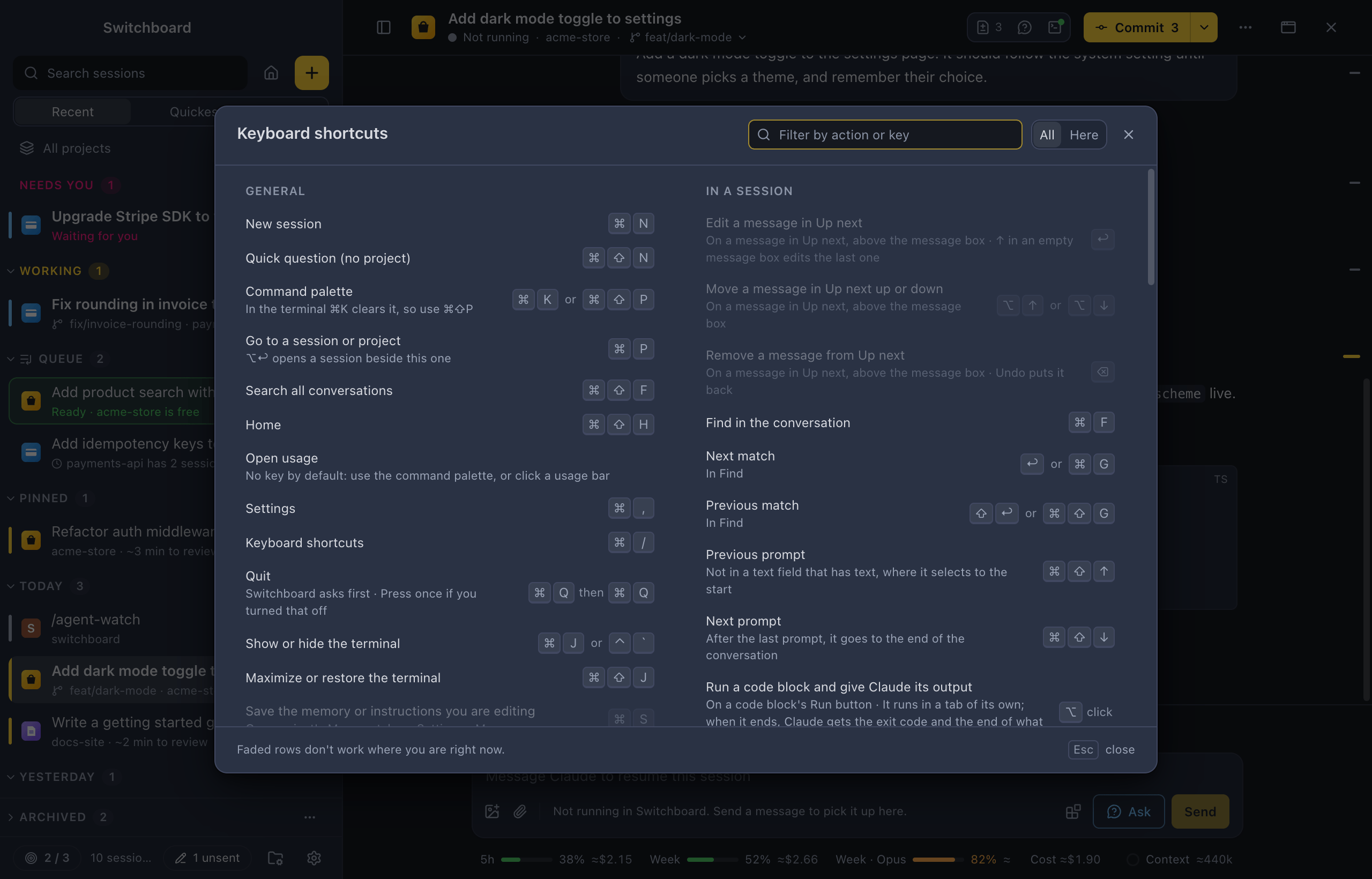
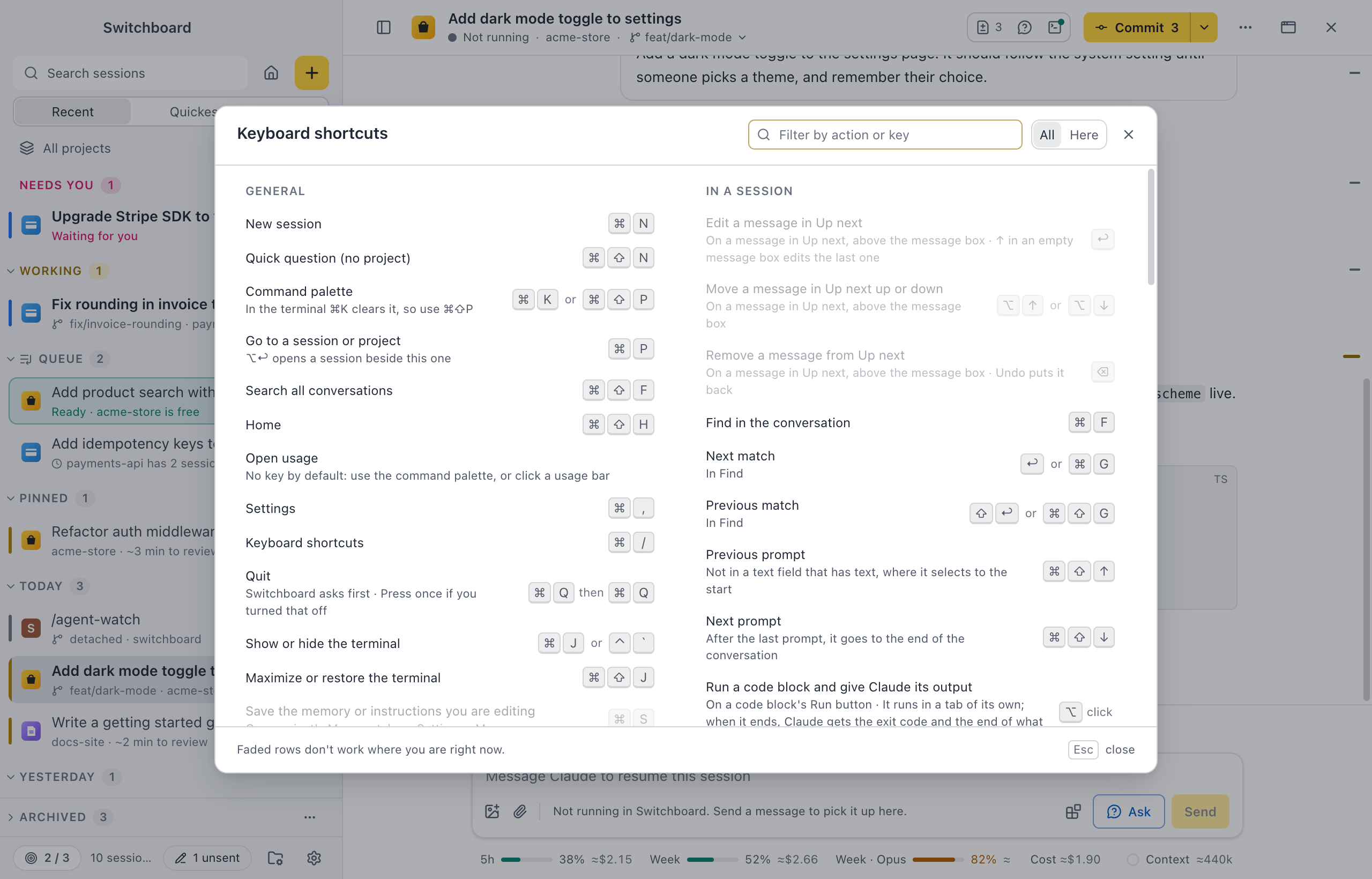
General
| Keys | What it does | When |
|---|---|---|
| Command, NControl, N | New session | |
| Command, Shift, NControl, Shift, N | Quick question (no project) | |
| Command, K or Command, Shift, PControl, K or Control, Shift, P | Command palette | In the terminal ⌘K clears it, so use ⌘⇧PIn the terminal Ctrl+K clears it, so use Ctrl+Shift+P |
| Command, PControl, P | Go to a session or project | ⌥↩ opens a session beside this oneAlt+Enter opens a session beside this one |
| Command, Shift, FControl, Shift, F | Search all conversations | |
| Command, Shift, HControl, Shift, H | Home | |
| Command, Shift, YControl, Shift, Y | Upcoming: queued and scheduled | |
| Open usage | No key by default: use the command palette, or click a usage barNo key by default: use the command palette, or click a usage bar | |
| Command, CommaControl, Comma | Settings | |
| Command, SlashControl, Slash | Keyboard shortcuts | |
| Command, Q then Command, QControl, Q then Control, Q | Quit | Switchboard asks first. Press once if you turned that offSwitchboard asks first. Press once if you turned that off |
| Command, J or Control, BacktickControl, J or Control, Backtick | Show or hide the terminal | |
| Command, Shift, JControl, Shift, J | Maximize or restore the terminal | |
| Command, SControl, S | Save the memory or instructions you are editing | On a project's Memory tab, or Settings › MemoryOn a project's Memory tab, or Settings › Memory |
Sessions and sidebar
| Keys | What it does | When |
|---|---|---|
| Command, BControl, B | Collapse or open the sidebar | |
| Control, TabControl, Tab | Next session | In the sidebar's orderIn the sidebar's order |
| Control, Shift, TabControl, Shift, Tab | Previous session | In the sidebar's orderIn the sidebar's order |
| Command, Shift, UControl, Shift, U | Next session that needs you | |
| Command, Option, OControl, Alt, O | Open this session in a new window | In a session. Closing that window puts nothing away: the session keeps runningIn a session. Closing that window puts nothing away: the session keeps running |
| Up Arrow or Down Arrow | Move through sessions | In the sidebarIn the sidebar |
| Command, click or Shift, click or Shift, Up Arrow or Shift, Down ArrowControl, click or Shift, click or Shift, Up Arrow or Shift, Down Arrow | Select several sessions | In the sidebarIn the sidebar |
| Command, AControl, A | Select every session in the group | In the sidebarIn the sidebar |
| Escape | Clear the selection | While sessions are selectedWhile sessions are selected |
| F2 | Rename the session | In the sidebarIn the sidebar |
| Command, DeleteControl, Backspace | Delete the session | In the sidebar, to the TrashIn the sidebar, to the Trash |
| Option, clickAlt, click | Open beside the current session | In the sidebar. Dragging the session onto a pane opens it thereIn the sidebar. Dragging the session onto a pane opens it there |
| middle click | Archive a finished session | In the sidebarIn the sidebar |
| Left Arrow or Right Arrow | Close or open a section | On a section header in the sidebarOn a section header in the sidebar |
| Option, clickAlt, click | Close or open every section | On a section header in the sidebarOn a section header in the sidebar |
| Command, ReturnControl, Enter | Start a queued item now | On a queued item, in the sidebar or HomeOn a queued item, in the sidebar or Home |
| Command, EControl, E | Edit a queued item in New session | On a queued item, in the sidebar or HomeOn a queued item, in the sidebar or Home |
| Option, Up Arrow or Option, Down ArrowAlt, Up Arrow or Alt, Down Arrow | Move a queued item up or down | On a queued item, in the sidebar or HomeOn a queued item, in the sidebar or Home |
| Option, Shift, Up ArrowAlt, Shift, Up Arrow | Move a queued item to the top | On a queued item, in the sidebar or HomeOn a queued item, in the sidebar or Home |
| DeleteBackspace | Remove a queued item | On a queued item, in the sidebar or Home. Undo puts it backOn a queued item, in the sidebar or Home. Undo puts it back |
| Shift, F10Shift, F10 | Open the context menu | On a session, project or file; or right-clickOn a session, project or file; or right-click |
| Command, Option, WControl, Alt, W | Close this pane | With more than one pane open. The panes next to it take its spaceWith more than one pane open. The panes next to it take its space |
| Command, BackslashControl, Backslash | Close the other panes | With more than one pane open. Keeps the pane you are inWith more than one pane open. Keeps the pane you are in |
| Command, Option, Left ArrowControl, Alt, Left Arrow | Go to the pane on the left | With more than one pane openWith more than one pane open |
| Command, Option, Right ArrowControl, Alt, Right Arrow | Go to the pane on the right | With more than one pane openWith more than one pane open |
| Command, Option, Up ArrowControl, Alt, Up Arrow | Go to the pane above | With more than one pane openWith more than one pane open |
| Command, Option, Down ArrowControl, Alt, Down Arrow | Go to the pane below | With more than one pane openWith more than one pane open |
| Command, Shift, XControl, Shift, X | Swap this pane with the next one | With more than one pane open. Dragging a pane's header onto the middle of another one does the sameWith more than one pane open. Dragging a pane's header onto the middle of another one does the same |
| Command, Shift, OControl, Shift, O | Stack this pane's split, or put it side by side | With more than one pane open. Turns the panes this one sits in the other wayWith more than one pane open. Turns the panes this one sits in the other way |
In a session
| Keys | What it does | When |
|---|---|---|
| ReturnEnter | Edit a message in Up next | On a message in Up next, above the message box. ↑ in an empty message box edits the last oneOn a message in Up next, above the message box. ↑ in an empty message box edits the last one |
| Option, Up Arrow or Option, Down ArrowAlt, Up Arrow or Alt, Down Arrow | Move a message in Up next up or down | On a message in Up next, above the message boxOn a message in Up next, above the message box |
| DeleteBackspace | Remove a message from Up next | On a message in Up next, above the message box. Undo puts it backOn a message in Up next, above the message box. Undo puts it back |
| Command, FControl, F | Find in the conversation | |
| Return or Command, GEnter or Control, G | Next match | In FindIn Find |
| Shift, Return or Command, Shift, GShift, Enter or Control, Shift, G | Previous match | In FindIn Find |
| Command, Shift, Up ArrowControl, Shift, Up Arrow | Previous prompt | Not in a text field that has text, where it selects to the startNot in a text field that has text, where it selects to the start |
| Command, Shift, Down ArrowControl, Shift, Down Arrow | Next prompt | After the last prompt, it goes to the end of the conversationAfter the last prompt, it goes to the end of the conversation |
| Option, clickAlt, click | Run a code block and give Claude its output | On a code block's Run button. It runs in a tab of its own; when it ends, Claude gets the exit code and the end of what it printedOn a code block's Run button. It runs in a tab of its own; when it ends, Claude gets the exit code and the end of what it printed |
| Shift, clickShift, click | Open a file link the other way | On a file in the conversation. A click does what Settings › Conversation sets; this does the otherOn a file in the conversation. A click does what Settings › Conversation sets; this does the other |
| Command, Shift, DControl, Shift, D | Show or hide Changes | |
| Command, Shift, KControl, Shift, K | Show or hide Agents | The agents Claude started in this session, beside the conversationThe agents Claude started in this session, beside the conversation |
| Command, Shift, EControl, Shift, E | Show or hide Commands | The commands Claude runs in the background, with their outputThe commands Claude runs in the background, with their output |
| Ask about this session | No key by default: use the Ask button next to Send, the command palette, or /btwNo key by default: use the Ask button next to Send, the command palette, or /btw | |
| Escape | Restore the terminal | While it fills the view, outside the shellWhile it fills the view, outside the shell |
| Command, KControl, K | Clear the terminal | In the terminalIn the terminal |
| Control, CControl, C | Stop the action | In the terminal, while an action runsIn the terminal, while an action runs |
| Command, Shift, LControl, Shift, L | Pull | When the branch is behindWhen the branch is behind |
| Command, ReturnControl, Enter | Create the pull request | In Create pull requestIn Create pull request |
| Command, OControl, O | Open the folder in your editor | |
| Escape | Stop Claude | While Claude is workingWhile Claude is working |
| Command, Shift, ReturnControl, Shift, Enter | Send now | While Claude is working. Stops what Claude is doing so your message runs right awayWhile Claude is working. Stops what Claude is doing so your message runs right away |
| Option, ReturnAlt, Enter | Queue or steer, the other way | While Claude is working. Does what Enter doesn't: steers when Enter queues, queues when Enter steersWhile Claude is working. Does what Enter doesn't: steers when Enter queues, queues when Enter steers |
| Shift, TabShift, Tab | Switch permission mode | In the message boxIn the message box |
Message box
| Keys | What it does | When |
|---|---|---|
| Return or Command, ReturnEnter or Control, Enter | Send | |
| Shift, ReturnShift, Enter | New line | |
| Slash | Commands and skills | At the start of the messageAt the start of the message |
| At | Mention a file | |
| # | Attach an issue or pull request | At the start of a word, in a project on GitHubAt the start of a word, in a project on GitHub |
| Option, ReturnAlt, Enter | New session from it | On an issue or pull request in the # listOn an issue or pull request in the # list |
| Command, Shift, AControl, Shift, A | Add files as context | Several at once; they show as chipsSeveral at once; they show as chips |
| TabTab | Next blank | In a saved prompt. After the last blank, on to the text under the promptIn a saved prompt. After the last blank, on to the text under the prompt |
| Shift, TabShift, Tab | Previous blank | In a saved prompt. Backspace in an empty blank takes it out of the promptIn a saved prompt. Backspace in an empty blank takes it out of the prompt |
| Up Arrow or Down Arrow | Bring back an earlier message | At the start of your text. Esc goes back to what you were typingAt the start of your text. Esc goes back to what you were typing |
Permissions and questions
| Keys | What it does | When |
|---|---|---|
| Command, Return or Control, ReturnControl, Enter or Control, Enter | Allow, or send your answers | When a card is waitingWhen a card is waiting |
| Escape | Deny, or skip the question | When a card is waitingWhen a card is waiting |
| 1 to 9 | Pick an answer | When a question is waitingWhen a question is waiting |
Catch-up
| Keys | What it does | When |
|---|---|---|
| ReturnEnter | Run the catch-up's main action | Commit, Reply, Review changes or ArchiveCommit, Reply, Review changes or Archive |
| Escape | Close the reply, the Changes panel, Details, then the catch-up | One at a time, the nearest firstOne at a time, the nearest first |
| D | Review changes | Opens or closes the Changes panelOpens or closes the Changes panel |
| C | Commit | |
| R | Reply to Claude | Puts you in the message boxPuts you in the message box |
| U | Mark as read | |
| E | Archive, and go to the next session | |
| Space | Open or close Details, or show the folded catch-up |
New session
| Keys | What it does | When |
|---|---|---|
| Command, 1 to Command, 9Control, 1 to Control, 9 | Pick a recent project | |
| Command, ReturnControl, Enter | Start the session | |
| Command, Shift, ReturnControl, Shift, Enter | Add the prompt to the queue | Starts when you say soStarts when you say so |
Usage
| Keys | What it does | When |
|---|---|---|
| Command, 1Control, 1 | Show Limits | |
| Command, 2Control, 2 | Show Tokens | |
| 1 to 4 | Pick a period | Current window, 24 hours, 7 days, 30 daysCurrent window, 24 hours, 7 days, 30 days |
| Escape | Back to where you were |
Settings
| Keys | What it does | When |
|---|---|---|
| Command, FControl, F | Search settings | |
| Escape | Close Settings |
Project actions
A project action can have a shortcut of its own. It can't use keys that Switchboard already uses with a modifier (⌘, ⌃ or ⌥), or the keys of the menu bar. The shortcuts sheet lists the actions of the project you are in.