
Saved prompts
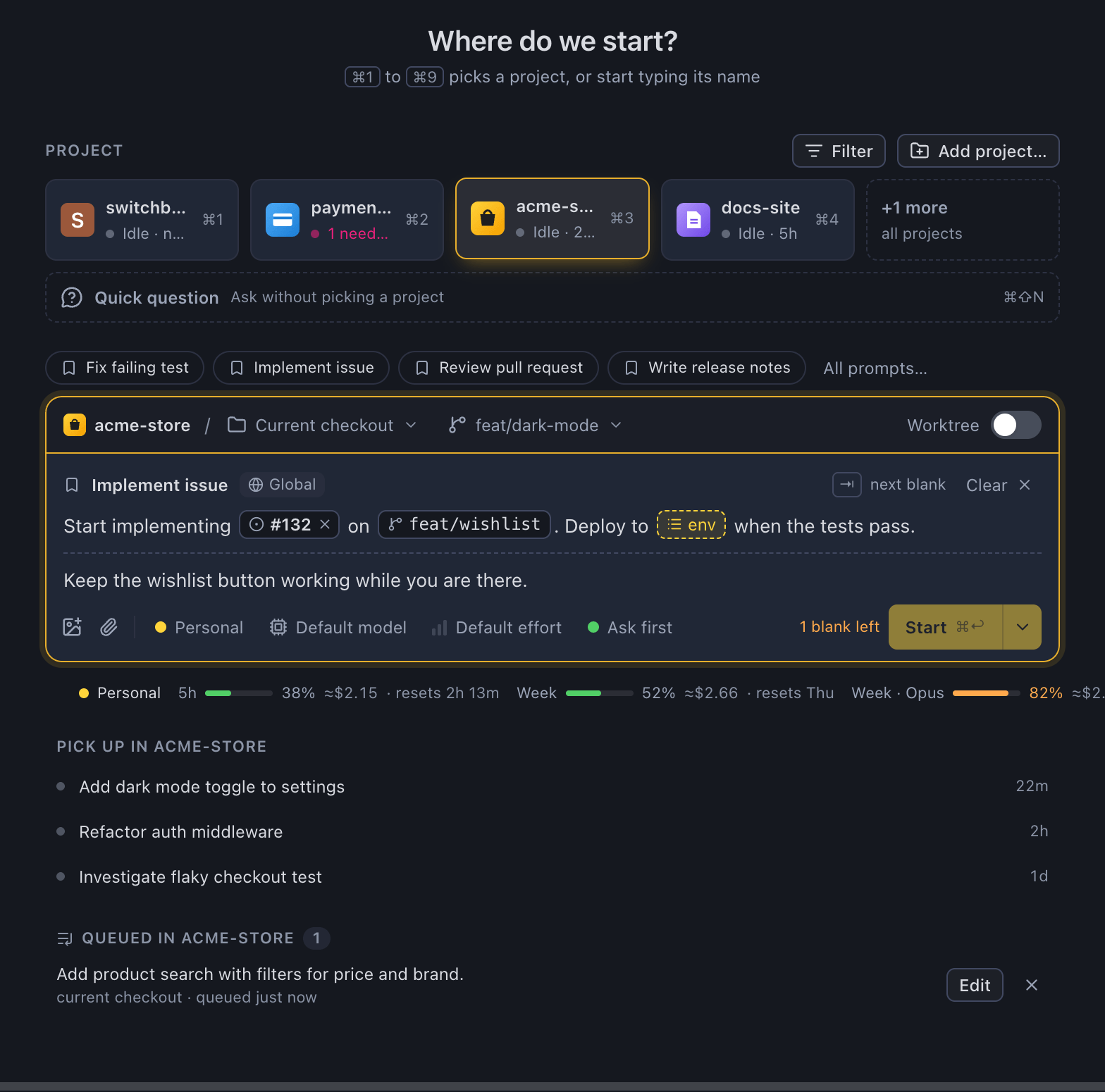
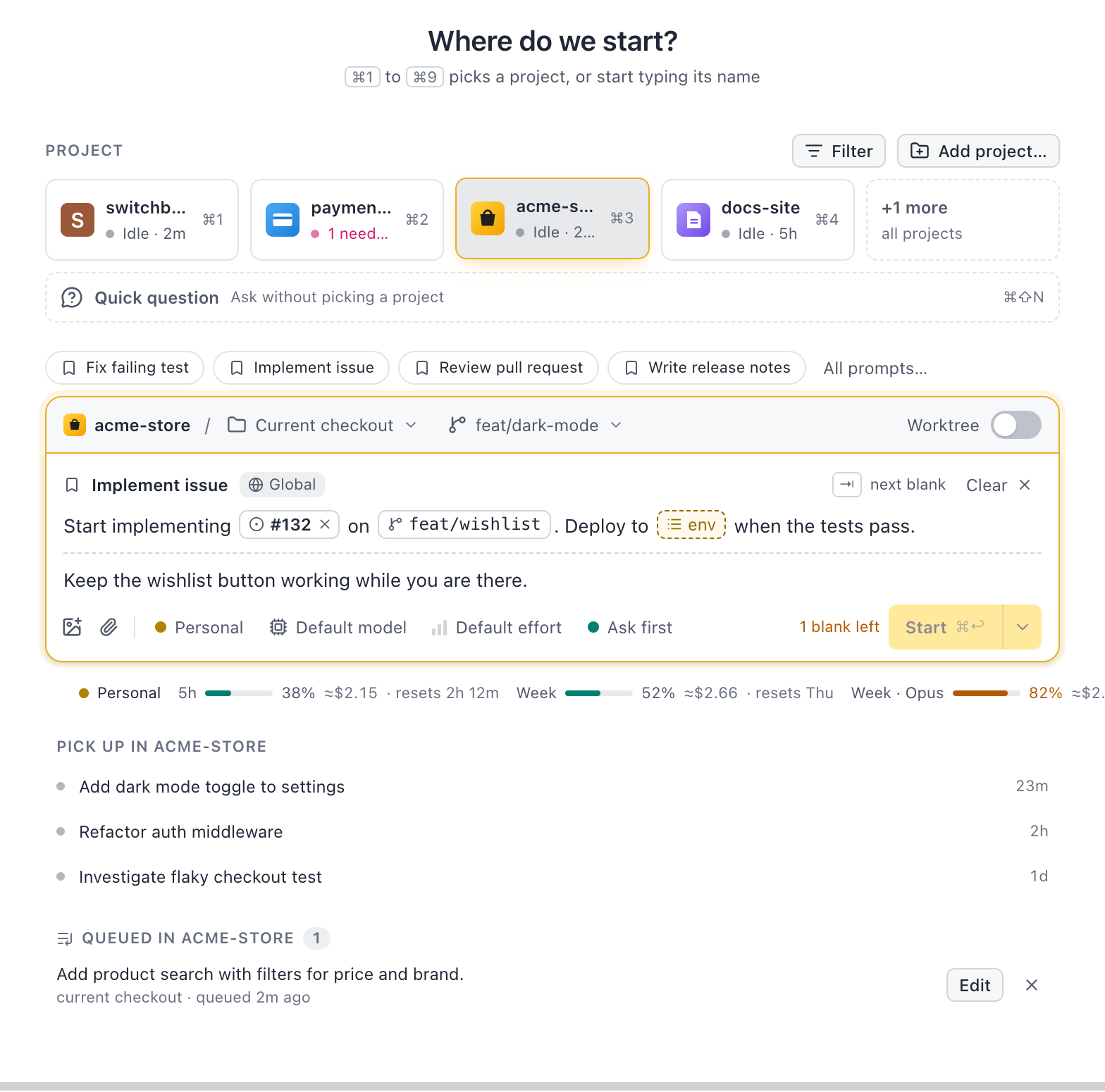
Many prompts start the same way: “Start implementing issue 132”, “Fix pull request 142”. A saved prompt is that text with blanks in it. You pick it, fill in the blanks, add more context if you like, and send.
Use a saved prompt
Section titled “Use a saved prompt”-
Type Slash in any message box: in a session or in New session. Saved prompts come first in the list, then the Claude Code commands under Commands. Typing filters both.
-
Pick a prompt with Up Arrow or Down Arrow and ReturnEnter, or click it. Escape closes the list and keeps what you typed.
-
The prompt goes in the message box, with each blank as a chip. The cursor is in the first empty one. Fill it in, then press TabTab for the next blank (Shift, TabShift, Tab goes back).
-
Write more under the dashed line if you like: Add more context… (optional, sent after the prompt). It takes images and
@files, like the message box always does. It is sent after the prompt, with a blank line in between. -
Send. While a blank you have to fill in is still empty, Send is off and says how many are left (“1 blank left”). Pressing Return or Command, ReturnEnter or Control, Enter then takes you to that blank instead.
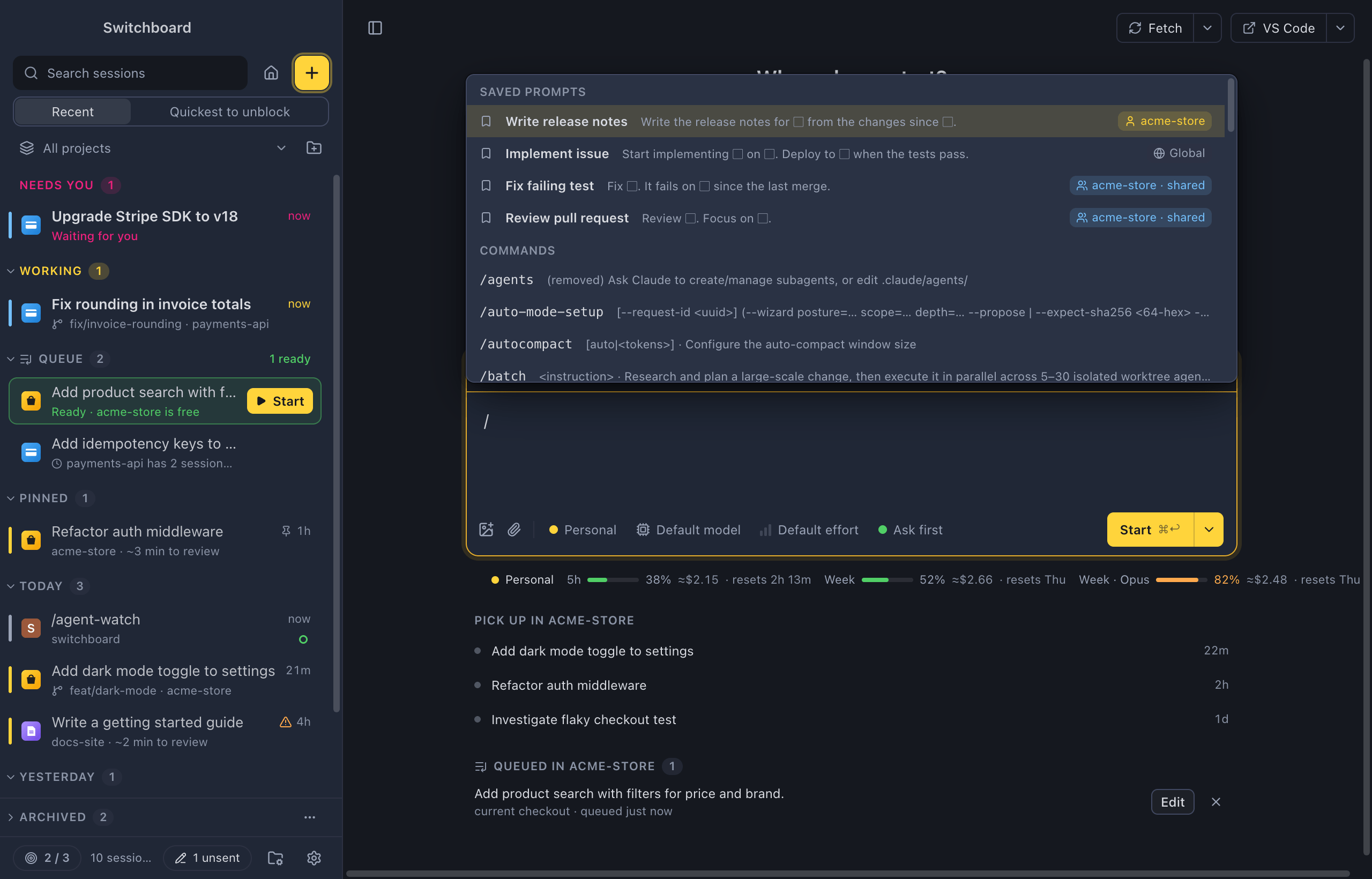
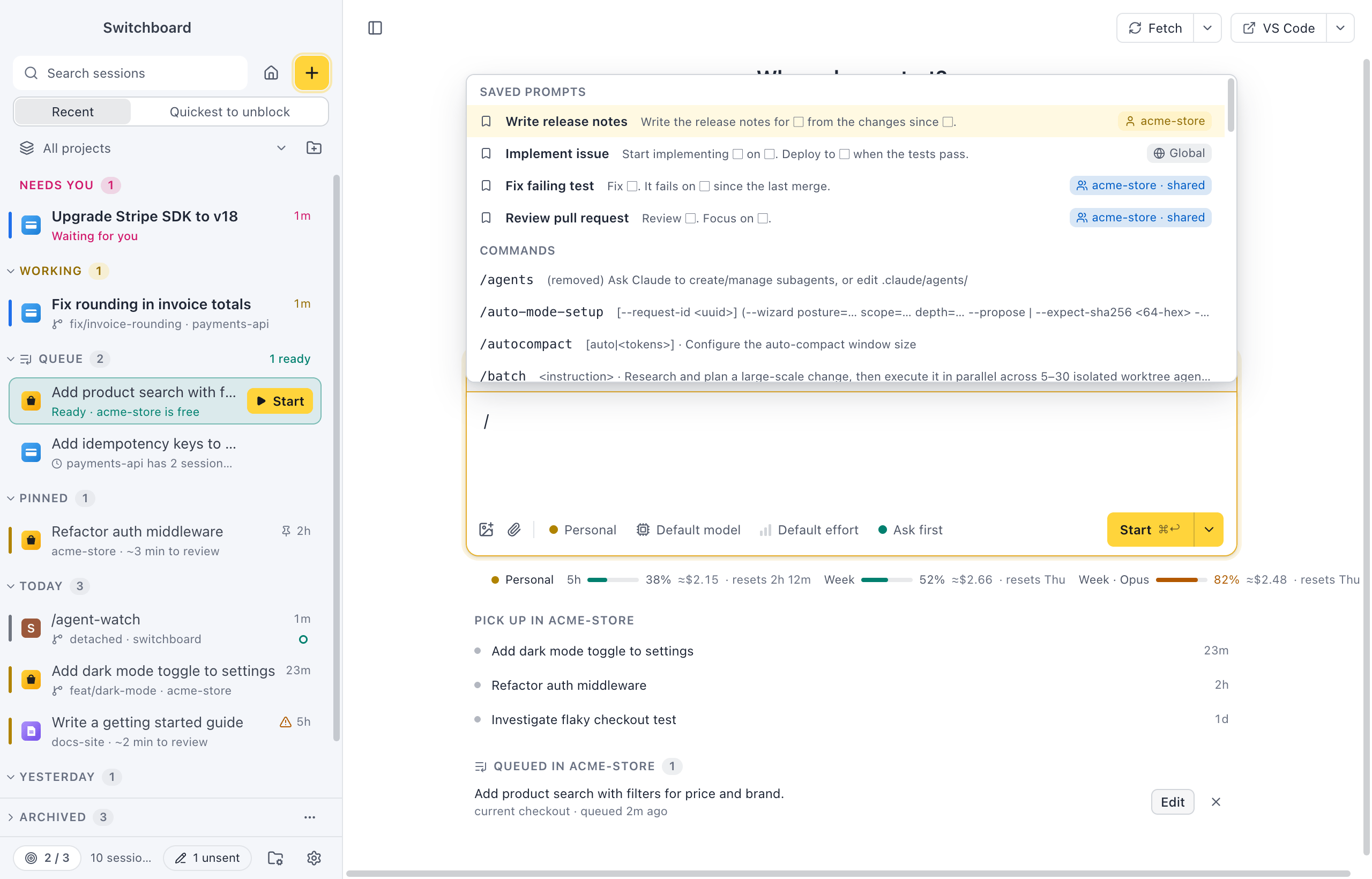
Each row in the list shows the start of the prompt, with blanks as ▢, and where the prompt is kept:
- Global, with a globe: every project.
- The project’s name, with a person: this project, just for you.
- <project> · shared, with two people: shared with the project.
The conversation shows the prompt as it was sent, with the blanks filled in.
In New session
Section titled “In New session”Above the message box, New session shows up to four of the prompts you use most for the picked project, as chips. Click one to use it. All prompts… opens the Slash list. The chips change with the project, and don’t show when you have no saved prompts.
From the command palette
Section titled “From the command palette”Run Use saved prompt… to pick one, or Prompt: Implement issue to put that prompt in the message box on screen straight away.
Fill in the blanks
Section titled “Fill in the blanks”The text around the blanks can be edited like any text. A blank holds what you fill in; the same blank used twice in a prompt is filled once.
| Blank | How you fill it in |
|---|---|
| Text | Type in the chip. |
| Choice | Pick one of its options with Up Arrow Down Arrow and ReturnEnter. |
| Pull request | Type a number, a link or part of a title. The list shows the project’s open pull requests (#142 Claude Code mods · 2 reviews). A number or link that isn’t in the list works too. |
| GitHub issue | Paste a link, or type # and a number. A known issue shows as #132 Support Claude Code Mods. The full link is what is sent, so Claude can open it. |
| Branch | Pick one of the local branches. The one checked out is first. |
| File | Search the project’s files, as with @. |
Typing on a blank opens its list with what you typed. DeleteBackspace in an empty blank takes it out of the prompt, for a blank you don’t need. In a filled one, the first press empties it. Escape closes a list and leaves the cursor on its blank.
Pull requests and issues come from the GitHub CLI (gh). Without it, or without a remote on GitHub, the list says why, and you can still type a number or paste a link.
Clear in the prompt’s header takes the prompt out of the message box, with what you filled in. What you wrote under it stays.
A prompt you are filling in is kept like any unsent message: switch to another session and back, or quit, and it is still there with what you filled in.
Make a saved prompt
Section titled “Make a saved prompt”-
Open Settings, then Prompts, and click New prompt. Or run New saved prompt… in the command palette.
-
Give it a name.
-
Under Use in, choose where it shows:
- Every project: only you, in every project.
- <project>, just for you: only you, only in this project. This is picked when a project is open.
- <project>, shared with the project: saved with the project’s actions, so everyone on the project gets it once it’s committed.
-
Write the prompt. Click Add blank for a GitHub issue, pull request, branch, choice, text or file blank where the cursor is, or type
{{for the same list. Click a blank to change its name and type, to give a choice its options, or to make it optional. -
Click Save (Command, ReturnControl, Enter).
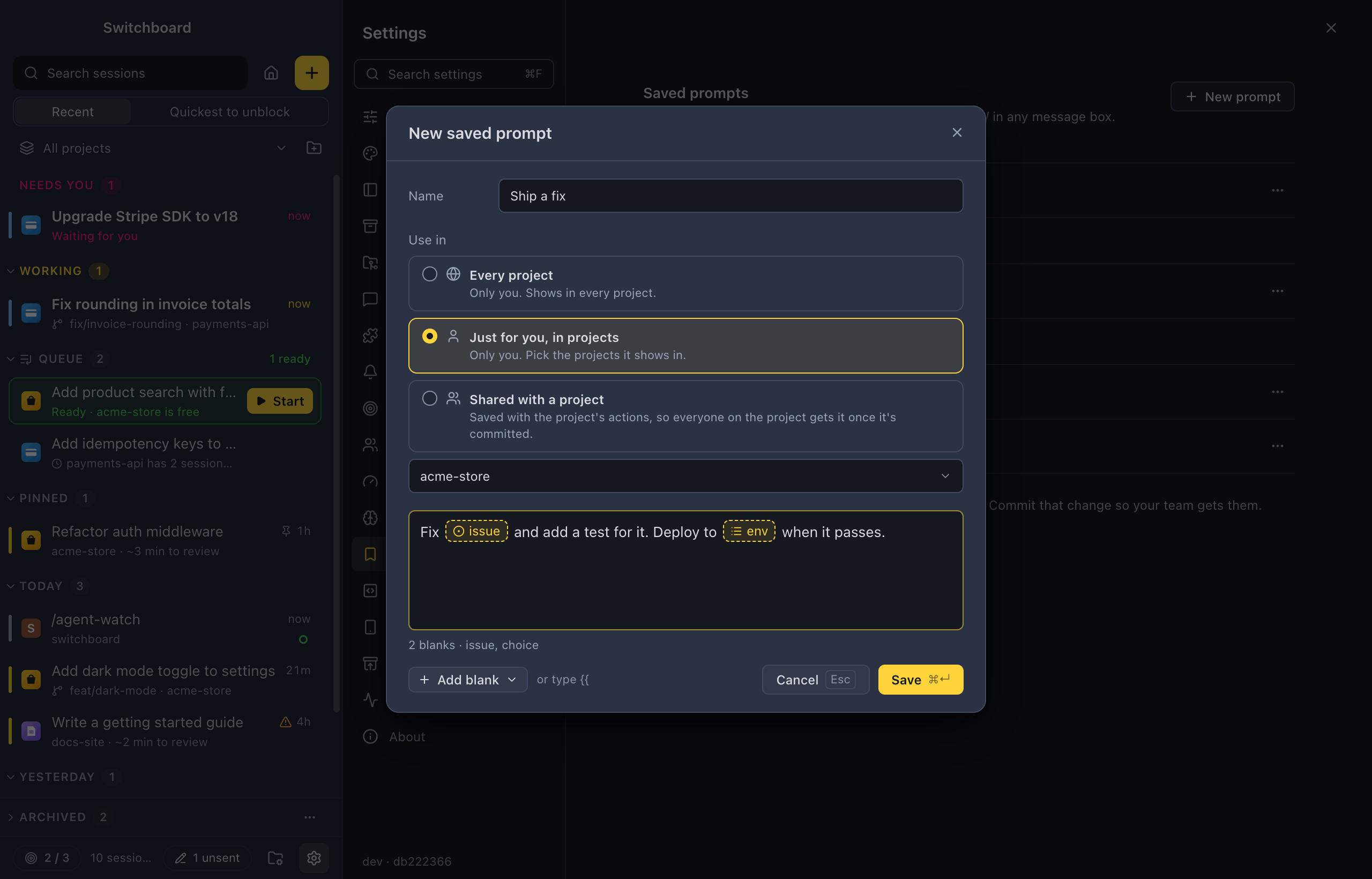
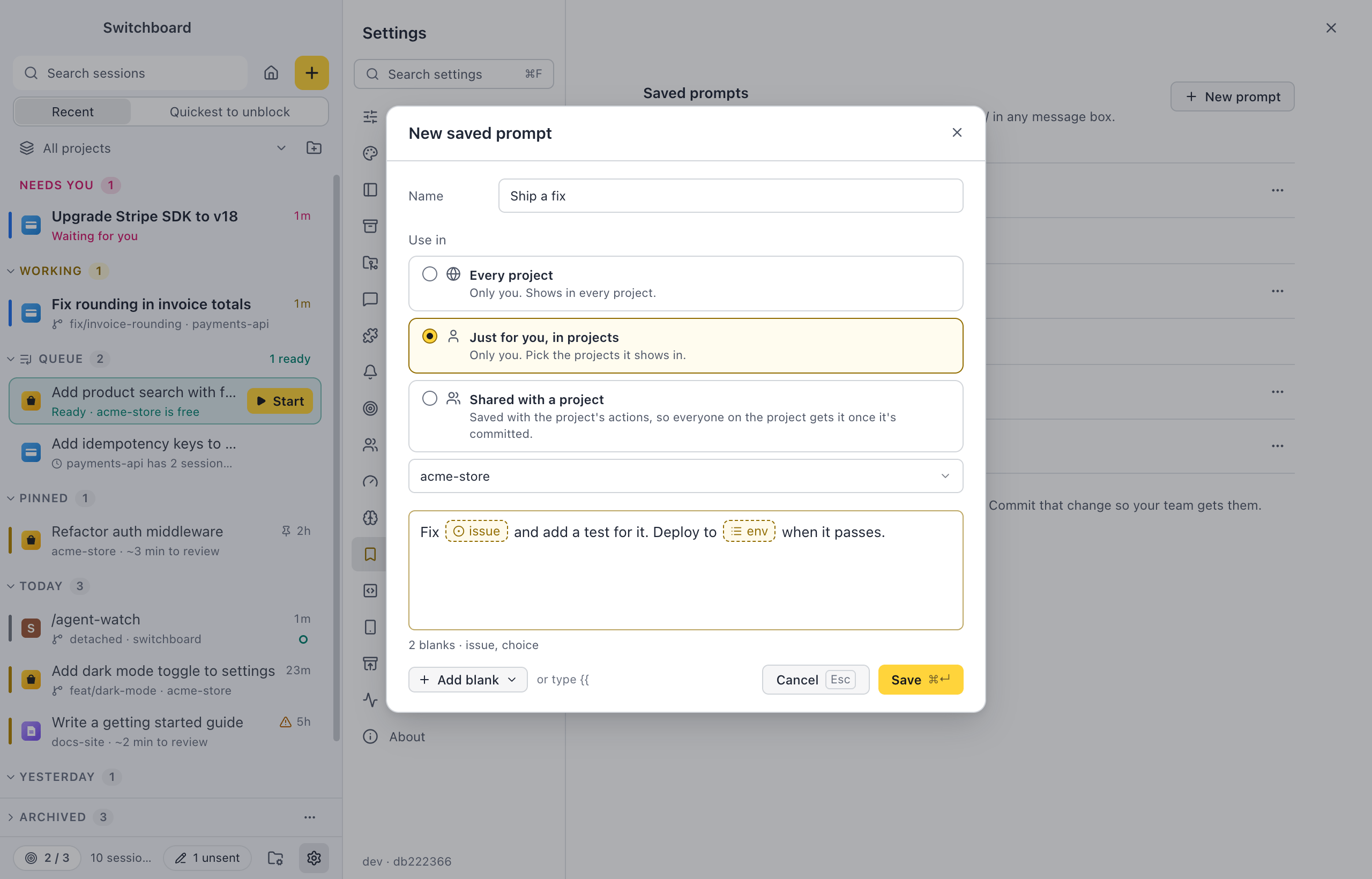
The footer says what the prompt asks for, such as “2 blanks · issue, choice”. A prompt needs a name, a choice needs options, and a name can be used for one kind of blank only.
From a message you sent
Section titled “From a message you sent”Right-click a message you sent, or use the bookmark in its row of actions, and choose Save as prompt…. The editor opens with the message. Links to GitHub issues and pull requests, branch names and file paths in it are highlighted: click one to turn it into a blank of the right type.
Write blanks by hand
Section titled “Write blanks by hand”A saved prompt is text. A blank is written as {{name}} or {{name:type}}:
| Written | Blank |
|---|---|
{{reason}} |
Text, the default |
{{env:choice=staging|production}} |
A choice of those options |
{{issue:issue}} |
A GitHub issue |
{{pr:pr}} |
A pull request |
{{base:branch}} |
A local branch |
{{test:file}} |
A file in the project |
{{context?}} |
A ? after the name makes it optional |
The same name used twice is one blank, filled once. A type Switchboard doesn’t know is a text blank. \{{ writes the braces themselves. Paste a prompt with blanks written out into the editor and they become chips.
Start implementing {{issue:issue}} on {{branch:branch}}. Deploy to {{env:choice=staging|production}} when the tests pass.{{notes?}}Manage your prompts
Section titled “Manage your prompts”Settings › Prompts lists every saved prompt: those for Every project first, then per project those just for you and those shared with the project. Each row shows the name, its blanks and how often you used it (“2 blanks · pull request, branch · used 11×”).
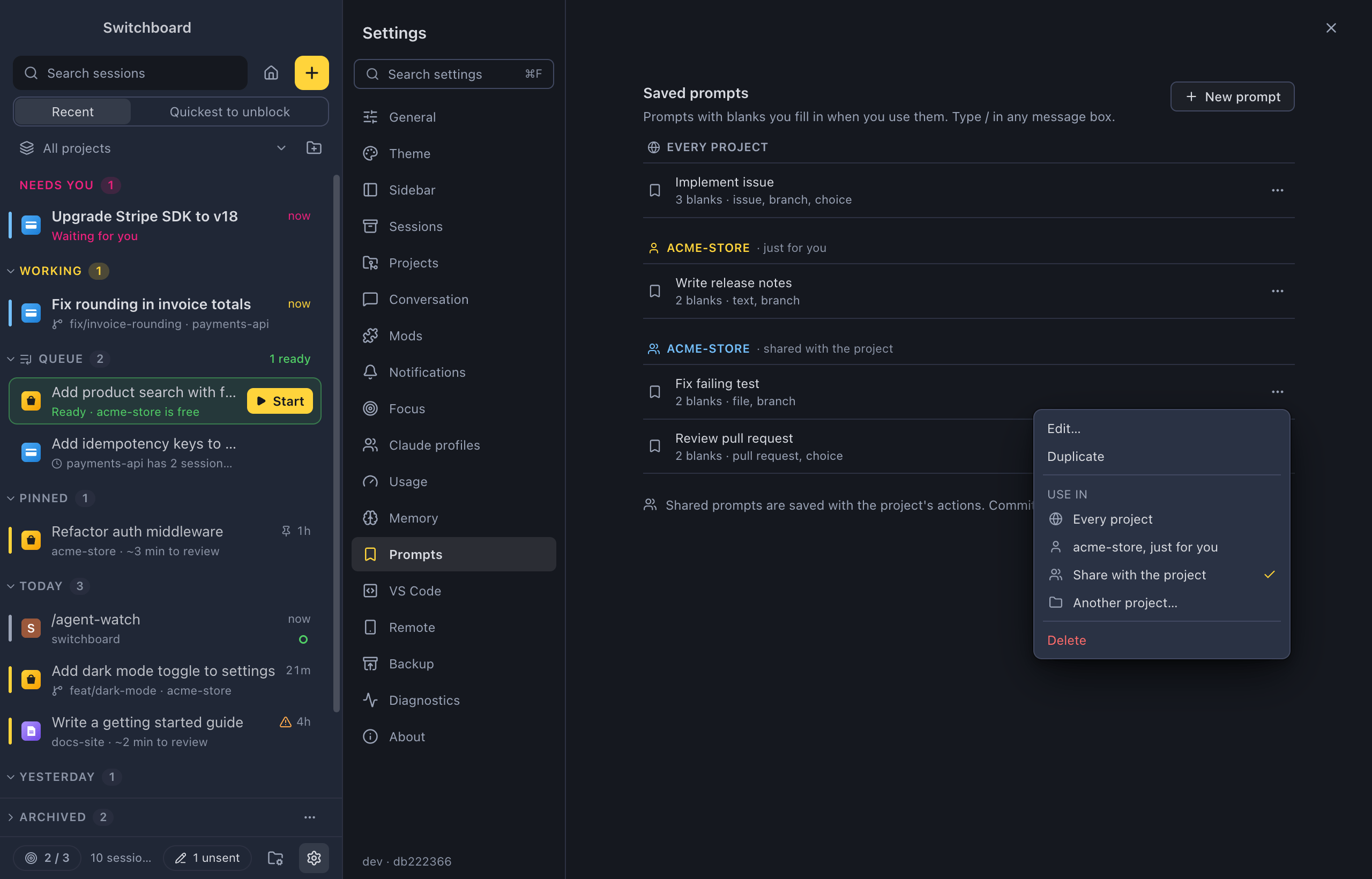
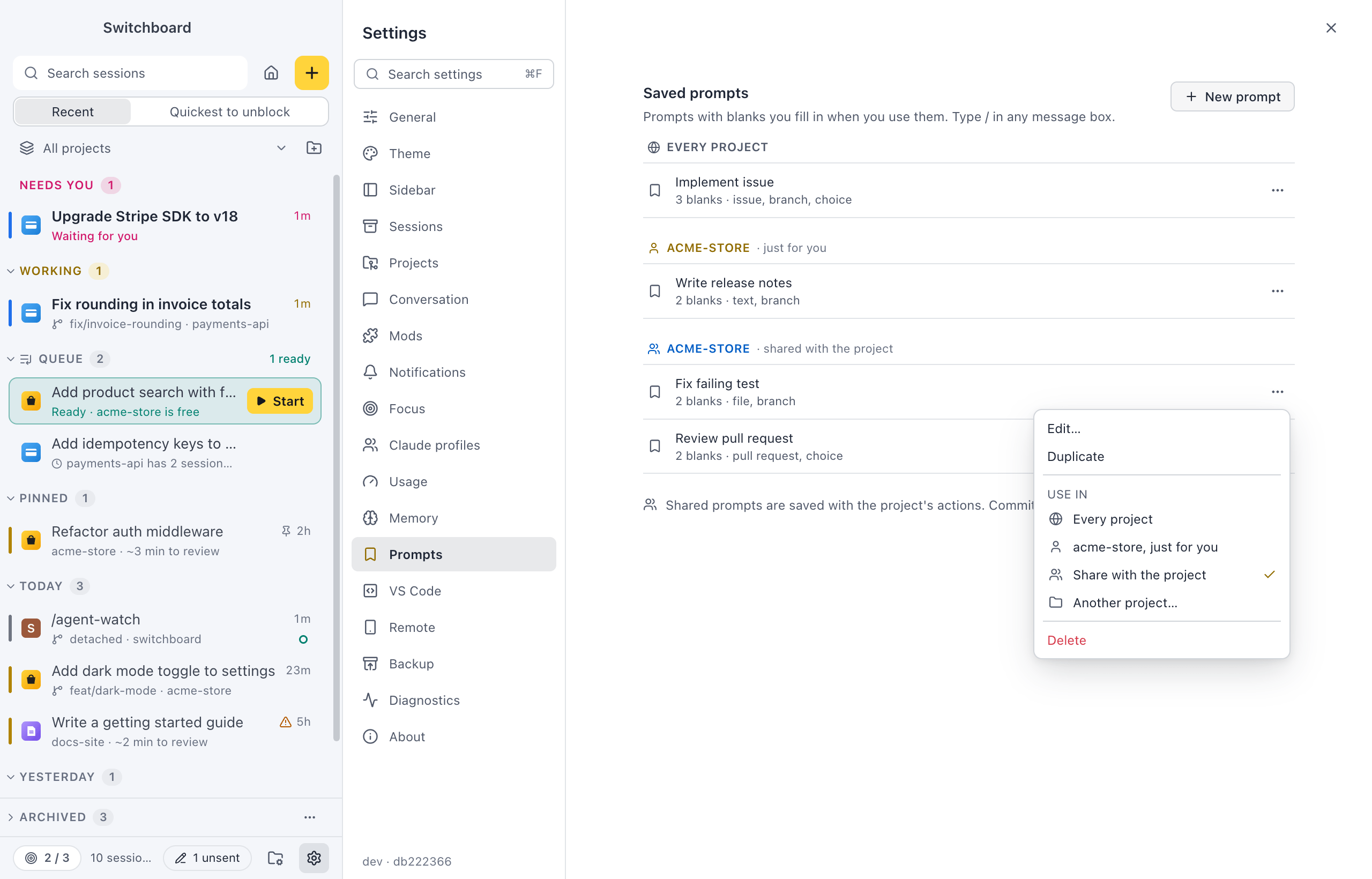
The ⋯ menu of a prompt has:
- Edit… and Duplicate.
- Use in: Every project, <project>, just for you, Share with the project and Another project…. The check is on where it is now. Choose another to move it there.
- Delete, with Undo in the message that follows.
Sharing a prompt, or taking it out of the shared ones, changes a file in the repository. The message says so (“Fix failing test is shared with acme-store”), with Show the change, which opens the file in Changes, and Undo.
Shared prompts
Section titled “Shared prompts”Shared prompts are kept in the project’s .switchboard.json, next to its shared actions, under prompts. Commit the file and everyone on the project gets them. When the file changes, for example after a pull, the lists update.
{ "actions": [], "prompts": [ { "id": "fix-failing-test", "name": "Fix failing test", "text": "Fix {{test:file}}. It fails on {{branch:branch}}." } ]}| Key | Values |
|---|---|
name |
Up to 60 characters (required) |
text |
The prompt, with its blanks (required) |
id |
Lowercase letters, digits and dashes. From the name when it’s left out |
Switchboard keeps the other keys in the file as they are and writes the keys in the same order, so a change is a small diff. How often you use a shared prompt stays on your computer, never in the file.
Related
Section titled “Related”- Project actionsOne-click buttons for the commands and prompts you run over and over in a project.
- Unsent messagesWhat you type and don't send is kept, also after you quit, and easy to find again.
- LinksOpen Switchboard from a switchboard:// link, to start a session with a prompt or jump to an existing one.
- Type the same thing lessTurn the prompts, commands and choices you repeat into saved prompts, buttons, links and defaults, so a new session takes a click or a key.