
Schedules
A schedule starts a session from a prompt at set times. Use it for work that comes back: “review yesterday’s open pull requests” every weekday at 08:00, “check for dependency updates” on Mondays, “write the standup summary from yesterday’s commits”. Every run is a new session.
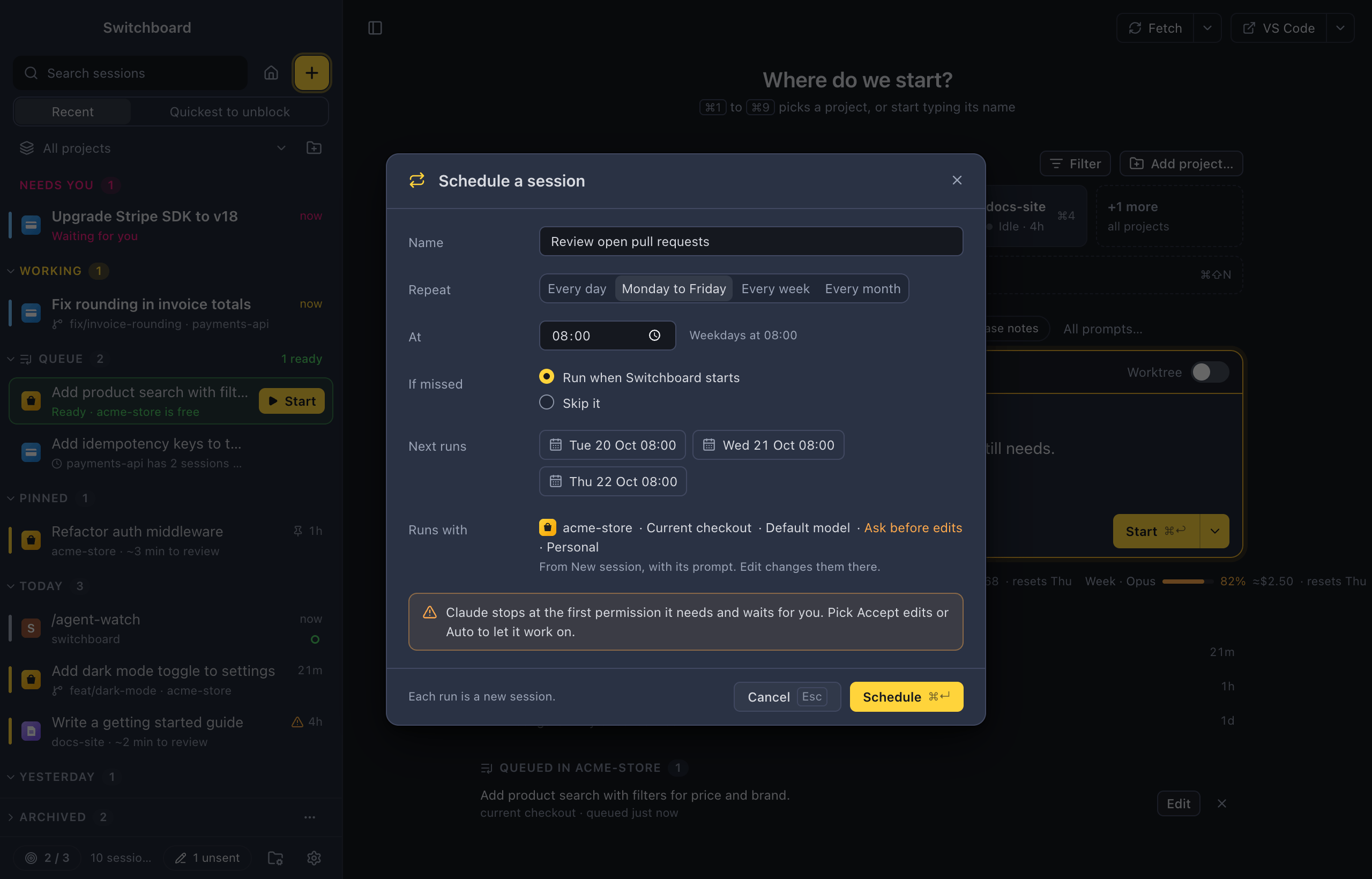
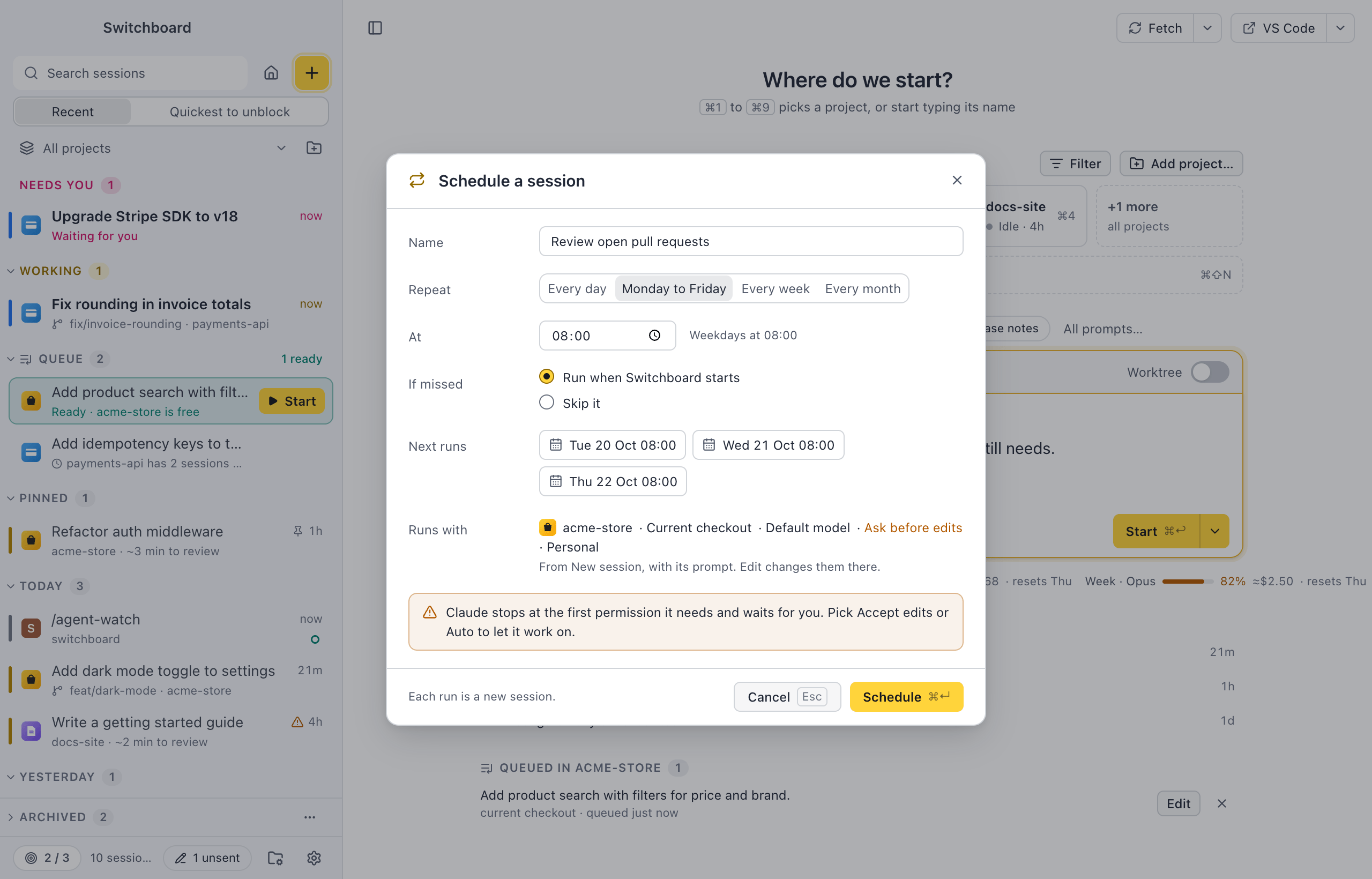
Schedule a prompt
Section titled “Schedule a prompt”- In New session, pick the project and write the prompt.
- Set the choices each run should start with: model, effort, mode, branch or worktree, profile. Images and files you added go with it.
- Choose Schedule… in Start’s ▾ menu, after Add to queue.
- In Schedule a session, set when it runs, then choose Schedule (Command, ReturnControl, Enter).
A message in the corner says when it runs next, such as “Review open pull requests is scheduled. Next: Tomorrow 08:00”, and New session empties.
In the command palette, Schedule a session… does the same with the prompt you are writing in New session. Anywhere else it opens New session to write one.
The dialog
Section titled “The dialog”| Field | What it does |
|---|---|
| Name | Filled in from the prompt’s first line. Each run’s session is titled with it and the day, such as “Review open pull requests · Mon 19 Oct”. |
| Repeat | Once, Every day, Monday to Friday, Every week or Every month. Once shows a Date field, and a new schedule starts an hour from now, so “run this in an hour” is two clicks. Every week shows a toggle for each day (M T W T F S S), with today on. Every month shows a Day field, from 1 to 31. |
| At | The time, shown the way your computer shows times. Next to it, the rule in words: “Once on Tue 20 Oct at 09:00”, “Weekdays at 08:00”, “Mondays and Thursdays at 09:30”, “On the 1st at 10:00”. |
| If missed | Run when Switchboard starts (the default) or Skip it. See Missed runs. |
| Next runs | The next three runs, such as “Tue 20 Oct 08:00”. They change as you edit the rule, so you can check it. |
| Runs with | The project, the worktree or branch, the model, effort, mode and profile, from New session. To change them, use Edit… (see Change a schedule). |
A day of the month that a month doesn’t have, such as the 31st in a 30-day month or the 29th of February, runs on that month’s last day.
Where schedules show
Section titled “Where schedules show”- Upcoming, with every schedule and the runs of the next 7 days, where you can skip a single run. Schedules… in the command palette opens it on the schedules.
- The Schedules card on Home, under the queue, with the first three and Schedule a session, which opens New session.
- The Schedules section in a project’s Sessions tab, for that project.
- In the command palette, Schedules: pick one… lists them. Pick one to Run now, Edit…, Pause or Resume, or Delete it.
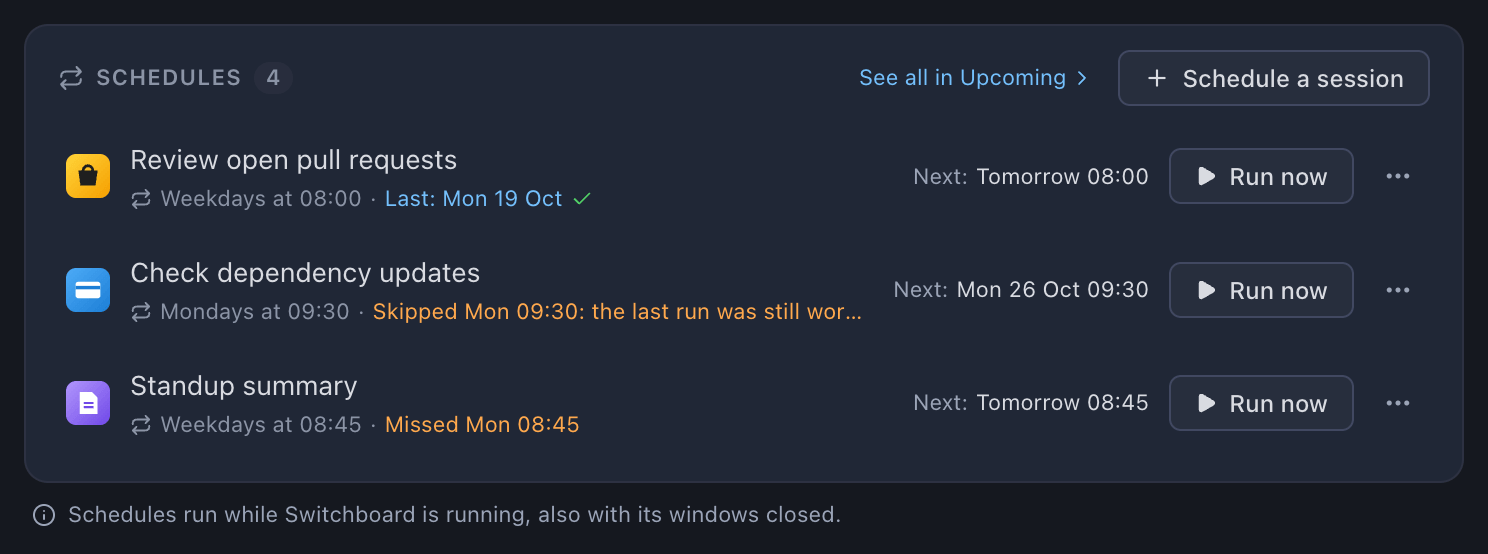
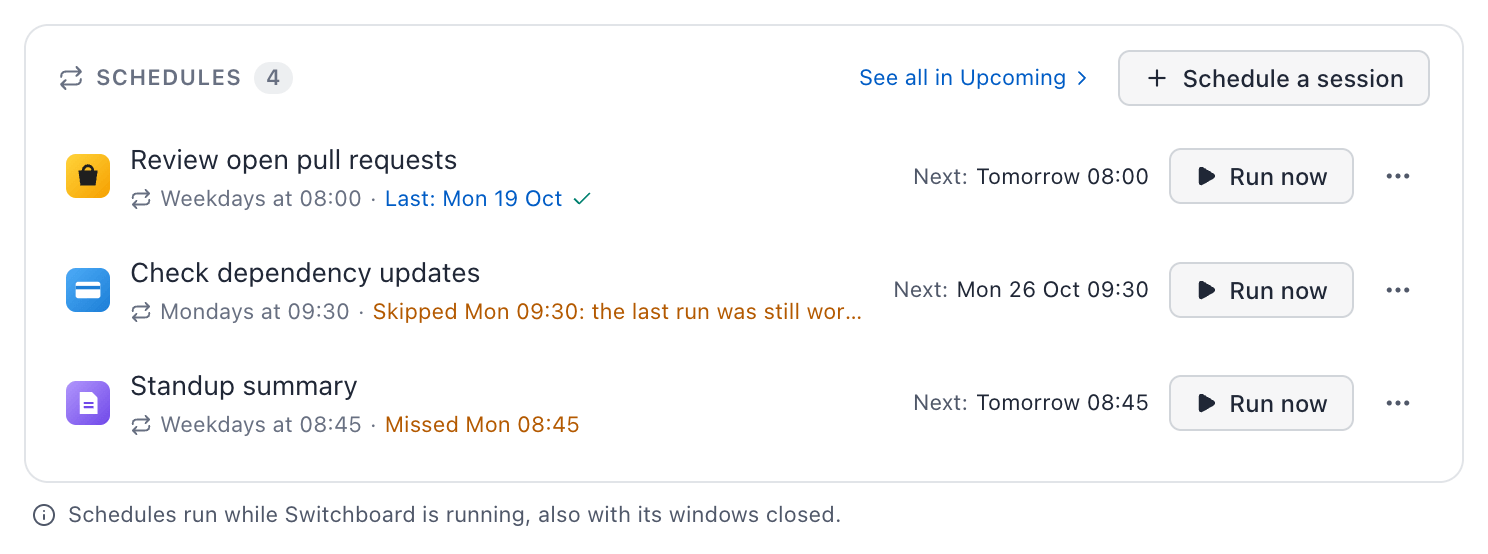
Each row shows:
- the project’s icon and the schedule’s name;
- the rule in words, after the repeat icon;
- the last run: “Last: Mon 19 Oct” with a check, which opens that run’s session. When a run didn’t start, it says why instead: “Skipped Tue 08:00: the last run was still working”, “Missed Mon 08:45” or “Folder not found”;
- on the right, the next run, such as “Next: Tomorrow 08:00”, or Paused;
- Run now and a ⋯ menu.
A schedule set to Once leaves the lists after its run. Upcoming shows its run under History for 7 days, then Switchboard removes it. The session it started keeps the repeat icon.
A paused schedule keeps its place, dimmed.
In the sidebar, a session a schedule started has the repeat icon before its second line.
When a run starts
Section titled “When a run starts”At its time, Switchboard starts a new session from the prompt and its choices, the same way Start starts a queued item. A notification says “Scheduled: Review open pull requests started”, with the project. A click opens the session. When Claude finishes, the usual “Claude finished” notification follows.
A run never asks you anything, since nobody may be there:
- The last run is still busy. When the session of the last run is still working, or waiting for you, this run is skipped. The row says “Skipped Tue 08:00: the last run was still working”, and a notification says it was skipped.
- The focus limit. At the focus limit, the run goes to the queue as an item that starts by itself. It starts when a slot frees. A notification says “Scheduled: Review open pull requests is in the queue”, with the reason.
- A usage limit. When the run’s Claude profile is at its usage limit, it goes to the queue the same way and starts when the limit resets.
- The folder is gone. A schedule whose project folder isn’t there doesn’t run. It pauses, and the row says “Folder not found”. Removing a project from Switchboard pauses its schedules too.
Run now starts a run straight away, with the same rules. It doesn’t move the next run.
Missed runs
Section titled “Missed runs”When Switchboard was closed, or the computer was asleep, at a schedule’s time:
- With Run when Switchboard starts, it runs once when Switchboard starts or the computer wakes, however many runs were missed.
- With Skip it, it doesn’t run. The row says “Missed Mon 08:45”, and it runs again at its next time.
When several schedules run at once this way, one notification says so: “3 scheduled sessions started”.
Time changes
Section titled “Time changes”Times are your computer’s local time. A schedule follows a change of time zone, and the clock changing for daylight saving time:
- On the day the clocks go forward, a time that doesn’t exist (02:30 when 02:00 jumps to 03:00) runs at 03:00.
- On the day the clocks go back, a time that happens twice runs once, the first time.
Change, pause or delete
Section titled “Change, pause or delete”The row’s ⋯ menu (or a right-click on the row) has:
| Item | What it does |
|---|---|
| Run now | Starts a run now. The next run stays as it is. |
| Skip next run | Skips the next run only. The schedule stays active. Upcoming shows it as Skipped by you, with Undo. |
| Edit… | Opens New session filled in with the schedule’s prompt and choices. Change them, then choose Save schedule in Start’s ▾ menu, which opens the dialog with the schedule’s values. |
| Pause | Stops it until you choose Resume. Runs that were due while it was paused don’t run. |
| Delete | Deletes it without asking. The message in the corner has Undo, which puts it back. |
When schedules run
Section titled “When schedules run”Schedules run while Switchboard is running. Closing its windows leaves it running, so schedules still run. Quitting Switchboard stops them until you open it again.
Schedules run while a Switchboard window is open. Closing the last window quits Switchboard, and schedules wait until you open it again. A run that was due meanwhile is a missed run.
Switchboard doesn’t start itself or wake the computer for a run.
Export and import
Section titled “Export and import”Schedules travel in the Schedules section of a settings file. A schedule whose project folder isn’t on the other computer is imported paused, with “Folder not found”.
Related
Section titled “Related”- UpcomingOne view for everything queued and scheduled, across all your projects, with the scheduled runs of the next 7 days.
- QueueKeep prompts to start later, in the order you want them, and see when each one is ready.
- HomeOne view of what needs you, what is working, your queue, your schedules and your projects.
- SessionsA project's Sessions tab lists its sessions the way the sidebar does, with its queued prompts, schedules and archived sessions.
- Focus limitSet how many sessions you want going at the same time, and get asked before you start one more.
- Notifications and soundsTurn notifications and sounds on or off, each on its own, and pick a sound for each moment.